Exforsys

Analysis Services Training

  1. MSAS - Browsing the Dependency Network
  2. MSAS - Building a Relational Decision Tree Model
  3. MSAS - Introduction to Data Mining
  4. MSAS - Applying security to a Dimension
  5. Tutorial 65: MSAS - Managing Cube Roles
  6. MSAS - Understanding Database Roles
  7. MSAS - Securing User Authentication
  8. MSAS - Introducing Analysis Services Security
  9. MSAS - Writebacks
  10. MSAS - Defining and Creating Drillthrough
  11. MSAS - Defining and Creating Auctions
  12. MSAS - Creating and Maintaining Calculated Members in Virtual Cubes
  13. MSAS - Building a Virtual Cube
  14. MSAS - Understanding Virtual Cubes
  15. MSAS - Introducing Solve Order
  16. MSAS - Implementing Calculations Using MDX Part 2
  17. MSAS - Implementing Calculations Using MDX Part 1
  18. MSAS - Merging Partitions
  19. MSAS - Introduction and Managing Partitions
  20. MSAS - Troubleshooting Cube Processing
  21. MSAS - Optimizing Cube Processing
  22. MSAS - Processing Dimensions and Cubes
  23. MSAS - Introducing Dimension and Cube Processing
  24. MSAS: Optimization Tuning Part 2
  25. MSAS: Optimization Tuning Part 1
  26. MSAS: Usage-Based Optimization
  27. MSAS: Analysis Services Aggregations
  28. MSAS: The Storage Design Wizard
  29. MSAS: Analysis Server Cube Storage
  30. MSAS: Defining Cube Properties
  31. MSAS: Introduction and Working with Measures
  32. MSAS: Introduction and Working with Cubes
  33. MSAS: Virtual Dimensions
  34. MSAS: Introducing Member Properties
  35. MSAS: Creating Custom Rollups
  36. MSAS: Creating a Time Dimension
  37. MSAS: Understanding Hierarchies
  38. MSAS: Dimension Storage Modes and Levels
  39. MSAS: Working with Levels and Hierarchies
  40. MSAS: Working with Parent-Child Dimensions
  41. MSAS : Basics of Levels
  42. MSAS : Working with Standard Dimensions
  43. MSAS : Shared vs Private Dimensions
  44. Understanding Dimension Basics
  45. MSAS : Office 2000 OLAP Components
  46. MSAS : Client Architecture
  47. MSAS : Cube Storage options
  48. MSAS : Meta data Repository
  49. MSAS : Analysis services Tools for Extended Functionality
  50. MSAS : The Wizards
  51. MSAS : The Analysis Manager and Analysis Server
  52. MSAS : The Data warehousing framework of SQL Server 2000 - Part 2
  53. MSAS : The Data warehousing framework of SQL Server 2000 - Part 1
  54. MSAS : Microsoft Data Warehousing Overview
  55. MSAS : Browsing the Cube
  56. MSAS : Designing Storage and Processing the Cube
  57. MSAS : Building the Cube Part #3
  58. MSAS : Building the Cube Part #2
  59. MSAS : Building the Cube Part #1
  60. MSAS : Setting up the Database in Analysis Server
  61. MSAS : Preparing to Create the Cube
  62. MSAS : Introducing Analysis Manager Wizards
  63. Microsoft Analysis Services Installation
  64. MSAS - Applying OLAP Cubes
  65. Understanding OLAP Models
  66. Designing the Dimensional Model and Preparing the data for OLAP
  67. Design of the data warehouse: Kimball Vs Inmon
  68. Defining OLAP Solutions and Data Warehouse design
  69. Microsoft Analysis Services Training
  70. Data Warehouse database and OLTP database
  71. Introduction to Data Warehousing

Ads


Home arrow Technical Training arrow Analysis Services Training

MSAS : Shared vs Private Dimensions

Page 1 of 2
Author : Exforsys Inc.     Published on: 31st Mar 2005
This tutorial explains how to create Shared dimension using Dimension Editor , Private dimension using Dimension Editor and the differences between them.

Creating Shared Dimension using Dimension Editor

Ads

1. In the Analysis Manager tree pane, expand the database in which you want to create the shared dimension.

2. Right-click the Shared Dimensions folder, point to New Dimension, and then click Editor
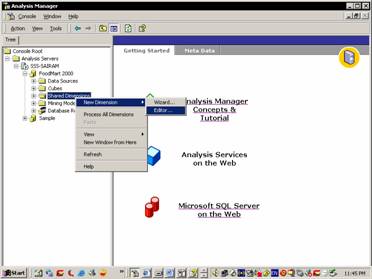

3. In the Choose a Dimension Table dialog box, expand a data source, click the dimension table for the dimension, and then click OK.

Dimension Editor appears with the dimension table showing in the Schema tab.
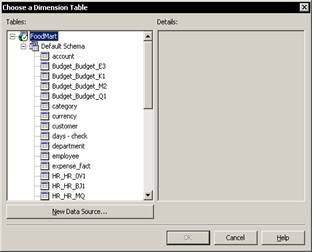


4. To add more tables to the dimension, on the Insert menu, click Tables, and then use the Select Table dialog box.
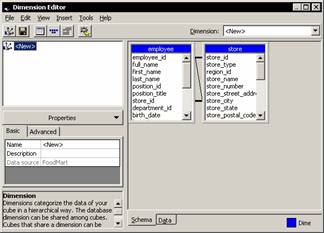

5. If the dimension contains multiple tables, ensure each is joined to another. To join two columns, in the Schema tab, drag one column to the other.

6. Create levels in the dimension. It is easiest to create the highest, most general level first and then create progressively lower, more specific levels; otherwise, if member counting is enabled, a confirmation dialog box appears each time you add a level. For each level you want to create:

  • On the Insert menu, click Level.
  • In the Insert Level dialog box, select the column on which the level is based, and then click OK.
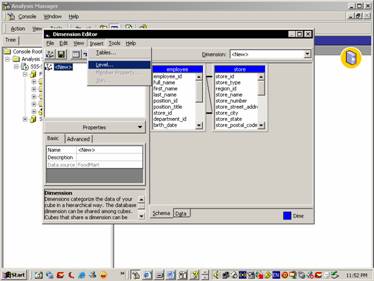

As you create each level, it appears in the tree pane.

Ads

7. (Optional.) In the properties pane, modify the properties of the dimension and its levels.
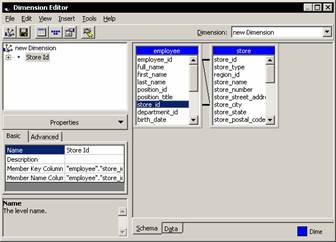

8. To save the dimension, on the File menu, click Save, type a name for the dimension in the New Dimension Name dialog box, and then click OK.

To browse a shared dimension

  • In the Analysis Manager tree pane, right-click a shared dimension, and then click Browse Dimension Data. -or-
  • In the Cube Editor tree pane, right-click a shared dimension, and then click Browse.


This tutorial is part of a Analysis Services Training tutorial series. Read it from the beginning and learn yourself.

Analysis Services Training

  1. MSAS - Browsing the Dependency Network
  2. MSAS - Building a Relational Decision Tree Model
  3. MSAS - Introduction to Data Mining
  4. MSAS - Applying security to a Dimension
  5. Tutorial 65: MSAS - Managing Cube Roles
  6. MSAS - Understanding Database Roles
  7. MSAS - Securing User Authentication
  8. MSAS - Introducing Analysis Services Security
  9. MSAS - Writebacks
  10. MSAS - Defining and Creating Drillthrough
  11. MSAS - Defining and Creating Auctions
  12. MSAS - Creating and Maintaining Calculated Members in Virtual Cubes
  13. MSAS - Building a Virtual Cube
  14. MSAS - Understanding Virtual Cubes
  15. MSAS - Introducing Solve Order
  16. MSAS - Implementing Calculations Using MDX Part 2
  17. MSAS - Implementing Calculations Using MDX Part 1
  18. MSAS - Merging Partitions
  19. MSAS - Introduction and Managing Partitions
  20. MSAS - Troubleshooting Cube Processing
  21. MSAS - Optimizing Cube Processing
  22. MSAS - Processing Dimensions and Cubes
  23. MSAS - Introducing Dimension and Cube Processing
  24. MSAS: Optimization Tuning Part 2
  25. MSAS: Optimization Tuning Part 1
  26. MSAS: Usage-Based Optimization
  27. MSAS: Analysis Services Aggregations
  28. MSAS: The Storage Design Wizard
  29. MSAS: Analysis Server Cube Storage
  30. MSAS: Defining Cube Properties
  31. MSAS: Introduction and Working with Measures
  32. MSAS: Introduction and Working with Cubes
  33. MSAS: Virtual Dimensions
  34. MSAS: Introducing Member Properties
  35. MSAS: Creating Custom Rollups
  36. MSAS: Creating a Time Dimension
  37. MSAS: Understanding Hierarchies
  38. MSAS: Dimension Storage Modes and Levels
  39. MSAS: Working with Levels and Hierarchies
  40. MSAS: Working with Parent-Child Dimensions
  41. MSAS : Basics of Levels
  42. MSAS : Working with Standard Dimensions
  43. MSAS : Shared vs Private Dimensions
  44. Understanding Dimension Basics
  45. MSAS : Office 2000 OLAP Components
  46. MSAS : Client Architecture
  47. MSAS : Cube Storage options
  48. MSAS : Meta data Repository
  49. MSAS : Analysis services Tools for Extended Functionality
  50. MSAS : The Wizards
  51. MSAS : The Analysis Manager and Analysis Server
  52. MSAS : The Data warehousing framework of SQL Server 2000 - Part 2
  53. MSAS : The Data warehousing framework of SQL Server 2000 - Part 1
  54. MSAS : Microsoft Data Warehousing Overview
  55. MSAS : Browsing the Cube
  56. MSAS : Designing Storage and Processing the Cube
  57. MSAS : Building the Cube Part #3
  58. MSAS : Building the Cube Part #2
  59. MSAS : Building the Cube Part #1
  60. MSAS : Setting up the Database in Analysis Server
  61. MSAS : Preparing to Create the Cube
  62. MSAS : Introducing Analysis Manager Wizards
  63. Microsoft Analysis Services Installation
  64. MSAS - Applying OLAP Cubes
  65. Understanding OLAP Models
  66. Designing the Dimensional Model and Preparing the data for OLAP
  67. Design of the data warehouse: Kimball Vs Inmon
  68. Defining OLAP Solutions and Data Warehouse design
  69. Microsoft Analysis Services Training
  70. Data Warehouse database and OLTP database
  71. Introduction to Data Warehousing
 

Comments