
Exforsys

SQL Server 2005 Training

  1. SQL Server 2005 - Configuring Replication
  2. SQL Server 2005 Replication Enhancements
  3. SQL Server 2005 - Mirror Server
  4. SQL Server 2005 - Introduction to Data Availability
  5. SQL Server 2005 - Backing up a Database
  6. SQL Server 2005 - Using Database Snapshots
  7. SQL Server 2005 - Disaster Recovery
  8. SQL Server 2005 - Managing Certificates
  9. SQL Server 2005 - Managing Permissions
  10. Managing SQL Server 2005 Security
  11. SQL Server 2005 - Using the Database Tuning Advisor
  12. SQL Server 2005 - Tuning a Database
  13. Maintain indexes in a SQL Server 2005 database
  14. SQL Server 2005 - Defining Indexes
  15. SQL Server 2005 - Database Backup
  16. SQL Server 2005 - Populating the Database
  17. SQL Server 2005 Configuration Manager
  18. SQL Server 2005 - Using the Sqlcmd Utility
  19. Using the SQL Management Objects
  20. Using SQL Sever Management Studio - Part 2
  21. Using SQL Sever Management Studio - Part 1
  22. SQL Server 2005 - Using Event Notifications
  23. SQL Server 2005 - Using DDL Triggers
  24. SQL Server Monitoring Tools - Server Profiler
  25. SQL Server 2005 - Testing Troubleshooting
  26. SQL Server 2005 - Upgrading from earlier versions of SQL Server
  27. SQL Server 2005 Installation - Maintenance Plan Without Using Wizard
  28. SQL Server 2005 - Unattended Installations
  29. SQL Server 2005 Installation - Maintenance Plan Using Wizard
  30. Installing a Second Copy of SQL Server 2005
  31. Planning to Install SQL Server 2005
  32. SQL Server 2005 Installation
  33. SQL server 2005 Editions
  34. SQL Server 2005 Architecture Overview
  35. SQL Server 2005 - Management studio interface Summary Page
  36. SQL Server 2005 - Server Groups
  37. SQL Server 2005 - Registered Servers
  38. SQL Server 2005 Administrative Tools
  39. Developing Client applications in SQL Server 2005
  40. SQL Server Management Objects
  41. NET CLR in SQL Server 2005
  42. Native HTTP Support in SQL Server 2005
  43. XML Data Types in SQL Server 2005
  44. Using XML in SQL Server 2005
  45. Using Notification Services in SQL Server 2005
  46. SQL Server 2005 - Service Broker
  47. Data Manipulation Language (DML) in SQL Server 2005
  48. T-SQL Enhancements in SQL Server 2005
  49. Security Features in SQL Server 2005 for the Developer
  50. SQL Server Architecture and Components
  51. SQL Server 2005 Management Studio
  52. Overview of SQL Server 2005 for the Database Developer
  53. Getting started with SQL Server 2005

Ads


Home arrow Technical Training arrow SQL Server 2005 Training

SQL Server 2005 Installation

Author : Exforsys Inc.     Published on: 23rd Nov 2005    |   Last Updated on: 26th Jan 2009

SQL Server 2005 Installation

An interactive set up program helps the setup of SQL Server 2005. The steps have been designed to help the Administrator select the requisite options along the way. The setup screen automatically starts up as soon as the CD/DVD is inserted into the drive. If it does not, the user can start the setup process by browsing the contents of the CD/DVD and double clicking the setup.exe.


Ads

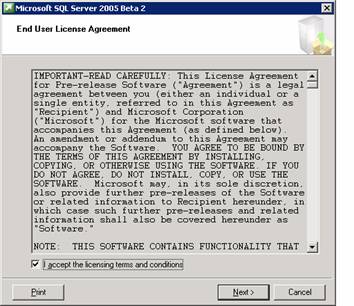
The first screen to be displayed is the end user license agreement(EULA). The user is expected to read through the license agreement and accept the license before he can proceed any further. After accepting the license agreement, click on Next to proceed.
The next screen informs the user that some of the required components will be checked for and upgraded. Setup installs some necessary components prior to beginning the SQL Server installation and before any files are installed, the System Consistency Checker verifies that there are no problems that will prevent installation.
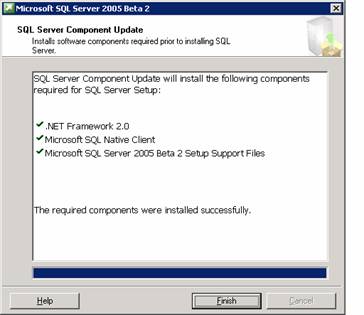
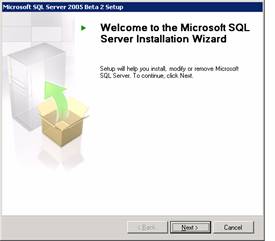
Note that .NET Framework 2.0, Microsoft SQL Native Client and Microsoft SQL Server 2005 Setup support files have to be installed. The finish button is to be clicked. Now the Welcome screen appears.
The next step is the system configuration check. The report of the check is displayed to the user. The success or failure of the check is reported along with warnings if any.
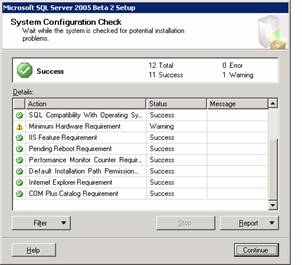
Once the user clicks continue the installation begins.

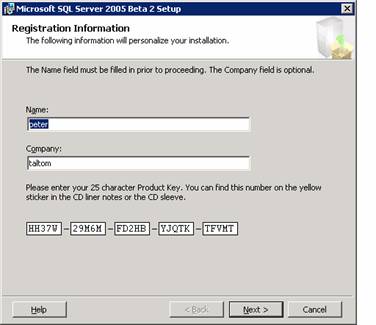
The next step is to enter the registration information. The user enters his name, company name and the serial number as it appears on the yellow sticker on the cover of the DVD. The user then clicks on Next to continue.
Next the components to be installed have to be specified. The user can chose to install all the components or some of the components. Some of these components require further configuration information and the user will be prompted to enter such information if the components are selected. If the SQL Server is being installed on a cluster, the user will be required to enter cluster information.
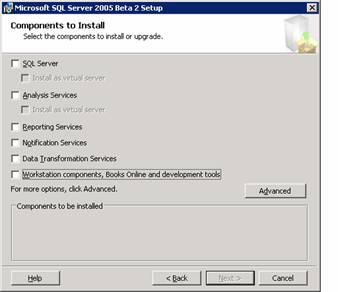
On clicking Next, the Feature selection dialog box appears. All the selected features are displayed.

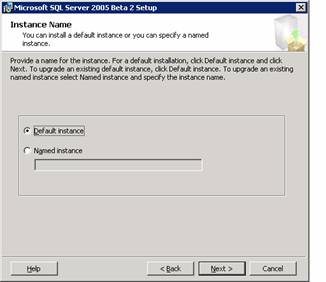
On clicking next the user is prompted to select the instance name. If he selects Default instance no name need be specified. If he selects Named instance, he will have to specify a name for the instance. Click Next to continue.
The user is now prompted to enter the details of the service account which is to be used for login to the server. The local or Domain user account can be selected. The security context required to run the SQL server demands that a user account be specified during installation. By default Windows authentication mode is supported.

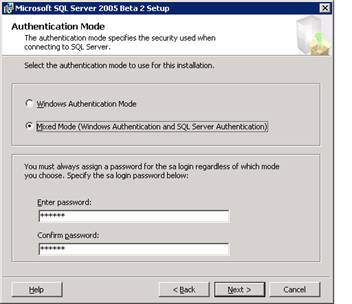
The Authentication mode dialog box appears. The user must specify the authentication mode. It can be Windows authentication or Mixed mode. The user must assign a login irrespective of the mode selected. He must enter the password and confirm it before clicking next to continue.
The next dialog box is the Collation Settings dialog box. Collation settings define the sorting behaviour of the server. SQL server collations are used for setting up compatibility with earlier versions of SQL Servers.
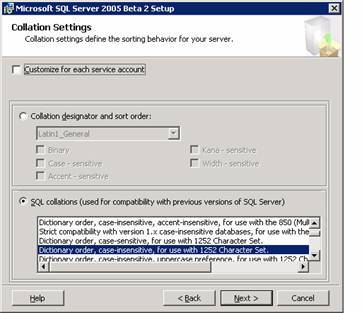
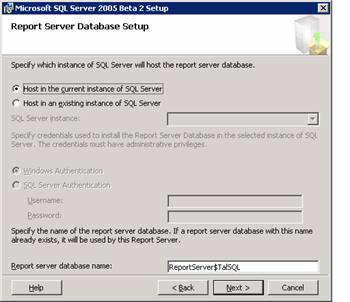
The Report server database setup dialog box which appears requires the user to specify the instance of the SQL Server which will host the report server database. Select Host in current instance of SQL Server and specify the report server database name and click next to continue.
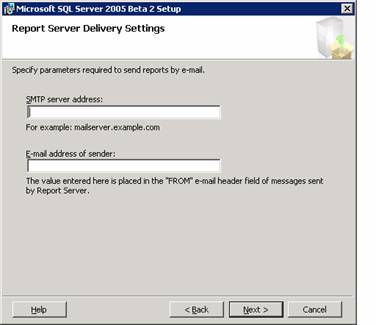
The Next dialog box is the Report Server Delivery Settings dialog box. The user has to specify the parameters required for sending email reports. Click Next to continue if you do not wish to enter any details here.
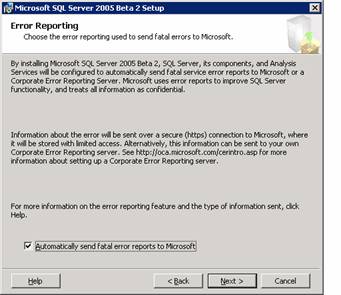
The Error Reporting dialog box appears prompting the user that SQL server, its components and Analysis services will be configured to send fatal service error reports to Microsoft or a corporate error reporting server. The user can select the check box and click next as this helps Microsoft in monitoring its services and improving upon its software. Click Next to continue.
The ready to install dialog box displays all the components that are going to be installed on the system. To proceed with the installation the user has to click on Next.
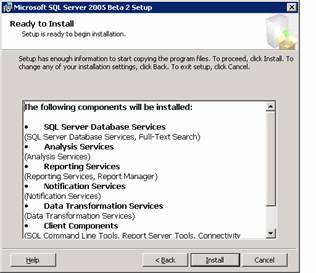
The setup progress bar is displayed. On completion of set up the Next button will become enabled and the user has to click on Next to proceed.
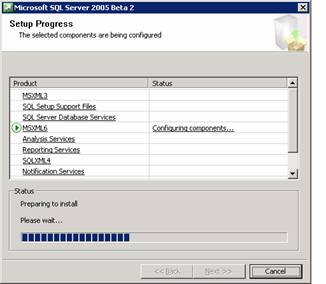
The next dialog box displays all the files that are being configured. The user has to click on Next to continue.

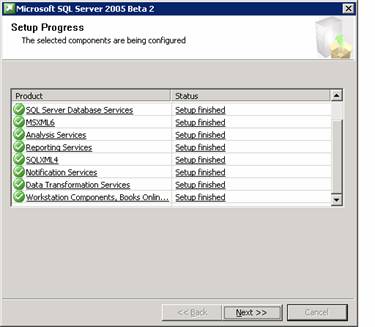
The last dialog box displays the progress of the set up. All the selected components being configured are displayed and their status indicated. Click on Next to continue.
Ads

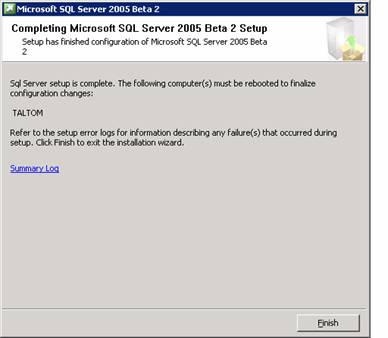
This takes the user to the final screen of the setup. The system is required to be rebooted for the configuration to take effect. The user is asked to click on finish to reboot the system. The user is informed that any errors in set up are recorded in the summary log for future reference. Click on Finish to complete the process.
In the section that follows we shall see how this installation is maintained.


This tutorial is part of a SQL Server 2005 Training tutorial series. Read it from the beginning and learn yourself.

SQL Server 2005 Training

  1. SQL Server 2005 - Configuring Replication
  2. SQL Server 2005 Replication Enhancements
  3. SQL Server 2005 - Mirror Server
  4. SQL Server 2005 - Introduction to Data Availability
  5. SQL Server 2005 - Backing up a Database
  6. SQL Server 2005 - Using Database Snapshots
  7. SQL Server 2005 - Disaster Recovery
  8. SQL Server 2005 - Managing Certificates
  9. SQL Server 2005 - Managing Permissions
  10. Managing SQL Server 2005 Security
  11. SQL Server 2005 - Using the Database Tuning Advisor
  12. SQL Server 2005 - Tuning a Database
  13. Maintain indexes in a SQL Server 2005 database
  14. SQL Server 2005 - Defining Indexes
  15. SQL Server 2005 - Database Backup
  16. SQL Server 2005 - Populating the Database
  17. SQL Server 2005 Configuration Manager
  18. SQL Server 2005 - Using the Sqlcmd Utility
  19. Using the SQL Management Objects
  20. Using SQL Sever Management Studio - Part 2
  21. Using SQL Sever Management Studio - Part 1
  22. SQL Server 2005 - Using Event Notifications
  23. SQL Server 2005 - Using DDL Triggers
  24. SQL Server Monitoring Tools - Server Profiler
  25. SQL Server 2005 - Testing Troubleshooting
  26. SQL Server 2005 - Upgrading from earlier versions of SQL Server
  27. SQL Server 2005 Installation - Maintenance Plan Without Using Wizard
  28. SQL Server 2005 - Unattended Installations
  29. SQL Server 2005 Installation - Maintenance Plan Using Wizard
  30. Installing a Second Copy of SQL Server 2005
  31. Planning to Install SQL Server 2005
  32. SQL Server 2005 Installation
  33. SQL server 2005 Editions
  34. SQL Server 2005 Architecture Overview
  35. SQL Server 2005 - Management studio interface Summary Page
  36. SQL Server 2005 - Server Groups
  37. SQL Server 2005 - Registered Servers
  38. SQL Server 2005 Administrative Tools
  39. Developing Client applications in SQL Server 2005
  40. SQL Server Management Objects
  41. NET CLR in SQL Server 2005
  42. Native HTTP Support in SQL Server 2005
  43. XML Data Types in SQL Server 2005
  44. Using XML in SQL Server 2005
  45. Using Notification Services in SQL Server 2005
  46. SQL Server 2005 - Service Broker
  47. Data Manipulation Language (DML) in SQL Server 2005
  48. T-SQL Enhancements in SQL Server 2005
  49. Security Features in SQL Server 2005 for the Developer
  50. SQL Server Architecture and Components
  51. SQL Server 2005 Management Studio
  52. Overview of SQL Server 2005 for the Database Developer
  53. Getting started with SQL Server 2005
 

Comments