
SQL Server Monitoring Tools – Server Profiler
In this tutorial you will learn about SQL Server Profiler, To start SQL Server Profiler in SQL Server Management Studio, To start SQL Server Profiler in Database Engine Tuning Advisor, Security, Space Requirements, To change the TEMP environment variable in Windows operating systems, Using SQL Server Profiler and Analysis Services, Replay for Queries, Discovers and commands
SQL Server Profiler
SQL Server Profiler is a graphical tool that helps in the monitoring of an instance of SQL Server Database Engine or Analysis Services. The data about each event can be captured to a file or table for analysis at a later date. SQL Server 2005 incorporates certain new features into the SQL Server Profiler. The significant enhancements are as under:
1. Rollover trace files. SQL Server Profiler can replay one or more collected rollover trace files continuously and in order.
2. New extensibility standard. SQL Server Profiler uses an XML-based definition that allows SQL Server Profiler to more easily capture events from other types of servers and programming interfaces.
3. Profiling of Microsoft SQL Server 2005 Analysis Services (SSAS). SQL Server Profiler now supports capturing and displaying events raised by SSAS.
4. Profiling of Microsoft SQL Server 2005 Integration Services (SSIS). SQL Server Profiler can now display events raised by SSIS.
5. Saving of traced Showplan as XML. Showplan results can be saved in an XML format, which can be later loaded for graphical Showplan display in Query Editor without the need to have an underlying database. SQL Server Profiler will also display a graphical representation of Showplan XML events at that the time they are captured by SQL Server Profiler.
6. Save trace results as XML. Trace results can be saved in an XML format in addition to the standard save formats of ANSI, UNICODE, and OEM. Results saved in this fashion can be edited and used as input for the Replay capability of SQL Server Profiler.
7. Aggregate view. Users can choose an aggregate option and select a key for aggregation. This will enable users to see a view that shows the column on which the aggregation was performed, along with a count for the number of rows that make up the aggregate value.
8. Correlation of Trace Events to Performance Monitor Counters. SQL Server Profiler can correlate Performance Monitor Counters with SQL Server or SSAS events. Administrators can select from a predefined set of Performance Monitor Counters and save them at specified time intervals while also collecting a SQL Server or SSAS trace.
Before examining the process of using SQL Server Profiler, let us look at the terminology associated with the tool.
1. An Event is an action that is generated within an instance of a SQL Server Database Engine. These could be login failures, connection failures or disconnections. It would include events such as T-SQL statements, remote procedure call batch status, the start or end of a stored procedure, the start or end of statements within a stored procedure and so on.. These are displayed in the trace in a single row intersected by data columns with descriptive details.
2. An Event Class is an event that can be traced and contains all of the data that can be reported by the event. SQL: Batch completed for instance is an event class, just as .Audit Login, .Audit Logout etc are event classes.
3. An Event Category defines the methodology used for grouping events within the SQL Server Profiler. For instance lock events will be categorized under Lock event category.
4. A Data Column is an attribute of an event class that is captured in the trace. The event class determines the type of data that can be collected and not all data columns are applicable to all event classes.
5. A Template is the default configuration for a trace. It includes the event classes that are required for monitoring with the SQL Server Profiler.
6. A Trace captures data based on selected event classes, data columns and filters. For instance a trace monitor can be created to capture Exception event class with the Error, State and Severity data columns.
7. Data can be Filtered by specifying criteria of selection during the execution of an event. This feature is used to reduce the size of the Trace.
The SQL Server Profiler tool captures the events and stores them in a trace file for analysis. The trace file enables the replay of the events for the diagnosis of the problems. The SQL Server Profiler is used for stepping through the problem to find the cause or finding and diagnosing slow running queries, or capturing T-SQL statements that lead to a problem or Monitoring the performance of the SQL Server for tuning workloads.
Auditing actions are also supported by the Profiler. Audit traces help in maintaining the security of the server.
The rich interface of the Profiler helps the administrator create and manage traces and analyze and replay trace outputs. In the production environment the DBA will have to create a focused and well organized series of traces. He may want to do the following actions:
1. Monitor the performance of an instance of the SQL Server Database Engine, Analysis Server or Integration Services.
2. Debug Transact SQL statements and stored procedures
3. Identify slowly executing procedures and queries.
4. Perform stress testing and quality assurance by replaying traces
5. Replay traces of one or more users
6. Perform query analysis.
7. Test T-SQL statements and stored procedures in the development phase
8. Troubleshoot problems
9. Audit and review activity
10. Provide standardized hierarchical structure to trace results by saving them to the XML file.
11. Aggregate trace results
12. Correlate performance counters
13. Configure trace problems.
14. Allow non administrators create traces.
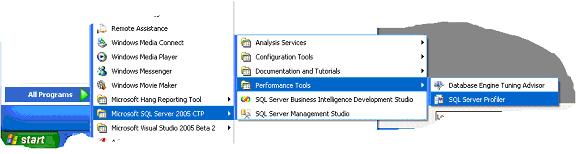
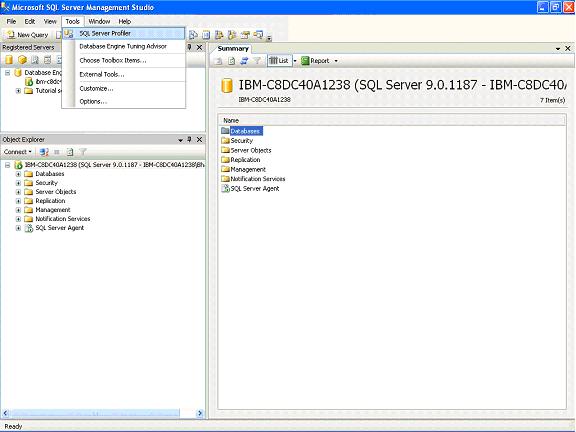
The SQL Server Profiler can be accessed in several ways. It can be invoked from the Start Menu, from the tools menu in the SQL Server Management Studio and from the Tools menu in the Database Engine Tuning Advisor.
To start SQL Server Profiler from the Start menu
On the Start menu, point to All Programs, point to Microsoft SQL Server 2005, point to Performance Tools, and then click SQL Server Profiler.
To start SQL Server Profiler in SQL Server Management Studio
On the SQL Server Management Studio Tools menu, click SQL Server Profiler.
To start SQL Server Profiler in Database Engine Tuning Advisor
On the Database Engine Tuning Advisor Tools menu, click SQL Server Profiler.

Security
When the Windows Authentication mode is used, the user account accessing SQL Profiler must have permission to connect to the instance of SQL Server. If they need to perform tracing they must have the ALTER TRACE permission.
Space Requirements
The Temp directory is the repository for the Trace files created by the SQL Server Profiler. At least 10 megabytes of space is required by the Profiler. When the available space drops below the required minimum the profiler activity stops. Therefore it is advisable to ensure that the space does not fall below the required minimum. Often DBA’s will move the Temp directory by changing the value of the TEMP environment variable, to another drive with large space to avoid this problem.
To change the TEMP environment variable in Windows operating systems
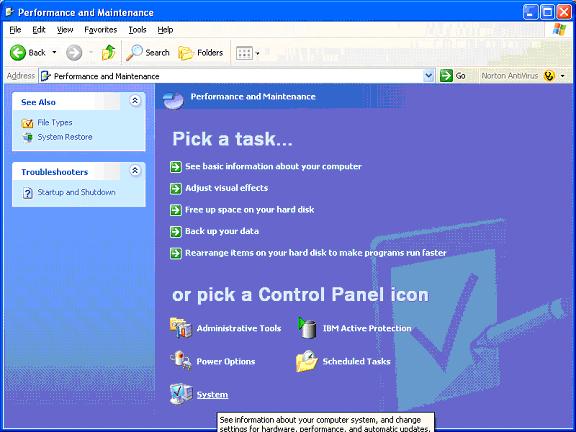
1. On the Start menu, choose Control Panel, and then click System.
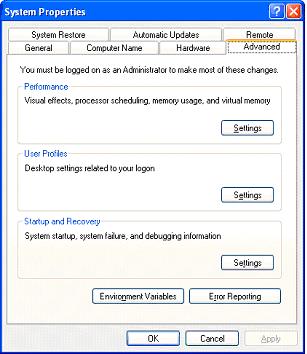
2. In the System Properties dialog box, click the Advanced tab, and then click Environment Variables.
3. Scroll down the list of System Variables, select the row that corresponds to the TEMP variable, and click Edit.
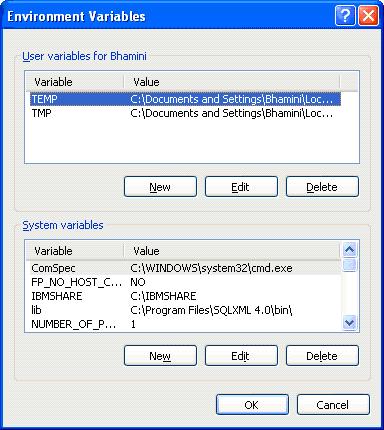
4. In the Edit System Variable dialog box, enter the path and name of the drive and directory where you want the temp directory to be located.
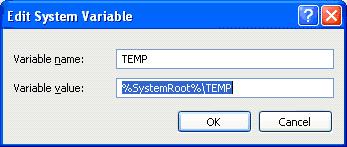
5. Click OK to save the change.
Using SQL Server Profiler and Analysis Services
The use of the SQL Server Profiler requires that the user must have an administrative role or have a server role. If the user has an Analysis Services Server role he can start the Profiler from Microsoft SQL Server program on the Start Menu.
Trace definitions are stored with the Analysis Services database using the CREATE statement. Multiple traces can run simultaneously and multiple connections can receive events from the same trace. The trace can continue even when Analysis services is stopped and restarted.
Replay for Queries, Discovers and commands
Queries, discovers and commands submitted by users to SQL Server 2005 Analysis Services can be replayed from the SQL Server Profiler trace. A single event class can be used to record the events required and the trace file will contain sufficient information ot support replaying server transactions in a distributed environment.
Queries can be replayed if SQL Profiler captures the Audit Login event class, the Query Begin event class, the Query end event class with all the required data columns. Discovers can be replayed if the Audit login event class, Discover Begin event class and Discover Eng event class with all the data columns are captured. The replay for commands will be possible if the Command Begin and Command End event classes are captured.

