
ASP.NET Web Pages and Layout
In this tutorial you will learn how to Enable Users to Edit Pages and Change Layout, To create a user control that enables changing page layout, To enable users to change the layout and To test layout changes.Enabling Users to Edit Pages and Change Layout
As stated earlier in this tutorial, Web parts facilitates the editing of Layout by users. Users can drag and drop controls by dragging them from one zone to another and the characteristics of controls can be edited. This functionality is inbuilt into the basic control set of the Web part. Custom controls can also be created that allow users edit the features. In this section of the tutorial we shall examine how this is done.
To create a user control that enables changing page layout
1. In Visual Studio, add a new user control in the same directory as the start.aspx file, and name the new file Menu.ascx.
2. Switch to Source view.
3. Remove the existing code in the new file, and paste in the following code. This user control code uses features of the Web Parts control set that enable a page to change its view or display mode, and also enables you to change the physical appearance and layout of the page while you are in certain display modes.
Click here to veiw sample code
4. Save the file.
To enable users to change the layout
1. Open the Start.aspx page, and switch to Design view.
2. Position the insertion point in the Design view just after the text you typed for the header of the page. Add a hard return after the text so that there is a blank line between the header and the WebPartManager control. Leave the insertion point positioned on the blank line.
3. Drag the user control you just created (the file is named Menu.ascx) into the start.aspx page and drop it next to the calendar control.
4. Drag an EditorZone control from the WebParts section of the Toolbox to the remaining open table cell in the start.aspx page.
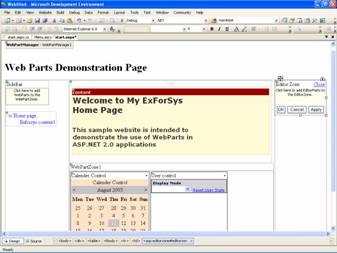
5. From the WebParts section of the Toolbox, drag an AppearanceEditorPart control and a LayoutEditorPart control into the EditorZone control.
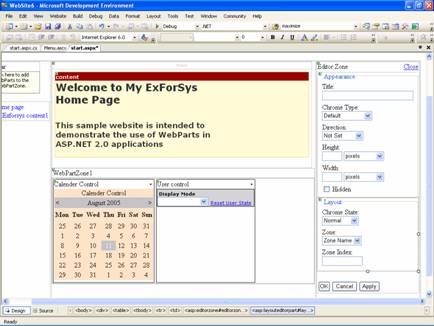
6. Switch to Source view. The resulting code in the table cell looks as follows.
Click here to veiw sample code
7. Save the Start.aspx file. You have created a user control that allows you to change display modes and change page layout, and you have referenced the control on the primary Web page.
To test layout changes
1. Load the page in a browser.

{mospagebreak}
.
.
2. Click the Display Mode drop-down menu, and select Edit. The zone titles are displayed.
3. Now drag the tree view control and drop it into the main section.
4. Click the Display Mode drop-down menu, and select Browse. The tree view remains where you dropped it.
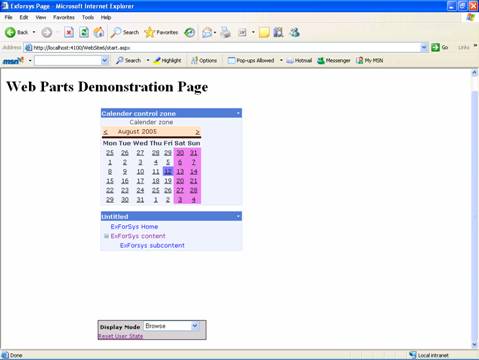
5. To demonstrate that personalization is working, close the browser, and then load the page again. The changes you made are saved for future browser sessions.
6. From the Display Mode menu, select Edit.
7. Each control on the page is now displayed with a downward arrow in its title bar, which contains the verbs drop-down menu.
8. Click the arrow to display the verbs menu on the tree view control. Click the Edit verb.
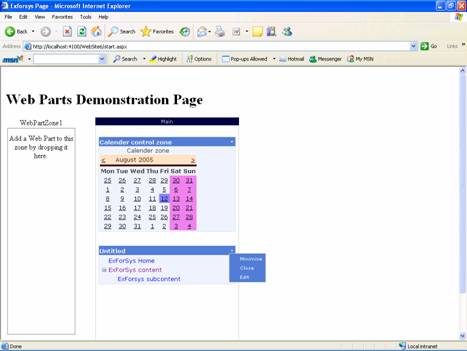
9. The EditorZone control appears, displaying the EditorPart controls you added.
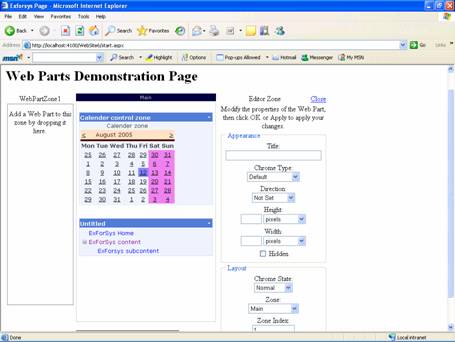
10. In the Appearance section of the edit control, change the Title to Tree view control, use the Chrome Type drop-down list to select Title Only, and then click Apply. The following screen shot shows the page in edit mode.
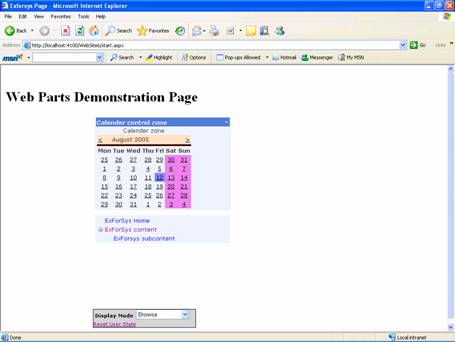
11. Click the Display Mode menu, and select Browse to return to browse mode.
12. The control now has an updated title and no border, as shown in the following screen shot.
[catlist id=179].