
Installing Visual Studio.NET 2.0
In this tutorial you will learn the procedure for Installing Visual Studio.NET 2.0 starting with minimum system requirements, runtime setup and side by side installation.
In this tutorial we shall be using Visual Studio.NET 2.0 regular edition. The minimum requirements for installing this version are:
- PC with Pentium II 600 MHz or higher processor
. - Microsoft Windows 2000 with Service Pack 3 or later, Microsoft XP Professional with Service Pack I or later or Microsoft Windows Server 2003.
. - 128 MB of RAM or above
. - 2.5 GB of available hard disk space on the system drive, 1.2 GB of available hard disk space on the installation drive.
. - Microsoft Internet Explorer with Service Pack 1
. - DVD ROM Drive
. - Super VGA (1024×768) or higher resolution with 256 colors.
The performance of the software has not been tuned for minimum system configuration. If the performance is to be improved the user can increase the RAM above the recommended system configuration. This will increase performance, specifically when the user wants to run multiple applications when developing large projects or doing an enterprise level development.
The extensive Read Me file that comes with the package gives solutions to a number of installation and runtime problems and must be read thoroughly by the user before and after installation.
64-bit versions of select components are provided by Visual Studio.NET along with tools for 64-bit development. The runtime setup on 64 bit platforms includes both 32 bit and 64 bit CLR runtime.
1. The 64-bit version of the .NET Framework SDK has to be specifically installed. To do this the user has to run setup.exe in the ‘netSDK64’ directory of the disk labeled ’64 bit Framework SDK’.
2. If the user needs to install Itanium and x64 compiler for Visual C++ he will have to select the ‘Itanium Compilers and tools’ and ‘x64 Compilers and Tools’ during setup. It must be noted that Visual Studio uses the 32-bit cross compiler even on Windows 64 bit computers. However users can use devenv commands to create a command line environment to call the 64 bit hosted tools.
3. 64 bit applications can be debugged on a local or remote computer. If the local computer is running under WOW64 and on Window 64 bit debugging is possible if the 64 bit remote debugger is installed on the local computer. This is available in the disk labeled ‘Visual Studio 2005 Remote Debugger Setup. Debugging on a remote computer also requires the installation of this tool in the remote computer.
Side by Side installations of Visual Studio versions is possible. Visual Studio 6.0, 2002, VS.NET 2003 and VS.NET 2005 can be installed on the same computer. However certain specific issues need to be addressed while installing or removing any version of Visual Studio.
While uninstalling Visual Studio 2005 on a computer having VS.NET 2003 and VS.NET 2005, VS.NET 2003 will require repair.
- A solution created in Visual Studio 2002 or VS.NET 2003 can be opened in Visual studio 2005. However if it is saved in VS.NET 2005, it cannot be opened again in Visual studio 2002.
. - Some of the option settings of the applications created in earlier versions can be copied into VS.NET 2005 by using the Migratesettings dialog box.
. - The way ProgIDs are handled in VS.NET 2005 is different from the earlier versions and hence errors can be thrown up if the Automation compatibility issues and upgrade issues are not handled by applying the necessary add-in solutions.
It follows that .NET Framework versions can also be installed side by side. The same applies with reference to installations of Help.
{mospagebreak}
.
.
Visual Studio.NET requires that the user has administrator permissions to install the product. Most tools require that the user has the basic permissions. If the basic permissions to use the tool are not available an error will be thrown up.
If the system is as per above specifications, insert the DVD into the DVD ROM Drive. If Autorun is enabled the installation process begins automatically. If it is not enabled open Windows Explorer and explore the contents of the CD and click on Setup to begin the setup. The first screen to appear is the setup screen prompting the user to select the option to set up Visual Studio edition
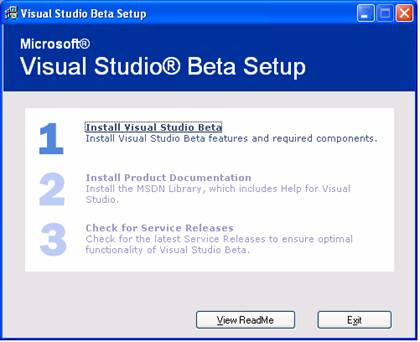
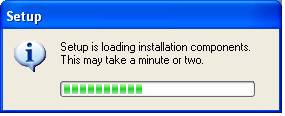
Click on Install Visual Studio. The setup proceeds to copy files to a temporary folder and begins the process of installation.
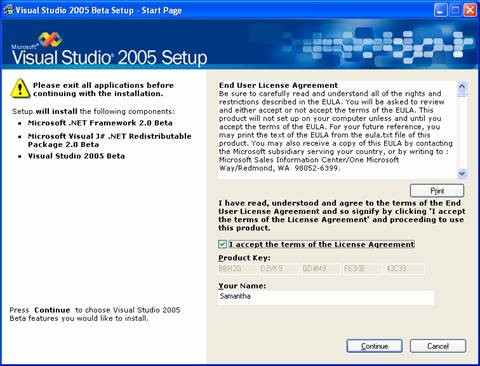
On completion of the above process the user is taken to the Start Page. This page contains the License agreement which the user has to accept. He has to enter his name and click on continue to proceed with the installation.
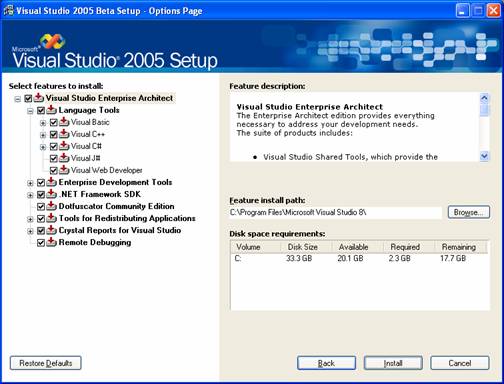
The next page is the Options page, wherein he has to specify which components should be installed. By default all components are installed. The screen also displays the amount of disk space that will be required and the path of installation. (By default the installation drive is the boot drive. However the user can specify the drive in which he wants the software installed. However he must ensure that both the boot drive and the installation drive have the required disk space available.)
A scrollable feature description window in this screen describes the features of the various components that are to be installed. The user has to select the components to be installed, change the path of installation if required and click on the Install button.
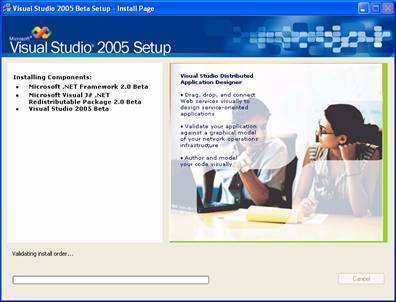
This brings the user to the final screen where the actual installation of all the selected components takes place. This takes about an hour. The progress bar validates the installation order and then proceeds to install the selected components. On completion of the installation the successful completion of the installation is intimated and the system is restarted. The user has the option to cancel the process at any time during this entire process
In this section we have briefly touched upon the different versions of Visual Studio and also seen how to install Visual Studio.NET 2.0. In the section that follows we shall see what Visual Studio 2005 has to offer the Web application developer.
[catlist id=179].