
Exforsys.com
 
Home Tutorials JavaScript
 

JavaScript Alert Box


JavaScript Alert Box

In this JavaScript tutorial, you will learn about JavaScript alert box along with code for placing the alert box when page is loaded.


Sponsored Links


There are three types of popup boxes that can be created using JavaScript. Depending on the needs of user, the programmer can create any of these types of popup boxes using JavaScript.  Three kinds of popup boxes created using JavaScript are:


  • Alert Box
  • Confirm Box
  • Prompt Box

Let us now learn how to create each of these popup boxes using JavaScript.


Alert Box:

This type of popup box is a dialog box used when a programmer wants to make sure that the information is passed to the user. The alert box pops up with an OK button which the user has to press to continue further.


General syntax of alert box is


alert(“textmessage”)


For example:


alert(“Exforsys”)


The above statement will display a dialog box with message Exforsys and a OK button.
The dialog box remains in view until the user presses the OK button.

When no text message is placed


alert()


This would display an empty dialog box with an OK button that the user must press to proceed.
It is also possible to display messages with values of variables in an alert box.

For example:


<
html>
   <body>
    
<script type="text/javascript">


               var exam_score = 56
       
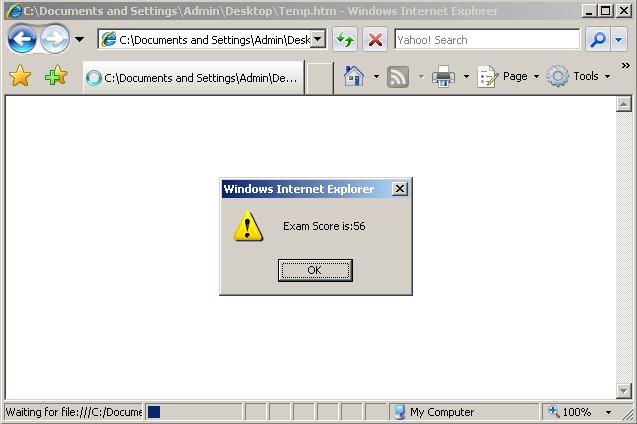
alert ("Exam Score is:" + exam_score)


      </script>
   </body>
</html>


In the above script alert box displays the value of variable exam_score concatenated with a string.


The plus sign acts as a concatenation symbol. 


Output of the above script as produced in a HTML page is shown below: 


It is vital to understand that the alert box can be placed in different locations or events.
Depending on the placing of the alert box and based on the place of usage, the alert box will be activated.


For example,


  • it is possible to place the alert box so that it pops up when a page is loaded.
  • it is possible to place the alert box to be activated when a button is clicked.

Here is an example of JavaScript code for placing the alert box to be executed when a page is loaded.


Sponsored Links


Output of the above script as produced in a HTML page is shown below: 
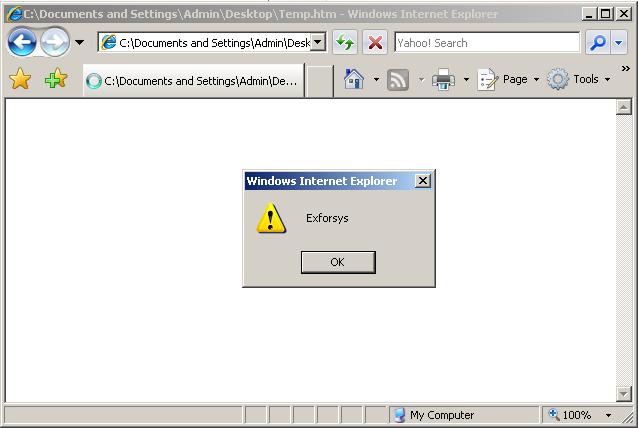


In the above example, message Exforsys pops up in the alert box when the page is loaded.


Comments


Jitendra Singh said:


<
html>
   <body>
    
<script type="text/javascript">
       
alert ("Exforsys")


      </script>
   </body>
</html>


  Material is good and explation is excellent.
May 11, 2007, 1:24 am

josh123 said:

  We are using alert box in javascript. If we click alert box OK button some thing wants to trigger. How we can do that?
December 24, 2007, 7:10 am

Zeeshan Khaliq Mian said:

  Simply the best to demonstrate on web page development
December 27, 2008, 8:31 am

jayson said:

  im having problems in customizing titles of alert boxes,how can i set it?
it always shows its default title "[javascript application]"
February 17, 2010, 1:46 am

Jas said:

  How can we adjust the width and height of alert box??
March 17, 2010, 2:56 am

Fondor said:

  If I create a function in a JavaScript (.js) file and call it, it will run without needing a browser. It just runs in windows script manager and it has the same effect. It's almost like an executable. The alert(""); function doesn't work in the JavaScript files. How do I get it to work? Or even better, how do I get a confirm box to work?
April 7, 2010, 9:39 pm

peter said:

  i'm having problems changing alert popup window title. How can i set the title as a different name??
May 6, 2010, 9:44 am

abhay said:

  how to give title to alert Box
July 30, 2010, 4:28 am

Post Your Comment:

Members Please Login
Your Name:*
e-mail ID:(required for notification)*
Image Verification: 
 
 Subscribe    

Sponsored Links


Get Daily Updates via Subscribe to Exforsys Free Training via email


Get Latest Free Training Updates delivered directly to your Inbox...

Enter your email address:


Subscribe to Exforsys Free Training via RSS


Partners -  Privacy and Legal Policy -  Site News -  Contact   Sitemap  

Copyright © 2000 - 2010 exforsys.com. All Rights Reserved

Page copy protected against web site content infringement by Copyscape