Home
Technical Training
MS Project Training
This tutorial is part of a MS Project Training tutorial series. Read it from the beginning and learn yourself.
Technical Training
MS Project TrainingMS Project - Summary Task
Author: Exforsys Inc. Published on: 5th Jan 2011
3. Make your schedule look the way you want it (formatting MS Project)
Create a summary task
In this tutorial you will learn how to create a summary task in MS Project. You will also lean to format the schedule.
Ads

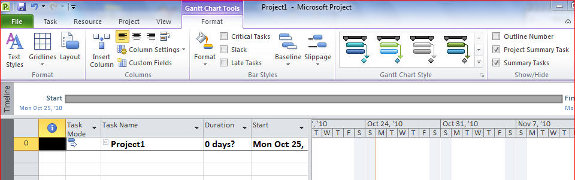
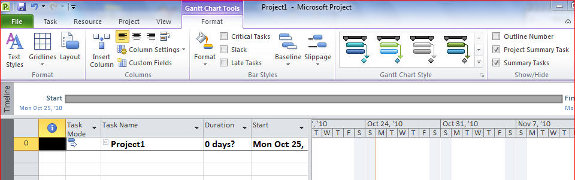
Click on Format menu
Click on Project Summary Task
“Project1”, the name of your file now appears on Row 0 You can change the project name as follows: Double click “Project1” You can now edit the project name
Create needed columns
Ads
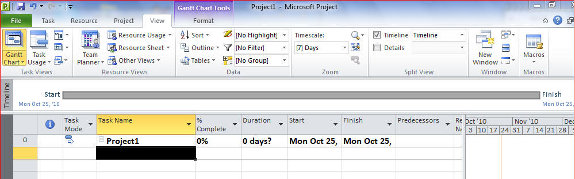
Click on a column after the column you want to insert Right click
Select Insert Column Select a column title, in this case, % Complete Insert as many columns
Read Next: MS Project - Create a Calendar
MS Project Training
- MS Project - Schedule and Control
- MS Project - Summary Task
- MS Project - Create a Calendar
- MS Project - Timeline
- MS Project - Gantt Bar
- MS Project - Gridlines
- MS Project - Task Management
- MS Project - Task Sequence
- MS Project - Assign Task Responsibilities
- MS Project - Schedule Review
- MS Project - Baseline Schedules
- MS Project - Reschedule Men and Money
- MS Project - Reduce Overall Project Duration
- MS Project - Printing Reports
- MS Project - Report Types
- MS Project - Data Exchange
- MS Project - Menu Ribbon