
Building a Virtual Cube
The Wizard takes the user through a series of steps that prompt him to specify the cubes, measures and dimensions to be used for building the virtual cube. The virtual cube then creates a combined view of the selected cubes by including the measures and dimensions selected. Please note that a virtual cube based on a linked cube does not support custom rollup operators, custom rollup formulas, cell calculations, or custom member formulas contained in the linked cube.
We can build a virtual cube by invoking the virtual cube wizard. Let us say we will create a virtual cube using the sales and Budget cubes of FoodMart 2000 database. We want to compare the budgeted sales against the actual sales. Right click on cubes folder under FoodMart 2000 database and select New Virtual Cube.
In the Wizard welcome screen click Next and navigate to the Select the cubes to include in the Virtual cube as Sales and Budget.
|
|
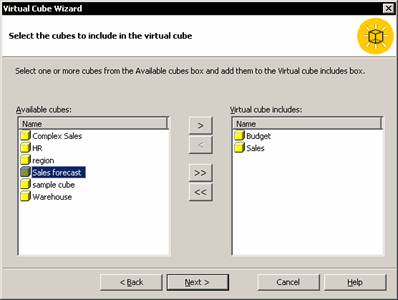
Next select Amount and Unit sales from the list of measures available
|
|
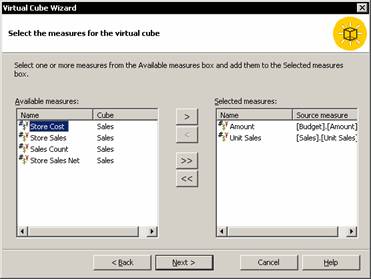
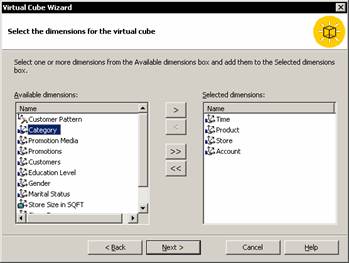
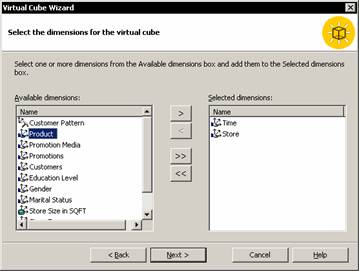
Rename the measures as the measures must have unique identifiers for a Virtual cube. Select Time, Product, Store and Account as dimensions of the Virtual cube.
|
|
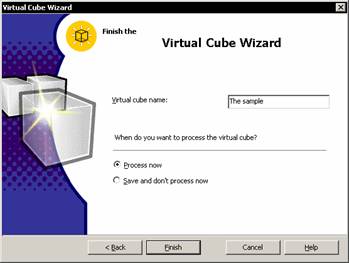
Name the Virtual cube “The Sample” and let the Process now radio button remain checked and click on Finish.
|
|
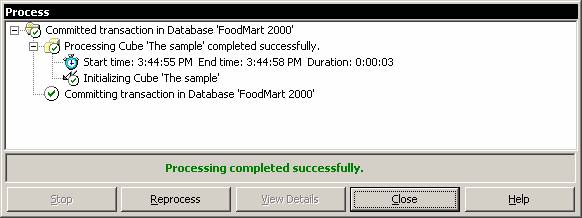
The Process log window opens and the cube is processed.
|
|
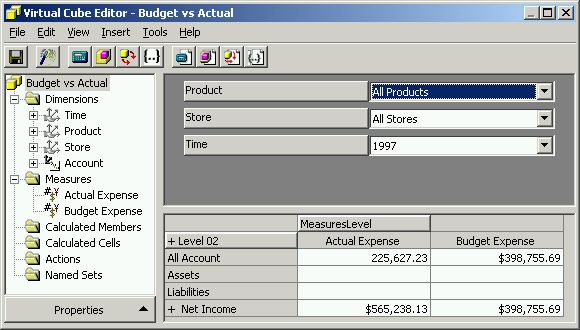
The Virtual cube editor now displays the data from the consolidated virtual cube.
|
|
Customization of data from a cube for presentation
The reason why we need to customize data for presentation is that there may be certain data which should not be accessible to certain users. We need to restrict their access to such data. There may yet other users who will need to access all data. We may need to give them access to the data. The virtual cube enables us to create a cube out of existing cubes and enables us to include or exclude dimensions and measures for the virtual cube. By excluding dimensions we can restrict users from accessing data in those dimensions, yet give him access to data he can view by including those specific dimensions.
In Analysis Manager Tree pane right click the cubes folder and click New Virtual cube.
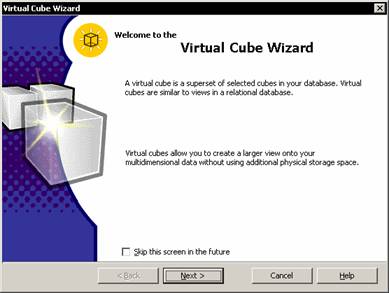
Click Next on the Virtual Cube Editor Welcome screen.
|
|
The Wizard displays the cubes existing in the database.
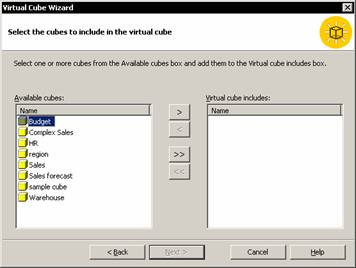
Select the cubes to be included in the database. Let’s say we want to click on Sales Cube. Click on Sales cube and click next.
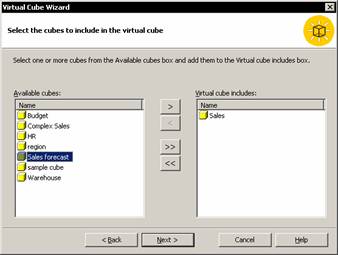
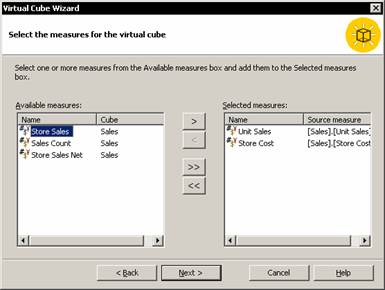
The measures for the cube are displayed. Double click unit_sales and sales_cost. Click on the measure names selected and rename them. A unique name is required for measures in a virtual cube. We could name our measures Sales_per_Unit and Cost_per_store.
|
|
The Dimensions box is displayed. All the dimensions of the cube are displayed. Double click Time, State..
|
|
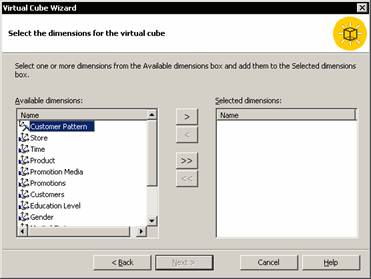
Double-click Time, Product and Customers and then click Next
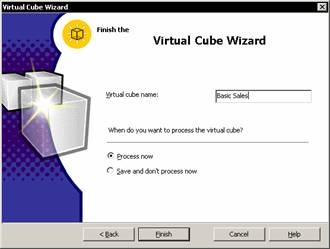
Type Basic sales as the name of the Virtual cube. Let the Process now option remain selected, click finish and close the process log window once the processing is complete.
|
|
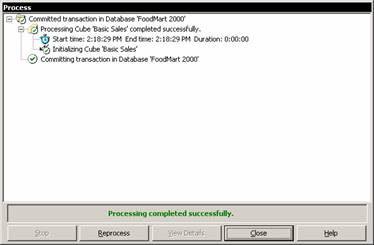
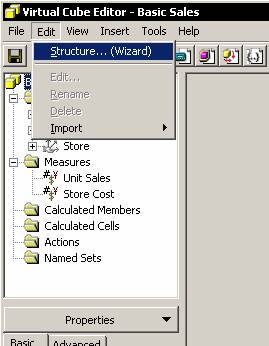
The virtual cube Wizard leaves us back at the Virtual cube Editor. This is a modified version of the Cube Editor. It does not contain the schema tab only the data screen.
To make structural changes to the virtual cube the user must click Edit structure Wizard toolbar button to redisplay the virtual cube wizard.
|
|
The Analysis server has to process the virtual cube. Processing creates files to identify the cube and indicate how to relate the virtual cube to the original cube.
{mospagebreak}
Consolidation of data from multiple cubes into a Virtual cube
The sales information is contained in the Sales cube. The region details are contained in the region cube. Let us say we want to combine the two to obtain information on the sales made in different regions. A virtual cube can be used to compare the measures from the different cubes.
Right click the cubes folder, and click New Virtual cube. Click Next on the welcome screen. In the list of available cubes click Sales and Region.
|
|
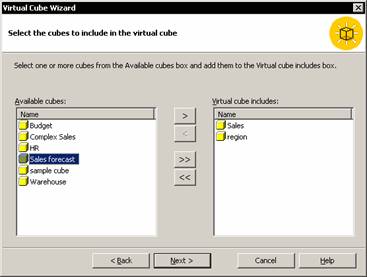
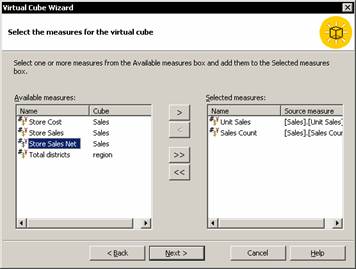
Click Next. In the measures list select the measures required. Then click the dimensions required from the Dimensions list and click next.
|
|
Give a name to the virtual cube, Process the cube and view the data.
When measures are combined in virtual cubes for inclusion, the user must select a measure from each cube he wants to combine. The wizard automatically removes any cubes that do not have measures. Technically, it is possible to combine two cubes without a shared dimension, but none of the cells in the virtual cube will contain a value.
[catlist id=181].