
Renaming Calculated members
1. In the Analysis Manager tree pane, under the database that contains the calculated member, expand the Cubes folder.
2. Right-click the cube that contains the calculated member, and then click Edit.
3. In the Cube Editor tree pane, right-click the calculated member, and then click Rename.
4. In the box next to the calculated member icon, type a new name, and then click outside the box.
Creating Non Measure Calculated members
In the Analysis Manager tree pane, right-click the Sales cube, and then click Edit.
In Cube Editor, on the Insert menu, click Calculated Member.
In Calculated Member Builder, in the Parent dimension box, select the dimension that will include the calculated member.
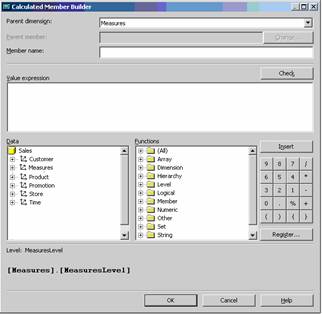
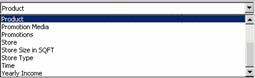
In the Parent member box, specify the member that will include the calculated member. Click Change to select a member other than the displayed member(if any).
In the Member name box, type a name for the non measure calculated member to be created. Let us say we want to display the data for total sales_cost and unit_sales for Canada and Mexico in the sales cube.
In the Value expression box, construct an expression to produce the values of the non measure calculated member.
WITH
MEMBER[STATE].[NORTH AMERICA].[NON-US] AS
‘[Canada] +[Mexico]’
SELECT
[Measures].Members ON COLUMNS,
[State].[Country].Members ON ROWS
FROM Sales
Use any combination of the following methods to add to the expression:
Drag items from the Data and Functions boxes.
Click an item in the Data or Functions box, and then click Insert.
Click the arithmetic operator and number buttons.
Run the query and browse the data. Note that the new members do not appear. The Column axis supplies the member from the Measures dimension(unit_sales) and the row axis supplies the members from the State Dimension(Non-US). Note that using the + sign to add values works well if the user has only two or three values to aggregate. It becomes cumbersome if there are multiple values.
Unlike the measures dimension, the Members function does not retrieve calculated members of the non-measure dimensions. When a calculated member is created on a non measure dimension the member will by definition intersect with all the members of the Measures dimension. Each of the measures already has an aggregated function defined. Using an Aggregate function will help the user take advantage of the previously defined aggregation function.
To save the calculated member, in the cube editor on the File menu, click Save.
{mospagebreak}
Using Functions in Calculated Members
Multidimensional Expressions provide a lot of flexibility to calculated members. The variety of intrinsic functions available for use in MDX, the variety of functions built into the MSSQL 2000 Analysis services function Libraries and the capability of including and registering external libraries, all add to the flexibility of Calculated members. The variety of functions available and the study of them would require a separate tutorial series on its own. Hence only the commonly used functions are highlighted in this series.
A variety of arithmetic, logical and comparison operators are supported by MDX expressions. The Arithmetic operators include +(Addition),-(Subtraction),*(Multiplication) and /(Division). Comparison operators include <(Less than),>(greater than), <=(Less than and equal to), >=(greater than and equal to), <>(Not equal to) and =(equal to). Comparison operators compare the two strings, numeric expressions or date expressions and return a True or False. Null values are treated as zero when compared with a non null value. Null values can be checked using the function IsEmpty or Is function to return a true or false. Bitwise operators return True or False based on logical expressions. The expressions are evaluated against logical values. Numeric values are converted implicitly into logical values before a logical comparison is made. Numerical expressions that evaluate to 0 or Null are considered false, else True. String expressions are not implicitly converted and usage of string expressions with bitwise operators results in errors. Bitwise operators are AND ,OR, NOT and XOR. Set Operators deal with the creation, separation and joining of sets. They use + (Union), * (CrossJoin), – (Except) and : (naturally ordered set with the members as endpoints).
There are a variety of functions used in MDX expressions. Let us look at these functions on basis of the category of data they return. The first of these is the Numeric Function. Numeric functions are used to perform a variety of aggregations and statistical calculations. MDX Aggregate functions are used to quickly perform calculations across a number of members. These members are specified as a set. The aggregate function becomes powerful when combined with a measure that produces a sum. For instance let us assume that a query has to be built for producing a sum of the store sales for each state. The aggregated values for the first and second half of the year are to be supplied by the calculated members using aggregate functions. The difference between the two supplied by a third member. The structure of the MDX would be as under:
WITH
MEMBER[Time].[1ST Half Sales] AS ‘Aggregate{{Time.[Q1], Time.[Q2]}}’
MEMBER[Time].[2nd Half Sales] AS ‘Aggregate{{Time.[Q3], Time.[Q4]}}’,
MEMBER [Time].[Difference] AS ‘Time.[2nd Half Sales]- Time.[1st Half Sales]’,
SELECT
([Store].[Store State].Members) ON COLUMNS,
{Time.[1st Half Sales], Time.[2nd Half Sales], Time.Difference} ON ROWS
FROM Sales
WHERE [Measures].[Store Sales]
MDX also provides the user with a large number of statistical calculations. For instance statistical covariance and standard deviation can be calculated using the MDX functions. Other numerical functions are the Sum(), Count(), Avg().
String functions supplied by MDX not only process strings but also support user defined functions. For instance MemberToStr function converts a member reference to a string in the MDX format for use in user defined functions. It must be noted that user defined functions cannot accept object references from MDX.
Set Functions provide the user with the capacity to easily build dynamic sets and quickly create reusable named sets. For instance the commonly used set function –Members function– returns all the members of the set other than calculated members of a level. The structure of the function is as under:
SELECT
NON EMPTY { [Store].[Store Name].Members} ON COLUMNS,
{Measures.[Store Sales]} ON ROWS
FROM Sales
The above example returns total store sales figures for each store in the Sales cube.
Tuple Functions are used to return tuples. These functions aid user defined functions in MDX. As user defined functions cannot handle MDX object references, it must pass back a string return value in MDX format representing a tuple and then use the StrToTuple function to convert it to a valid tuple reference.
Member Functions allow calculated members to perform complex member retrieval. Hierarchies and sets are negotiated with ease.
Calculated members can be constructed based on iterations over the members of a set. Hence the resolution of calculated members can be iterative in nature. The CurrentMember function allows the user take advantage of this feature.
MDX provides users with other Functions that deal with dimensions, hierarchies, levels and arrays. Examples of such functions are SetToArray function which allows user defined functions to receive set references as a variant array of individual members represented as strings. This further permits user defined functions to supply set related functionality.
Time series functions provide a variety of capabilities critical to advanced data analysis and decision support systems. YTD(),QTD(),MTD() and WTD() functions are some of the time series functions commonly used.
Time series Analysis functions for performing simple linear regression analysis using the least squares method. Examples of these functions are LinRegIntercept() function, Covariance() function, Correlation() function and so on.
Miscellaneous MDX functions such as the Generate() function, the Parent() function, Decendants() function etc are also extremely useful in building MDX queries and expressions.
{mospagebreak}
Understanding other calculation methods
Microsoft Analysis Services supports calculations up to the most granular levels in a cube. Calculations can be defined for members of a dimension, for a combination of cells or even a single cell.
The MDX set expression used to define the slice of the cube upon which the calculated cells feature will work is called a Calculation subcube. The calculation subcube is defined by a list of single dimension sets.
The MDX logical expression that further restricts the application of the calculated cells feature is known as Calculation condition. The calculated cells condition expression is compared to each cell in the calculation subcube. If the logical expression evaluates to True for the cell, the calculated cells formula is applied and the cell returns the calculated value. If it evaluates to False, then the cell returns the original cell value. The combination of the calculation subcube and the calculated cells condition is referred to as the calculation scope.
The MDX value expression used to calculate the value of the cells contained in the calculation subcube is called a Calculation formula. This functionality sounds in many ways similar to calculated members, custom members, and custom rollup formulas, and indeed can be used in place of these features. But, calculated cells are much more than that.
Setting calculations at Member level
Right click the Expense Budget cube and click Browse Data.
Drag and drop the scenario dimension to replace the measures dimension. Note that the current year’s Budget member does not contain any data.
|
|
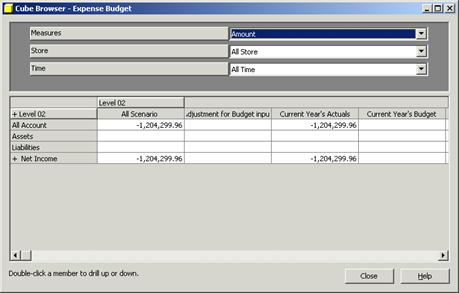
Close the cube browser and click the Shared dimensions folder in the Analysis Manager tree pane.
Right click the Scenario dimension and then click Edit.
|
|
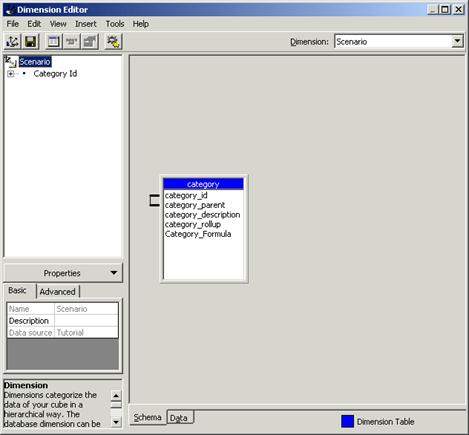
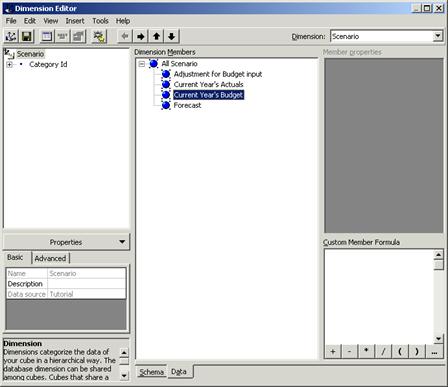
Click on the Data tab to display the dimension tree.
Expand the Dimension to select the Current Year’s Budget member. Note that the Custom Member Formula pane is enabled.
|
|
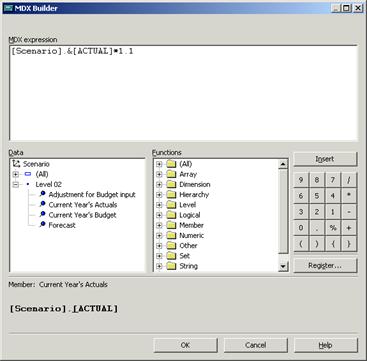
Click the ellipsis(…) button to open the MDX Builder Dialog box. Expand Level02 of the scenario dimension tree, and then drag Current Year’s Actuals to the MDX expression field.
The MDX expression field is updated with the Member Key definition of the member.
At the end of the expression let us enter “*1.1”. Click Ok.
|
|
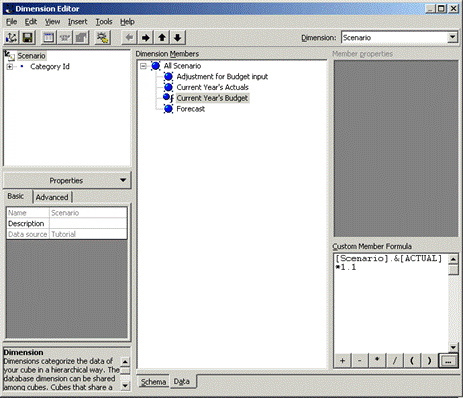
Save the changes. Notice that the Budget member has changed and shows the formulas associated with it.
|
|
Close the Dimension Editor.
Now expand the Cubes folder and right click on the Expense Budget. Click on Browse Data.
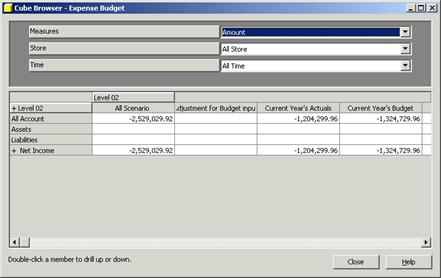
Drag the Scenario dimension to replace the measures dimension. Note that the Current Year’s Budget member now contains data. This data is calculated at 110% of the actual.
|
|
Close the Cube Browser.
{mospagebreak}
Setting a Calculation for a subcube or a selection of cells
Note that calculated cells are available only with Microsoft Analysis Services Enterprise edition. To set a calculation for a group of cells or a subcube follow the steps below.
In the Analysis Manager tree pane expand the cubes folder and right click the Expense Budget cube. Click Edit.
In the Cube Editor click on Data tab to display the data.
Drag the Scenario dimension in the columns to replace the measures dimension
Expand the Scenario dimension so that its four member columns are displayed.
|
|
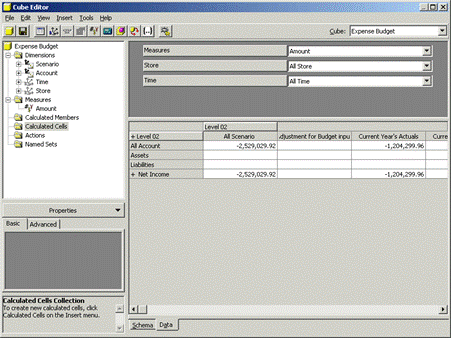
Now right click on the Calculated cells node in the Cube Editor tree pane and then click New Calculated Cells.
The Calculated cells Wizard appears.
Click Next to go on to Define the Calculation Subcube screen.
Select the Account Dimension.
Click Next in the Members Set box and select A Single Member option.
A dimension tree appears. Expand the Dimension and click on Gross Sales.
|
|
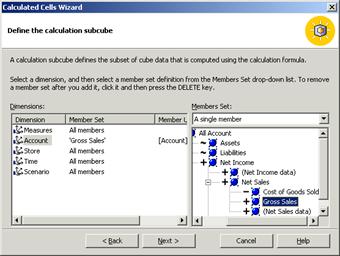
Now select the Scenario dimension and in the Members Set box select A Single Member.
In the Dimension tree select the Current Year’s Actuals.
|
|
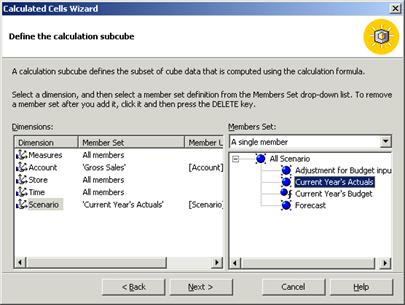
Click Next and the Define the Calculation Condition(optional) dialog box appears.
In the MDX expression box enter “Lookup Cube(“[Sales]”, “(Measures.[Store Sales]”, + time.currentmember.Uniquename+ “.Store.[“+Store.currentmember.name+”])”)”.
|
|
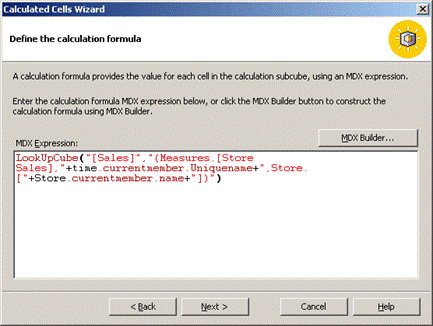
Click Next to navigate to the final screen. Enter “Gross Sales actual from the Sales cube” in the name box. This name will be used for the object in the Analysis Manager.
Click Finish.
The value for the Current year’s actual, Gross Sales cells have changed. The value shown is derived from Stores Sales measure in the sales cube. The Current year’s Budget cells are also updated automatically based on the member calculation previously defined.
|
|
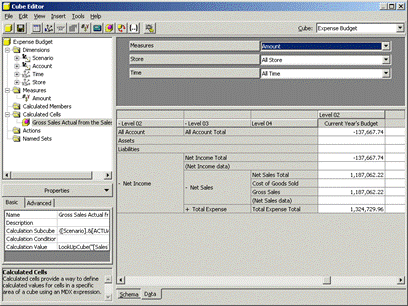
Save the changes and close the cube editor.
[catlist id=181].