Exforsys

H I D E

Home arrow Technical Training arrow Analysis Services Training

Tutorial 65: MSAS - Managing Cube Roles

Author : Exforsys Inc.     Published on: 5th May 2005
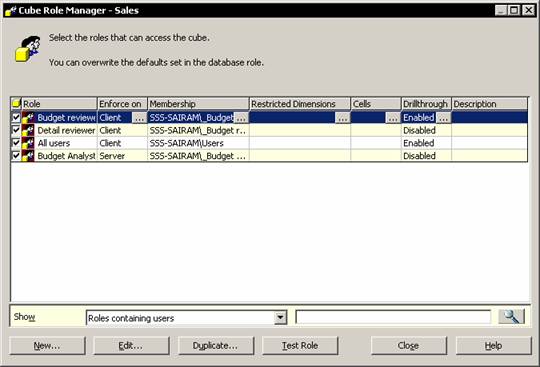
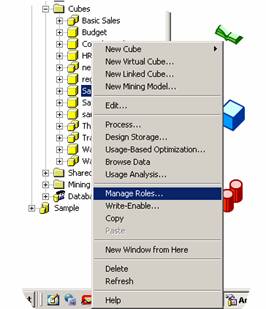
In the Analysis Manager console tree, expand the cubes folder and right click the Sales cube and click Manage roles

The Cube Role Manager Dialog box appears. The dialog box shows all the users whose roles have been already assigned in the database. It also allows us to create a new role.

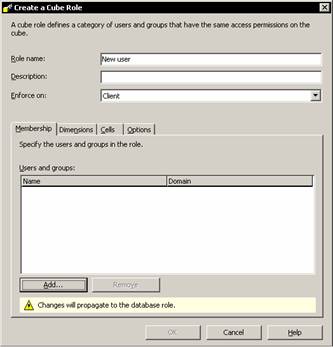
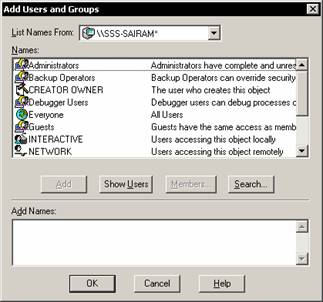
On clicking the New button, new roles can be added to the Cube role dialog box. The create a cube role dialog box appears. Type in the name for the cube role and click Add button. The Add users and Groups dialog box appears. This shows all the groups on the Analysis server. Users and groups on other servers can also be viewed by clicking on the List names from… drop down combo box.

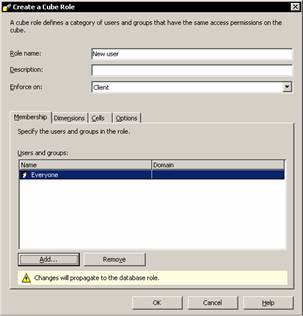
If the administrator wants to see users as well as groups he has to click on the Show users button. Security is more manageable when we deal with groups rather than individual users, as users may change but groups tend to be more permanent. Let us say we want to apply the New user role to all users. The standard Everyone group refers to any user connected to the server. Select Everyone and click Add to the group name and click ok.

Note that the membership tab of new users displays the users who have access to the cube role. The remove button can be used to remove users from the role. Click Ok to complete creating the role.

The sales cube is now available for all users to browse.

Read Next: MSAS - Applying security to a Dimension


This tutorial is part of a Analysis Services Training tutorial series. Read it from the beginning and learn yourself.

Analysis Services Training

  1. MSAS - Browsing the Dependency Network
  2. MSAS - Building a Relational Decision Tree Model
  3. MSAS - Introduction to Data Mining
  4. MSAS - Applying security to a Dimension
  5. Tutorial 65: MSAS - Managing Cube Roles
  6. MSAS - Understanding Database Roles
  7. MSAS - Securing User Authentication
  8. MSAS - Introducing Analysis Services Security
  9. MSAS - Writebacks
  10. MSAS - Defining and Creating Drillthrough
  11. MSAS - Defining and Creating Auctions
  12. MSAS - Creating and Maintaining Calculated Members in Virtual Cubes
  13. MSAS - Building a Virtual Cube
  14. MSAS - Understanding Virtual Cubes
  15. MSAS - Introducing Solve Order
  16. MSAS - Implementing Calculations Using MDX Part 2
  17. MSAS - Implementing Calculations Using MDX Part 1
  18. MSAS - Merging Partitions
  19. MSAS - Introduction and Managing Partitions
  20. MSAS - Troubleshooting Cube Processing
  21. MSAS - Optimizing Cube Processing
  22. MSAS - Processing Dimensions and Cubes
  23. MSAS - Introducing Dimension and Cube Processing
  24. MSAS: Optimization Tuning Part 2
  25. MSAS: Optimization Tuning Part 1
  26. MSAS: Usage-Based Optimization
  27. MSAS: Analysis Services Aggregations
  28. MSAS: The Storage Design Wizard
  29. MSAS: Analysis Server Cube Storage
  30. MSAS: Defining Cube Properties
  31. MSAS: Introduction and Working with Measures
  32. MSAS: Introduction and Working with Cubes
  33. MSAS: Virtual Dimensions
  34. MSAS: Introducing Member Properties
  35. MSAS: Creating Custom Rollups
  36. MSAS: Creating a Time Dimension
  37. MSAS: Understanding Hierarchies
  38. MSAS: Dimension Storage Modes and Levels
  39. MSAS: Working with Levels and Hierarchies
  40. MSAS: Working with Parent-Child Dimensions
  41. MSAS : Basics of Levels
  42. MSAS : Working with Standard Dimensions
  43. MSAS : Shared vs Private Dimensions
  44. Understanding Dimension Basics
  45. MSAS : Office 2000 OLAP Components
  46. MSAS : Client Architecture
  47. MSAS : Cube Storage options
  48. MSAS : Meta data Repository
  49. MSAS : Analysis services Tools for Extended Functionality
  50. MSAS : The Wizards
  51. MSAS : The Analysis Manager and Analysis Server
  52. MSAS : The Data warehousing framework of SQL Server 2000 - Part 2
  53. MSAS : The Data warehousing framework of SQL Server 2000 - Part 1
  54. MSAS : Microsoft Data Warehousing Overview
  55. MSAS : Browsing the Cube
  56. MSAS : Designing Storage and Processing the Cube
  57. MSAS : Building the Cube Part #3
  58. MSAS : Building the Cube Part #2
  59. MSAS : Building the Cube Part #1
  60. MSAS : Setting up the Database in Analysis Server
  61. MSAS : Preparing to Create the Cube
  62. MSAS : Introducing Analysis Manager Wizards
  63. Microsoft Analysis Services Installation
  64. MSAS - Applying OLAP Cubes
  65. Understanding OLAP Models
  66. Designing the Dimensional Model and Preparing the data for OLAP
  67. Design of the data warehouse: Kimball Vs Inmon
  68. Defining OLAP Solutions and Data Warehouse design
  69. Microsoft Analysis Services Training
  70. Data Warehouse database and OLTP database
  71. Introduction to Data Warehousing
 

Comments