
The virtual dimension can be used like any other dimension by end users. A virtual dimension based on member properties can enable end users analyze data based on member properties.
The depth of the virtual dimension is directly proportional to the number of member properties used to define it.
Addition of a virtual dimension to a cube does not increase its size because the virtual dimension does not have aggregation data.
Queries on virtual dimension are slower than queries on parent child dimensions.
Virtual dimensions can be created using the Virtual Dimension Wizard in Analysis Services.
To create a virtual dimension based on member properties
Depending on whether the virtual dimension will be shared or private, do one of the following:
- If the virtual dimension will be shared, in the Analysis Manager tree pane, expand the database in which you want to create the virtual dimension. Right-click the Shared Dimensions folder, point to New Dimension, and then click Wizard.
- If the virtual dimension will be private, in the Analysis Manager tree pane, right-click the cube in which you want to create the virtual dimension, and then click Edit. On the Insert menu, point to Dimension, and then click New.
In the Welcome step, click Next.
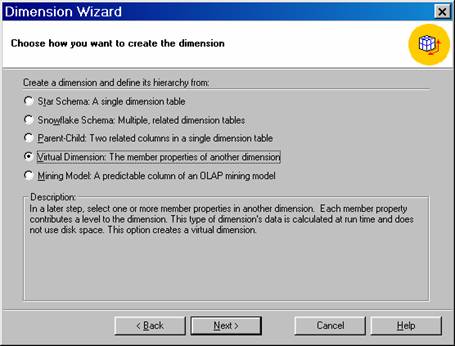
In the Choose how you want to create the dimension step, select Virtual Dimension: The member properties of another dimension. Click Next.
 |
In the Select the dimension with the member properties step, select the dimension that contains the member properties. Click Next.

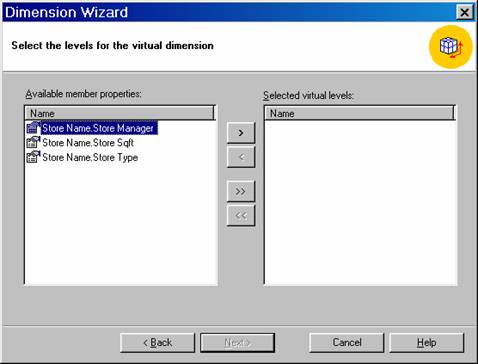
In the Select the levels for the virtual dimension step, select the levels for the virtual dimension:
- For each level you want to define, beginning with the top level, in the Available member properties box, select the member property that defines the level, and then click >.
- Click Next.
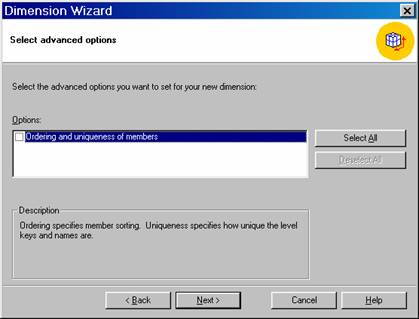
In the Select advanced options step, choose any advanced options that may apply. If no advanced options apply, click Next.
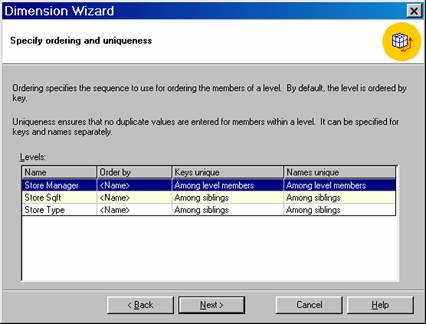
If the Specify ordering and uniqueness step appears, for each level, in the Order by column, select the value that determines the order by which the level’s members are displayed to end users. Also, for each level, in the Keys unique and Names unique columns, specify the scope of uniqueness among the member keys and member names, respectively. Click Next.
In the Finish step: In the Dimension name box, type a name up to 24 characters long.
- If the virtual dimension will be private, clear the Share this dimension with other cubes check box. (This check box is not displayed if you are following the procedure for a shared virtual dimension.)
- Click Finish.
In Analysis Manager, a virtual dimension is identified by the following icon.

In Dimension Editor and Cube Editor, the Virtual property of a virtual dimension is always True. Its Depends On Dimension property indicates the dimension that contains the member properties or columns on which it is based. 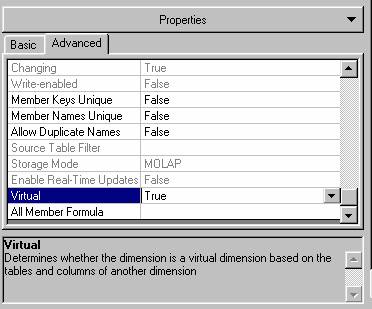
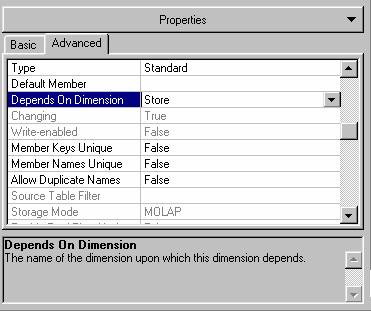
When a dimension’s Virtual property is set to True, an (All) level is created if one does not already exist. 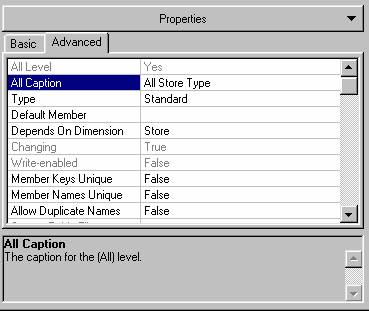
{mospagebreak}
When a dimension’s Virtual property is set to True, an (All) level is created if one does not already exist.
All virtual dimensions are also changing dimensions. That is, their Changing property is True. This value cannot be changed while the Virtual property of the dimension is set to True. 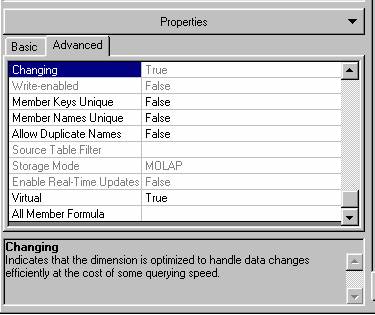
The storage mode of a virtual dimension is always multidimensional OLAP (MOLAP). 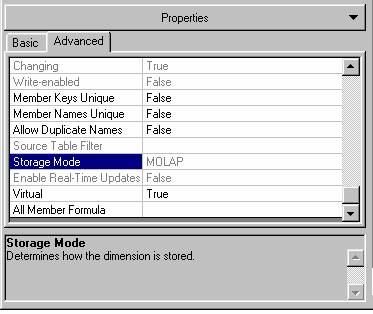
Categorical labels from a single dimension table or multiple axes in browsers can be displayed using Virtual dimensions. End users can display the members of the level on one axis and the member properties on the other axis while exploring the trends of measures depending on the relationship between members and member properties.
The advantage of virtual dimensions is that they do not increase the size of the cube and increase the speed of processing of the cube. The data aggregations of virtual dimensions is not stored but calculated in memory. As a result if a virtual dimension is added to a cube the storage usage and processing time do not increase.
A virtual dimension is created from the member properties or columns of another dimension that is not a virtual dimension. A virtual dimension can be added to a cube only if it is created in one of the two methods mentioned here from a dimension that is already included in a cube. For example a virtual dimension can be created from a column or member property that exists in the product dimension if it is part of the sales cube. The column used need not be part of the dimension definition but may be part of the table from which the dimension has been created.
To create a virtual dimension based on member properties the dimension wizard is used. The Dimension Editor cannot be used for this purpose. However, after creating the virtual dimension the Editor can be used to edit the virtual dimension. The Virtual dimension can be created in the Cube Editor only if the Dimension Wizard is started from within the Cube Editor.
{mospagebreak}
To create a virtual dimension based on columns
Depending on whether the virtual dimension will be shared or private, do one of the following:
If the virtual dimension will be shared, in the Analysis Manager tree pane, expand the database in which you want to create the virtual dimension. Right-click the Shared Dimensions folder, point to New Dimension, and then click Wizard.
If the virtual dimension will be private, in the Analysis Manager tree pane, right-click the cube in which you want to create the virtual dimension, and then click Edit. On the Insert menu, point to Dimension, and then click New.
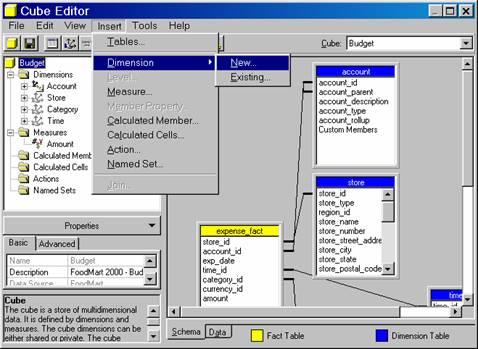
In the Welcome step, click Next.
In the Choose how you want to create the dimension step, do one of the following:
- If the dimension that will supply the columns has a single dimension table, select Star Schema: A single dimension table).
- If the dimension that will supply the columns has multiple dimension tables, select Snowflake Schema: Multiple, related dimension tables.
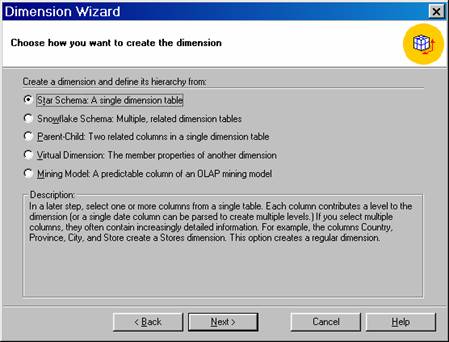
Click Next.
In the Select the dimension table(s) step, select the dimension table or tables that will supply the columns for the virtual dimension. Click Next.
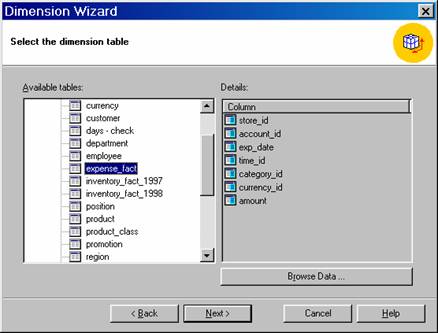
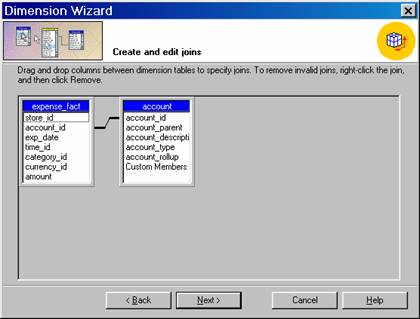
If the Create and edit joins step appears, join all tables by dragging columns to their joining columns. Click Next.
{mospagebreak}
If the Select the dimension type step appears, select the dimension type. If you select Time dimension:
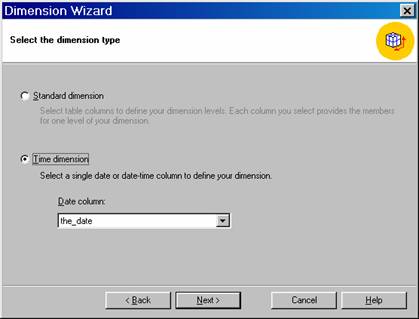
- In the Date column box, select the column that will be parsed to create the levels of the virtual dimension.
- Click Next.
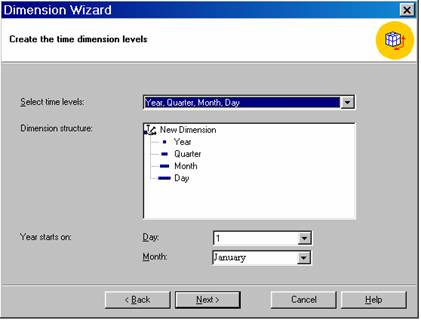
- In the Select time levels box, select the levels for the virtual dimension.
- (Optional.) In the Day and Month boxes, select the starting date of the year.
- Click Next.
If you select Standard dimension, click Next.
If the Select the levels for your dimension step appears, select the levels for the virtual dimension:
For each level you want to define, beginning with the top level, in the Available columns box, select the column that defines the level, and then click >. Click Next.
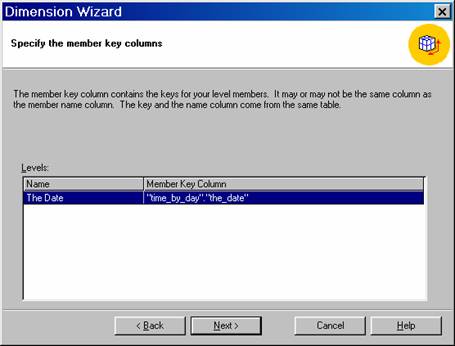
If the Specify the member key columns step appears, select member key columns for one or more of the levels. Click Next.
In the Select advanced options step, choose any advanced options that may apply, and then click Next. Depending on the advanced options you select, other dialog boxes may appear.
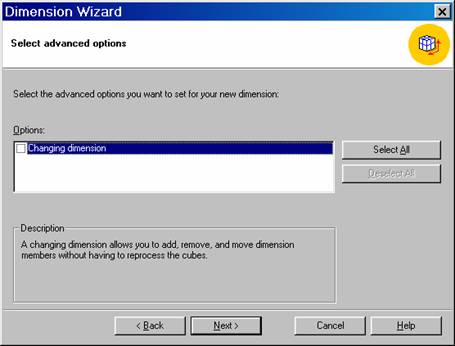
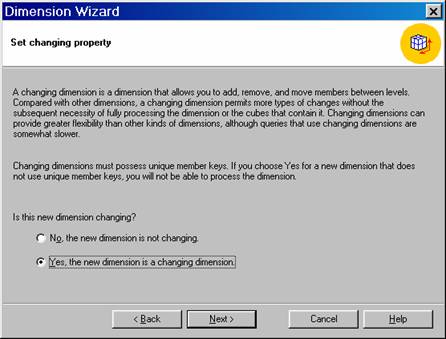
In the Set Changing property step, select Changing. A virtual dimension must be a changing dimension. Click Next
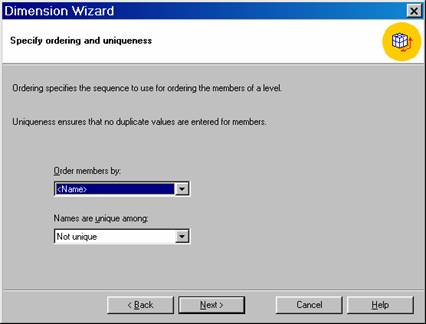
If the Specify ordering and uniqueness step appears, for each level, in the Order by column, select the value that determines the order by which the level’s members are displayed to end users. Also, for each level, in the Keys unique and Names unique columns, specify the scope of uniqueness among the member keys and member names, respectively. Click Next.
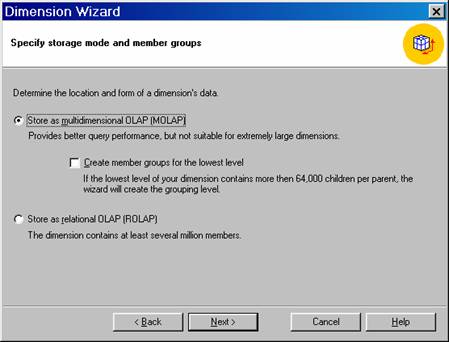
If the Specify storage mode and create member groups step appears, specify a storage mode. If you select MOLAP, indicate whether to create member groups in a level inserted automatically above the dimension’s lowest level. Click Next.
In the Finish step:
- In the Dimension name box, type a name up to 24 characters long.
- If the virtual dimension will be private, clear the Share this dimension with other cubes check box. (This check box is not displayed if you are following the procedure for a shared virtual dimension.)
- Click Finish.
In the editor tree pane, select the newly created virtual dimension.
If the properties pane is not expanded, expand it by clicking Properties beneath the tree pane.
In the properties pane, click the Advanced tab.
Click the Depends on Dimension property, and in the drop-down list click the dimension that supplies the columns for the virtual dimension.
Click the Virtual property, and in the drop-down list click True.
On the File menu, click Save.
In this tutorial we have seen how to set advanced properties for dimensions. In the next tutorial we shall create cubes out of dimensions and work with measures and study their importance in cubes.
[catlist id=181].