
Working with Levels and hierarchies
The basic facts relating to levels was discussed in “Building Dimensions using Dimension Editor”. In this tutorial we will go a little deeper into how to work with levels and hierarchies. Before proceeding with the ways in which we work with levels let us briefly recapitulate all that we studied in the previous tutorial.
Levels can be defined using the Cube Editor, Dimension Editor or the Dimension Wizard. The Cube Editor and the Dimension Editor require the user to manually define the various levels and the properties of the levels. The Dimension Wizard makes this job easy for the user.
Levels are defined within the dimension to specify the content and structure of the dimension. The definitions of levels determine the relative positions of the members that are to be included in the hierarchy. The hierarchy can be defined at the most summarized level or at the most detailed level.
Levels get created when the Dimension is created using the Dimension wizard, editor or the cube editor tools. The properties of the levels can also be set using these tools.
Levels can be defined in three ways depending on the type of dimension
- Regular dimensions require a column to be selected from the dimension table to supply the members and components of the level.
- Parent child dimensions require a distinction to be made between the level object and a level in the hierarchy. The parent child dimension always contains only one level object but hierarchies of multiple levels. Two columns have to be selected from the dimension table. One column will identify the members of the dimension and the other column identifies the parents of the members. Each row in the dimension table has a parent child linkage. All linkages combine to determine the hierarchy of the dimension. The column that contains the member identifiers is the column that supplies all the members of the dimension.
- Virtual dimensions require the selection of a member property in another dimension or in a column table. This member property or column supplies the members of the level.
The Member Key Column property controls the identification of members included in a level. The vertical positions of members in a dimension hierarchy (of a regular or virtual dimension) are controlled by the order of levels in the dimension definition. Each level in the hierarchy is produced by a level in the definition and the vertical order in the definition matches the levels’ order in the hierarchy. The horizontal position of the member is determined by the level in which it is included. In parent-child dimension, only a single level can be defined, but it produces multiple levels in the hierarchy. The members’ vertical positions are determined by the levels’ Parent Key Column and Root Member If properties and the horizontal positions are determined by the Order By property.
The (All) level is a special kind of level and is optional in all dimensions except the virtual dimension. If it is defined it is shown as the highest level in the dimension. The member in this level is an aggregation of the values of the members in the immediate subordinate levels.
Levels are subordinate to Dimensions and cubes in a database and are included within the dimensions and the cubes that are made up of these dimensions. Member properties are subordinate to levels.
Levels are graphically displayed as a series of small squares in Analysis Manager. The lower the level, the greater the number of squares indicating the level. There is no icon for All levels in Analysis Manager.
{mospagebreak}
Selecting Levels using Dimension Wizard
The levels in the dimension can be defined using the Dimension Wizard or the Dimension editor. When the levels are created using the Dimension wizard, the columns appear under Available columns if the schema selected is the Star schema: Single dimension table; Snowflake schema: Multiple, related dimension table, or Mining Model: A predictable Column of an OLAP mining model. The level must begin with the most summarized and drilldown to the most detailed.
Available columns
Click the columns you want to use in your dimension. Use the arrow keys to move selected columns to the dimension levels pane.
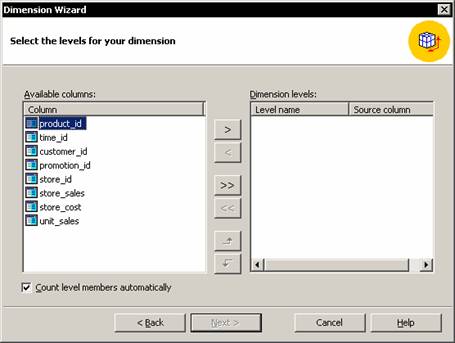 |
Dimension levels
The levels that will be generated can be viewed based on the columns selected in the Available Columns. The arrow keys can then be used to remove the unwanted levels or to change their order.
Count level members automatically
The members of the selected level can be counted in Available dimensions. To speed up the process the Count level members automatically can be checked.
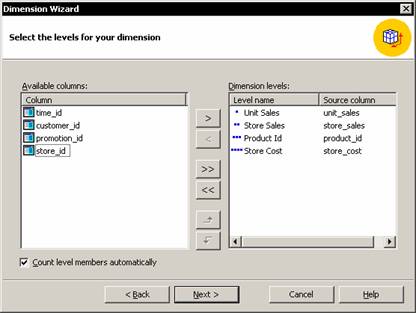 |
Uniquely identifying level members
The member key columns can then be changed for the level members using the next screen of the Wizard. This step is used when the default member key columns do not identify the level members. This wizard step is only visible if you selected Star Schema: A single dimension table or Snowflake Schema: Multiple, related dimension tables in the second step of the wizard.
Selecting Level using Dimension Editor
Levels in the Dimension Editor can be selected by double clicking on the level or by dragging the level and dropping it on to the dimension tree pane. We learnt how to do this while creating Standard dimensions and parent child dimensions in the previous tutorial. Once the levels of a dimension have been selected with the Dimension wizard, the same can be edited using the Dimension editor. Levels can be dragged and dropped into new positions in the Dimension Editor.
Working with All level and All Member
We have stated that Levels are created when the Dimension is created using the tools in Analysis Services. The All level is optional for all dimensions except the virtual dimension. However, the All level is created by default in all dimensions and it is named All followed by the name of the dimension. This level can be removed if not required.
The All level is a special Level and the topmost level in the hierarchy. It contains only one member whose value is an aggregation of the values of all members in the immediately subordinate levels in the hierarchy. The single member of the All Level is called the All Member. The Dimension Editor or the cube Editor properties pane is used to add or remove or change the name of the (All) member. The All Level property controls the inclusion of the ( All )Level. The name of the All Member is set in the Dimension’s All Caption property.
Queries on cubes are impacted by the existence or non existence of the All Level. If the query does not slice explicitly on a particular dimension or projects on the axis of a dimension, the default All member is sliced. The data set that is retrieved is complete data set of that dimension. If the All member does not exist in the dimension then, or a different default member has been specified for the dimension, an incomplete data set of the dimension is retrieved. The incompleteness of this data set may also be hidden from the user. Hence it is recommended that an All level and member is set for every dimension where no other default member has been set.
The default member of a dimension is specified in the Default member property of the properties pane of the Dimension or cube editor. Within a dimension separate default members can be selected for each role. The procedure for setting the default member has already been explained in the previous tutorial.(Building dimensions using Dimension Editor)
{mospagebreak}
Creating Member groups in Dimension Levels
Member groups in a dimension level are system generated parents of collections of consecutive dimension members. End users will not be able to see any difference between ordinary members and member groups. However, member groups provide an intermediate level for drilldown between a level with few members and one with multiple members. They also help restrict the number of members in a group to 64,000 under a parent member.
Member groups can be created automatically in a regular dimension while it is being created. This option is operable only for the member groups immediately above the lowest level of the dimension. To select this option the user needs to specify this in the Specify Storage mode and create member groups step of the dimension wizard by selecting Create member groups automatically.


Member groups are dependent on the Order By property of the level that contains the children. The sort order of the displayed members is specified by this property and it places the children in consecutive order within the level.
- Select the dimension that will contain the member groups:
- If the dimension is shared, in the Analysis Manager tree pane, right-click the dimension, and then click Edit.
- If the dimension is private, in the Analysis Manager tree pane, right-click the cube that contains the dimension, and then click Edit. In the Cube Editor tree pane, expand the dimension to reveal its levels.
- Create a copy of the level that contains the members that will be the children of the member groups. Create it immediately above the original. To do this, follow these steps:
- In the editor tree pane, select the level to be copied.
- If the properties pane is not expanded, expand it by clicking Properties beneath the tree pane.
- In the properties pane, click the Basic tab.
- Record the value of the Member Key Column property.
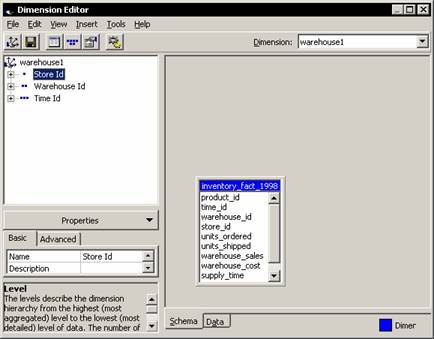
- On the Insert menu, click Level.
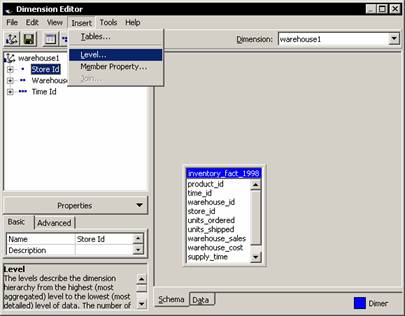
- In the Select Column dialog box, select the column recorded in Step d, and then click OK.
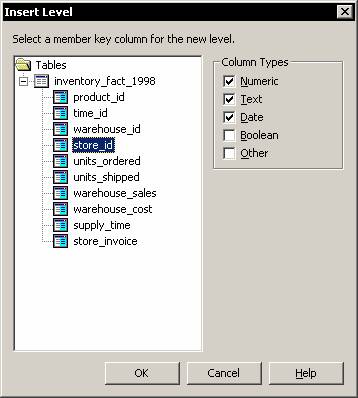
- Select the new level.
- Drag the new level to a position immediately above the original level.
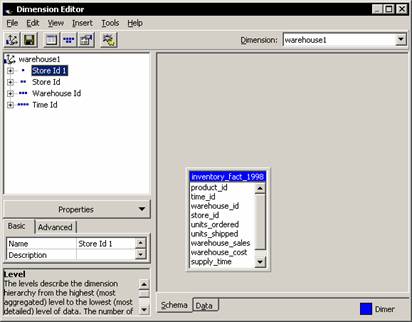
- In the properties pane, ensure that all of the new level’s properties except Name have the same values as the original level.
- In the editor tree pane, select the level in which you want to create member groups. (Select the new level from Step 2, not the original level.)
- In the properties pane, click the Advanced tab.
- For the Grouping property, select Automatic.
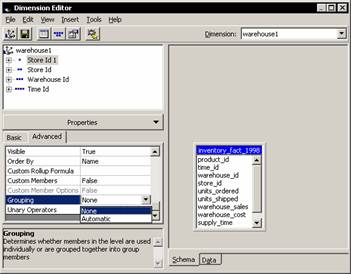
- If you want to hide from end users the level that contains the member groups, follow these steps: In the editor tree pane, select the level that contains the member groups.
- In the properties pane, click the Advanced tab.
- Change the value of the Visible property to False.
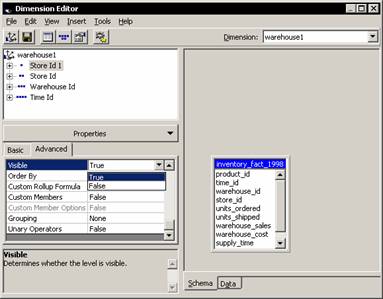
- In the editor, on the File menu, click Save.
Once the group is created the dimension has to be processed.
Levels derived from two columns
The column that supplies the member names of a level is selected by defining the Member name column property of the level and the members are identified by the Member Keys property. While defining the dimension, the column selected for defining the level is recorded both in the Member Name Column property and the member Key Column property. These can be changed later so that they reference different columns using the Dimension Editor or the Cube editor. When the member names of a level are derived from a column different from the keys of the members, the level itself is said to be derived from two columns.
[catlist id=181].