
Exforsys

Oracle Apps 11i

  1. ERP Overview
  2. Oracle Apps 11i: Overview of popular ERP Products
  3. Oracle Apps 11i: Advantages of Oracle E-Business Suite
  4. Oracle Apps 11i : Getting started with Oracle Applications
  5. Oracle Apps 11i: Internationalization Support and Multiple Reporting Currencies
  6. Oracle Apps 11i : File System
  7. Oracle Apps 11i Installation - System Requirements
  8. Oracle Apps 11i - Using Rapid install and the Steps Before Apps Installation
  9. Single Node and Multi Node Installation Part 1
  10. Single Node and Multi Node Installation Part 2
  11. Oracle Apps Application Framework
  12. Oracle Apps Table Registration API
  13. Oracle Apps Concurrent Processing
  14. Oracle Apps Concurrent Library Window
  15. Oracle Apps Message Dictionary
  16. Oracle Apps Flex fields
  17. Oracle Apps Implementing Key Flex field and Descriptive Flex field
  18. Oracle Apps Template Form
  19. Special Triggers in the Template Form in Oracle Apps 11i
  20. Creating New Forms in Oracle Apps 11i
  21. Creation of Master Detail Block in Oracle Apps 11i
  22. Registering New Forms in Oracle Apps 11i
  23. Oracle Apps 11i: Setting up Chart Of Accounts (COA)
  24. Oracle Apps Sys Admin - Users and Responsibilities
  25. Oracle Apps 11i : Creating Journals through Oracle GL
  26. Oracle Apps 11i : Suppliers
  27. Oracle Apps 11i : Asset Management - Asset Book Positioning
  28. Oracle Apps 11i : Asset Management - Asset Books Regions
  29. Oracle Apps 11i : Asset Management - Manual and Quick Additions
  30. Oracle Apps 11i : Asset Management - Mass Additions
  31. Oracle Apps 11i : Asset Management - Asset Adjustments
  32. Oracle Apps 11i : Asset Management - Mass Transfers
  33. Oracle Apps 11i : Asset Management - Depreciation
  34. Oracle Apps 11i : Asset Management - Retirements
  35. Oracle Apps 11i : Asset Management - Journal Entries
  36. Oracle Reports 6i

Ads


Home arrow Technical Training arrow Oracle Apps 11i

Oracle Apps 11i : Asset Management - Manual and Quick Additions

Author : Exforsys Inc.     Published on: 9th Oct 2005    |   Last Updated on: 11th Oct 2005

Oracle Apps 11i Free Training : Asset Management - Manual and Quick Additions

In this tutorial you will lean about Manual and Quick Additions - Adding Assets Manually, Quick Additions, Detail Asset Additions - Using the Asset Details Window, Using the Books Window, Using the Assignments Window and Using the Source Lines Window.

Ads

Manual and Quick Additions

Adding Assets Manually

You use Quick Additions to add assets manually. All assets added to the primary asset book are automatically converted to the reporting currencies asset books when you save transaction. Based on asset date placed in service, Oracle Assets retrieves an exchange rate to convert the asset cost and depreciation reserve.

Using Quick Additions : Use the quick additions process to quickly add ordinary assets.

Using Detail Additions : Use detail additions process to manually add complex assets, which quick additions process does not handle:

1. Assets that have a salvage value.
2. Assets with more than one assignment and with more than one source line.
3. Assets to which the category default depreciation rules do not apply.
4. Subcomponent assets.
5. Leased assets and leasehold improvements.
6. Assets assigned to warranties.

Quick Additions
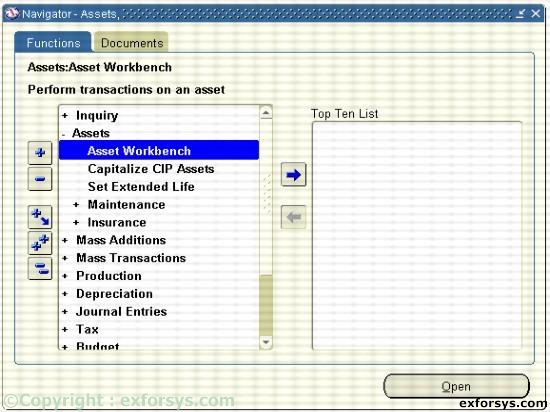
Figure 1. Navigate to Quick Additions.
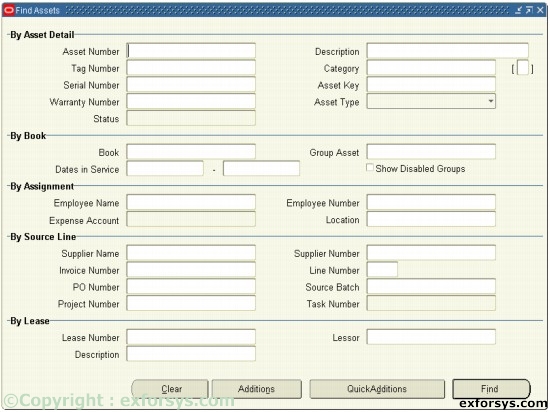
Figure 2(a).
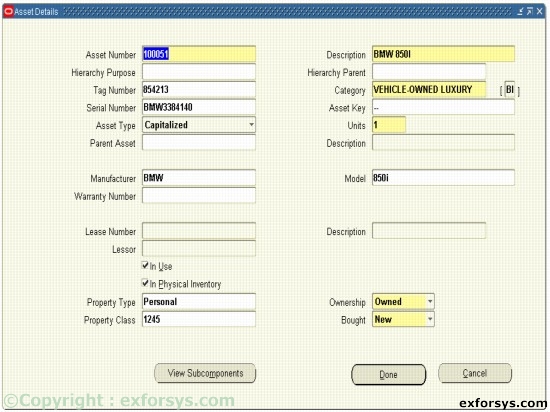
Figure 2(b). Quick Additions.

Asset Number : When adding an asset, enter the asset number or leave the field blank for automatic asset numbering. Enter a unique asset number, not in the range reserved for automatic asset numbering.

Description : Use values defined in the QuickCodes window or enter your own description.

Category : Group assets sharing financial accounts and usually depreciate using the same rules.

Tag Number : Enter a unique tag number.

Asset category descriptive field : For each asset category, you can set up a descriptive flexfield for additional information based on the asset category you enter.

Asset Key : Group or identify groups of assets quickly. Even without financial impact, using this tracks assets groups differently than the asset category.

Asset Type : Valid assets types are capitalized, construction-in-process, and expensed.

Units : Represents the parts of an asset and groups together identical assets.

Book : An asset must belong to only one corporate depreciation book. Assign a new asset to a corporate depreciation book before assigning it to any tax books.

Costs : The current cost can be positive, zero and negative.

Date placed in service : If the current date is in the current open period, the default date placed in service is the calendar date you enter the asset. If the calendar date is before the current date of the open period, the default date is the last day of the open period.

Depreciation Expense Account : Assign assets to depreciation expense accounts. Oracle Assets charges depreciation expense.

Ads

Detail Asset Additions

Using the Asset Details Window : Enter descriptive information in the Asset details window to query assets at a future time.

Using the Books Window : Enter financial information in the books window.

Using the Assignments Window : Enter distribution information in the assignments window.

Using the Source Lines Window : Optionally, enter purchasing information as needed in the Sources Lines window.


This tutorial is part of a Oracle Apps 11i tutorial series. Read it from the beginning and learn yourself.

Oracle Apps 11i

  1. ERP Overview
  2. Oracle Apps 11i: Overview of popular ERP Products
  3. Oracle Apps 11i: Advantages of Oracle E-Business Suite
  4. Oracle Apps 11i : Getting started with Oracle Applications
  5. Oracle Apps 11i: Internationalization Support and Multiple Reporting Currencies
  6. Oracle Apps 11i : File System
  7. Oracle Apps 11i Installation - System Requirements
  8. Oracle Apps 11i - Using Rapid install and the Steps Before Apps Installation
  9. Single Node and Multi Node Installation Part 1
  10. Single Node and Multi Node Installation Part 2
  11. Oracle Apps Application Framework
  12. Oracle Apps Table Registration API
  13. Oracle Apps Concurrent Processing
  14. Oracle Apps Concurrent Library Window
  15. Oracle Apps Message Dictionary
  16. Oracle Apps Flex fields
  17. Oracle Apps Implementing Key Flex field and Descriptive Flex field
  18. Oracle Apps Template Form
  19. Special Triggers in the Template Form in Oracle Apps 11i
  20. Creating New Forms in Oracle Apps 11i
  21. Creation of Master Detail Block in Oracle Apps 11i
  22. Registering New Forms in Oracle Apps 11i
  23. Oracle Apps 11i: Setting up Chart Of Accounts (COA)
  24. Oracle Apps Sys Admin - Users and Responsibilities
  25. Oracle Apps 11i : Creating Journals through Oracle GL
  26. Oracle Apps 11i : Suppliers
  27. Oracle Apps 11i : Asset Management - Asset Book Positioning
  28. Oracle Apps 11i : Asset Management - Asset Books Regions
  29. Oracle Apps 11i : Asset Management - Manual and Quick Additions
  30. Oracle Apps 11i : Asset Management - Mass Additions
  31. Oracle Apps 11i : Asset Management - Asset Adjustments
  32. Oracle Apps 11i : Asset Management - Mass Transfers
  33. Oracle Apps 11i : Asset Management - Depreciation
  34. Oracle Apps 11i : Asset Management - Retirements
  35. Oracle Apps 11i : Asset Management - Journal Entries
  36. Oracle Reports 6i
 

Comments