
Oracle Apps 11i Free Training : Setting up Chart Of Accounts (COA)
In this tutorial you will learn how to create a Chart Of Accounts (COA), create a new value set, General Ledger – List Types, Security Types, Format Types, Validation Types, Oracle GL Segments and Create the Accounting Flexfield Structure.
Setting up Chart Of Accounts
Document Summary
This document is a step-by-step guide to understanding and setting up Chart of Accounts and Accounting Flex Fields in Oracle Applications.
To setup General Ledger for your organization, step through the following points:
Creating a Chart Of Accounts (COA)
A Chart Of Accounts defines what segments each account for the organization consists of. The COA consists of things like defining the accounting structure (the accounting structure is a framework or model that you will use to maintain your accounts), Account code combinations etc.
The steps involved in setting up the COA are:
1.1. Create a new Value Set.
Value Sets act as validations for the values entered by users. When the users enter the values in any of the fields (on any form), if there is a value set attached to this field, the values entered by user are validated against the value set. To create a new value set:
Log on to General Ledger – Vision Operations (USA)/GL Team Lead responsibility.
— Navigate to N> Setup> Financials> Flexfields> Validation> Sets.
— In the ‘Value Sets’ window, enter the new value set name and a description for the value set.
— In the ‘List Type’ drop down box, select the kind of list you require based on the following criteria:
- Use ‘List of Values’ when the expected number of values is between 10 and 200. If you choose ‘List of Values’ then your value set will not provide the LongList feature in Oracle Forms applications and users will not see a poplist in Oracle Self-Service applications.
. - Use ‘Long List of Values’ when the expected number of values is more than 200. The LongList feature requires a user to enter a partial segment value before the list of values retrieves all available values. If you choose ‘Long List of Values’ then your value set will provide the LongList feature in Oracle Forms applications and users will not see a poplist in Oracle Self-Service applications. You may not enable LongList for a value set that has a validation type of ‘None’.
. - Use ‘Poplist’ when the expected number of values is fewer than 10. If you choose ‘Poplist’ then your value set will not provide the LongList feature in Oracle Forms applications but users will see a poplist in Oracle Self-Service applications.
— In the ‘Security Type’ drop down box, select the security you want Oracle Applications to use with this value set. The possible security types are:
- No Security – All security is disabled for this value set.
. - Hierarchical Security – Hierarchical security is enabled. With hierarchical security, the features of value security and value hierarchies are combined. With this feature any security rule that applies to a parent value also applies to its child values. Within a hierarchical tree of values, a value is subject to a security rule if any parent above it is subject to that security rule.
. - Non-Hierarchical Security – Security is enabled, but the rules of hierarchical security do not apply. That is, a security rule that applies to a parent value does not "cascade down" to its child values.
* The parent values and child values in a particular Key flexfield are defined in the ‘Segment Values’ window, discussed later in this document.
— Enter the ‘Format Type’, ‘Maximum Size’ and ‘Precision’ for your value set.
— You can also specify the ‘Min Value’ and the ‘Max Value’ that this value set permits.
— The first 2 check boxes on the screen define which values (‘Numbers only’, ‘Uppercase only’) the value set permits. Whereas if the third check box is checked, the values that are entered in the fields will be Right justified and zero filled automatically.
— The ‘Validation Type’ can be any one of the following:
- None: You use a None type value set when you want to allow users to enter any value so long as that value meets the value set formatting rules. Because a None value set is not validated, a segment that uses this value set does not provide a list of values for your users. A segment that uses this value set (that is, a non-validated segment) cannot use flexfield value security rules to restrict the values a user can enter.
. - Independent: This value set provides a pre-defined list for valid values. These values are entered using the ‘Segment Values’ window (Fig 10).
. - Dependent: A dependent value set is similar to an independent value set, except that the available values in the list and the meaning of a given value depend on which independent value was selected in a prior segment of the flexfield structure. You can think of a dependent value set as a collection of little value sets, with one little set for each independent value in the corresponding independent value set. You must define your independent value set before you define the dependent value set that depends on it. You enter the values for dependent values in the Segment Values window (fig 10). E.g. you have selected an independent value set ‘vs1’ for segment1 and a value set ‘vs2’ that is dependent (on ‘vs1’) for segment2. Let us assume that vs1 has two valid values: ‘Computer’ and ‘Furniture’. Then vs2 will have two sets of valid values pertaining to each value in vs1, i.e. if ‘Computer’ is entered for the segment1 then there may be a set of valid values for segment2, say, ‘mouse’, ‘keyboard’ etc. If ‘Furniture’ is entered for segment1, then there may be a set of valid values for segment2, say, ‘table’, ‘chair’ etc.
. - Special and Pair: Special and pair value sets provide a mechanism to allow a "flexfield-within-a-flexfield". These value sets are primarily used for Standard Request Submission parameters. You do not generally use these value sets for normal flexfield segments. Special and Pair value sets use special validation routines you define. For example, you can define validation routines to provide another flexfield as a value set for a single segment or to provide a range flexfield as a value set for a pair of segments.
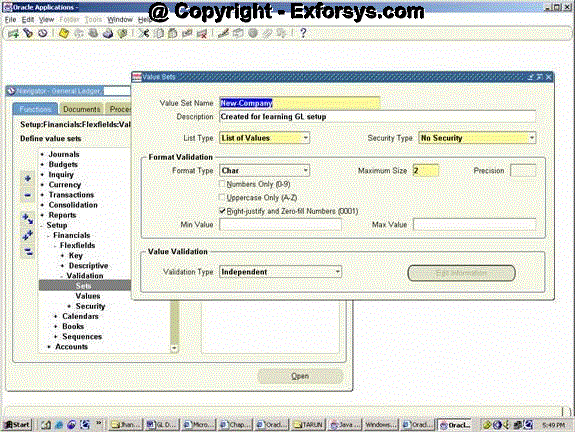
Fig 2: Value sets window.
1.2. Create the Accounting Flexfield Structure.
The accounting flexfield structure defines all the segments that makeup any account in the organization. In any organization, the accounts typically consist of codes like company_id, department_id, asset_number etc.
E.g. a typical account may have the first 2 digits representing the company, next 3 digits representing the department, next 4 digits representing the location and the last 4 digits representing the asset number.
(A typical account may look like 01.111.0011.0001)
|
(A typical account may look like 01.111.0011.0001)
|
|||
|
01
|
111
|
0011
|
0001
|
|
Company_id
|
Department_id
|
Location_id
|
Asset_Number
|
Each of these segments are defined in the accounting flexfield structure. Follow below steps to create an accounting flex field structure:
— Logon to N> Setup > Financials > Flexfields > Key > Segments
— Query for the Flexfield Title ‘Accounting Flexfield’. This should give a screen that looks like below:
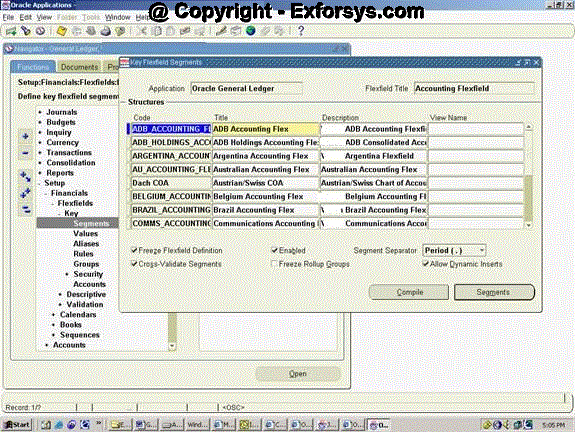
Fig 3 Key flexfields segments window
{mospagebreak}
.
.
.
— Navigate to the structure lines and click on the ‘New’ button on the tool bar.
— Enter the ‘Code’, ‘Title’ and ‘Description’ for your accounting structure.
The controls on this form are discussed in explanation for fig 6, 7 and 8.
— Check the Cross-Validate Segments checkbox and the Allow Dynamic Inserts checkbox.

Fig 4
— Click on the ‘Segments’ button. Enter the segments that you intend to be in your account structure. E.g. Company_id, Department_id etc.
— Enter the (Serial) Number, (Segment) Name, Window prompt, Column (this is the column in the table GL.GL_CODE_COMBINATIONS to which this segment is mapped) and Value Set (for validation).
— Also select the Displayed and Enabled check boxes for these segments. The form may look like this:

Fig 5
— Navigate to each segment and for each segment, click the Flexfield qualifiers button.
— The flexfield qualifiers window displays 4 qualifiers that can be attached to the segment. Click any one of the segment qualifiers and to attach it to the selected segment, check the enabled check box. Of these Oracle GL requires the following 3 segments identified:
-
Balancing Segment: This attribute is used to identify the balancing segment. Normally, the company segment is selected as the balancing segment. This means that for a company, oracle applications will try to make the debits and credits equal.
. -
Cost Center Segment: This is only used in the Oracle Assets module.
. -
The Natural Account Segment qualifier specifies which segment contains the account type for an account combination. (Account types can be Assets, Liability, Expense, Revenue, or Ownership/Stockholder’s Equity.)
Apart for these the 4th segment is:
- Intercompany Segment: This segment is used while passing intercompany entries.
See the figure below:
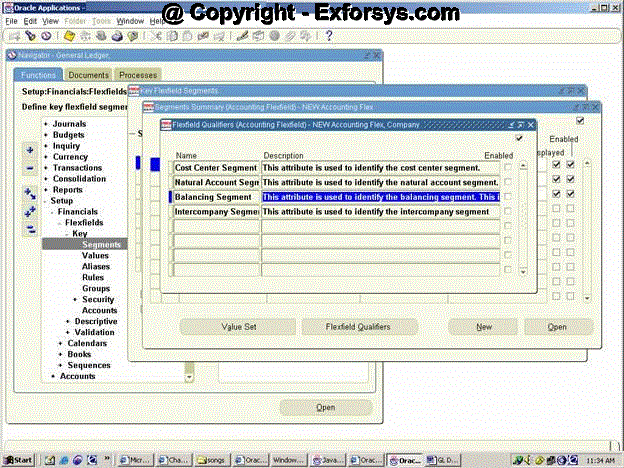
Fig 6
— Once you have specified the Flexfield qualifiers for each of the segments, close the Flexfield qualifiers and the segment summary windows.
— Selecting the ‘Enabled’ check box enables the flexfield on the form.
— Selecting the ‘Cross-Validate Segments’ check box enables the cross validation rules to be applied to this flexfield.
— Selecting the ‘Allow Dynamic Inserts’ check box eliminates the need to enter the valid account combinations before using them. The effect is that you don’t have to use the ‘GL Accounts’ form (see *1 at the end).
— On the Key Flexfield Segments window, check the ‘Freeze Flexfield Definition’ check box. A message will appear warning that you must be done with making changes to your flexfield definition before freezing. Click OK. Selecting this check box makes the flexfield definition non updateable (unless you uncheck it again).
{mospagebreak}
.
.
.
See the figure below:
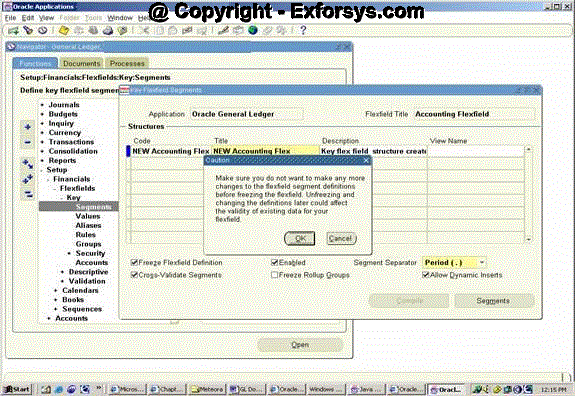
Fig 7
— Save the record.
— A message will be shown for compiling the flexfield definition. Click OK. See figure below.
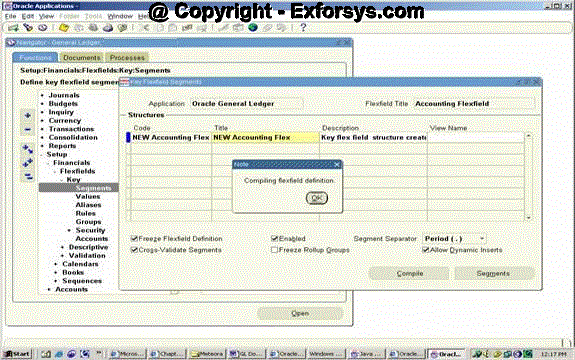
Fig 8
— Another message will be displayed saying that a request to generate flexfield view has been submitted and the view name.
With this step we are done with creating the chart of accounts.
2. Enter the valid Accounting Flexfield Segment values:
Now we need to enter valid values for the accounting flexfield segments. There may be a certain range of values that your value set definition permits. But there may be just a few of these permitted values that you may want to use. These valid values are entered for each segment in this step.
The steps are:
— Navigate to N>Financials>Flexfields>Key>Values.
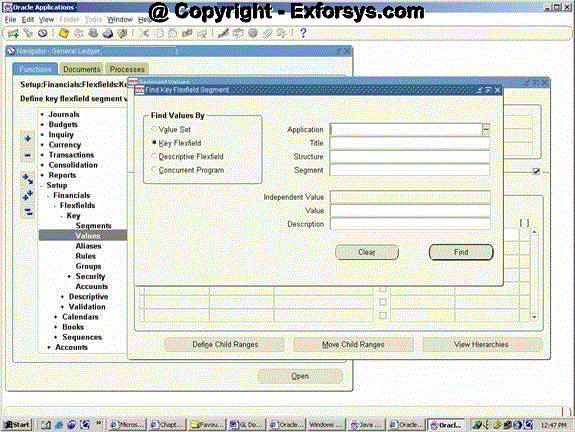
Fig 9
— Make sure that in the ‘Find Values By:’ region, ‘Key Flexfield’ option is selected.
— Click in the ‘Structure’ field and click on the LOV. In the Find box enter the name of your accounting flexfield structure and click FIND. Click OK when you have selected your AFF structure. Click on FIND in the ‘Find Key Flexfield Segment’ window.
— Click on ‘Values, Hierarchy, qualifiers’ tab.
— Enter the values that you want to use for each segment and their meaning in the description (the segment name is shown in the block above the current block).
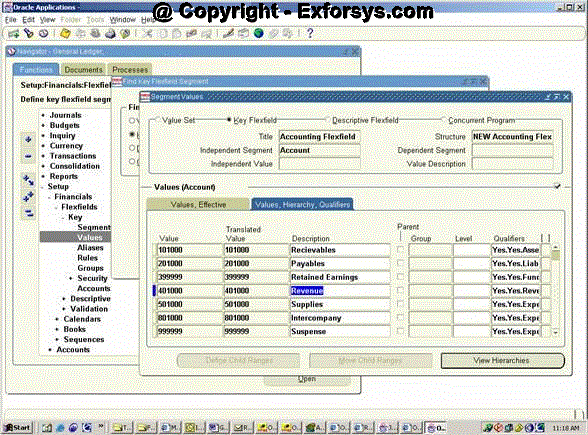
Fig 10
*1 – You can enter the valid account code combinations through the ‘GL Accounts Form’ (N>Setup>Accounts>Combinations). But since we have enabled the ‘Allow Dynamic Inserts’ option on the ‘Key Flexfield Segments’ window, we do not need to enter valid account combinations in this window before we use them. Whenever such a combination is used, it will be defined dynamically.
Frequently Asked Questions
1. What is a COA?
2. What is a value set?
3. What are dependant and independent value sets?
4. What are Special and pair value sets?
5. Explain the various security types related to value sets.
6. What is the significance of the ‘Allow Dynamic Inserts’ option on the ‘Key Flexfield Segments’ window?
7. What is a pop list?
8. Explain the various flexfield qualifiers.
9. How do you enable the cross validation rules to be applied to this flexfield?
10. Which form can be used to enter the valid account code combinations?
[catlist id=183].