
SQL Server Configuration Manager
In this tutorial you will learn about SQL Server Configuration Manager, Manage Server & Client Network Protocols, To start the default instance of SQL Server, To start an instance of SQL Server with startup options, To stop the default instance of SQL Server, To connect to another computer with SQL Server Configuration Manager, To connect to another computer with Windows Computer Management, To stop the default instance of SQL Server using net commands, To set an instance of SQL Server to start automatically and To start or Start the SQL Server Agent service
SQL Server Computer manager or Configuration manager mainly combines three SQL Server tools into one. Client Network utility, Server Network utility and Service manager. Provides the basic configuration management requirements of SQL Server services, Server protocols, Client protocols, client aliases, report services and report manager. SQL Computer manager is backward compatible with SQL Server 2000 and 7.0 and supports older versions of Analysis Services and Reporting services.
The SQL Server Configuration manager opens from the SQL Server Management Studio and is a snap in to the Microsoft Management console. However, it can be accessed directly from the Start Menu and added to any other Management Console display. The Microsoft Management Console draws on SQLServerManager.msc file under Windows System 32 folder to open the SQL Server configuration manager.
Windows Management Instrumentation(WMI) is used by the SQL Server Configuration Manager and SQL Server Management studio to view and change settings on the server. It provides an unified way of managing and interfacing with the API calls that manage the registry options requested by the SQL Server tools.
The Configuration Management tools can be used to start or stop, pause or resume services. Service properties can be viewed or changed. If passwords are changed using the SQL Server Configuration Manager, SMO or WMI are immediately impacted without having to restart the service.
Manage Server & Client Network Protocols
The Configuration manager tool is used to configure server and client network protocols. Connectivity options can also be defined using this tool. Enabling the required protocols does not require a change of server network connections. However if the server connections have to be reconfigured to ensure that the SQL server listens on a particular network, this tools comes in use. The Configuration Manager also comes with an ability to force protocol encryption, view alias properties or enable/disable a protocol. The order of usage of protocols can also be changed.
Before proceeding further, let us briefly look at some definitions:
Server Alias is an alias used for the computer to which the client is connecting. Protocol is the network protocol used for the configuration entry. Connection parameters are parameters associated with the connection address for the network protocol configuration.
The available Network Protocols are Shared Memory, TCP/IP, Named Pipes and VI A Protocols. SQL Server 2005 does not support Banyan VINES Sequenced packet Protocol(SPP), Multiprotocol, AppleTalk or NWLink IPX/SPX network protocols. If there are clients connecting to these protocols a different protocol must be selected. Winsock Proxy cannot be configured using the SQL Server configuration manager.
Microsoft SQL Server can be stopped and started from SQL Server Configuration Manager. To ensure orderly shutdown of the SQL Server, it is important to pause the SQL Server, then stop the SQL Server Agent Service and thereafter stop the instance of the server. The SQL Server Configuration manager allows users to do the entire process from the interface.
To start the default instance of SQL Server
1. On the Start menu, point to All Programs, point to Microsoft SQL Server, and then click SQL Server Configuration Manager.
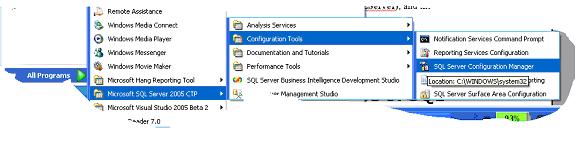
2. In SQL Server Configuration Manager, expand Services, and then click SQL Server.
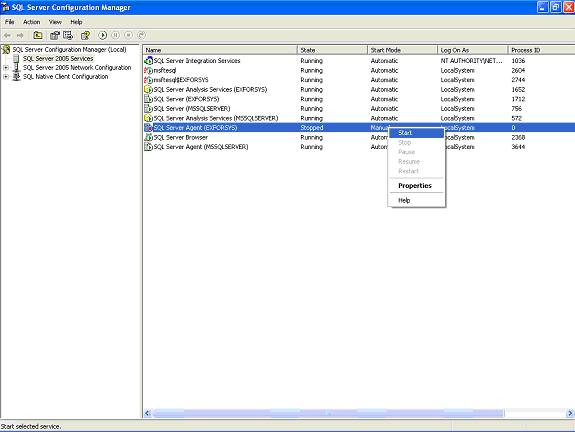
3. In the details pane, right-click SQL Server (MSSQLServer), and then click Start.
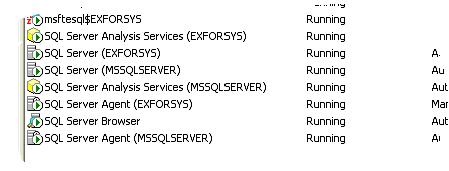
4. A green arrow on the icon next to the server name and on the toolbar indicates that the server started successfully.
To start an instance of SQL Server with startup options
1. On the Start menu, point to All Programs, point to Microsoft SQL Server, and then click SQL Server Configuration Manager.
2. In SQL Server Configuration Manager, expand Services, and then click SQL Server (MSSQLSERVER).
3. In the details pane, right-click the instance of SQL Server, and then click Properties.
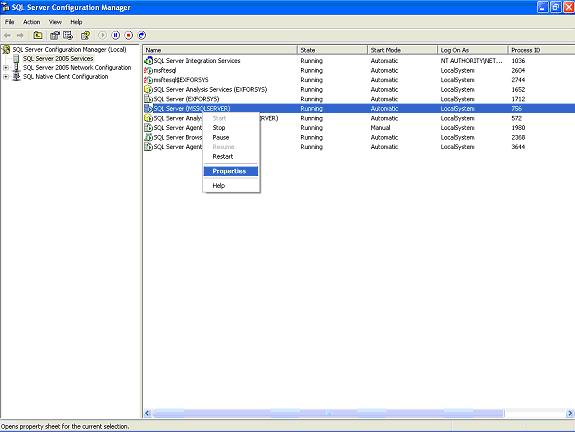
4. In the SQL Server < instancename > Properties dialog box, click the Advanced tab, and then click STARTUPPARAMETERS.
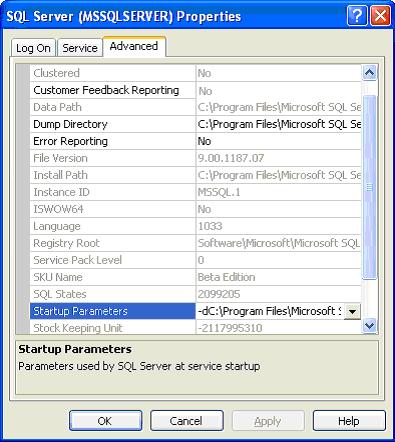
5. At the end of the original text, in the Value column, type the startup parameters you want, and then click OK. Separate parameters with a space, for example, –c -m.
6. Stop and restart SQL Server for the parameters to take effect.
To pause and resume the default instance of SQL Server
1. On the Start menu, point to All Programs, point to Microsoft SQL Server, and then click SQL Server Configuration Manager.
2. In SQL Server Configuration Manager, expand Services, and then click SQL Server.
3. In the details pane, right-click SQL Server (MSSQLServer), and then click Pause.
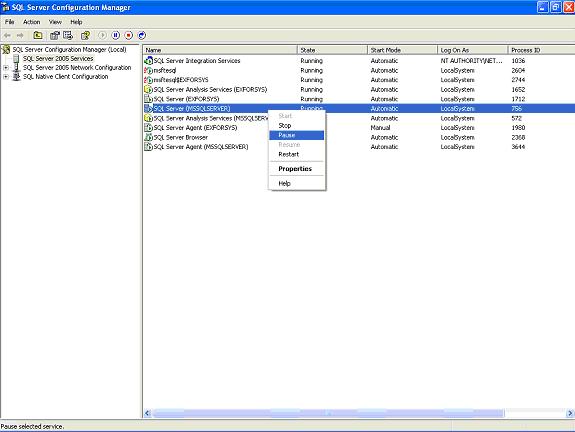
4. A pair of vertical blue bars on the icon next to the server name and on the toolbar indicates that the server paused successfully.

5. To resume the server, right-click SQL Server (MSSQLServer), and then click Resume.
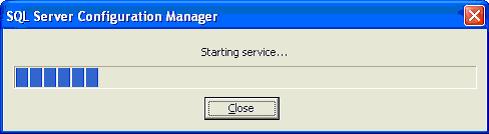
6. A green arrow on the icon next to the server name and on the toolbar indicates that the server started successfully.
To stop the default instance of SQL Server
1. On the Start menu, point to All Programs, point to Microsoft SQL Server, and then click SQL Server Configuration Manager.
2. In SQL Server Configuration Manager, expand Services, and then click SQL Server.
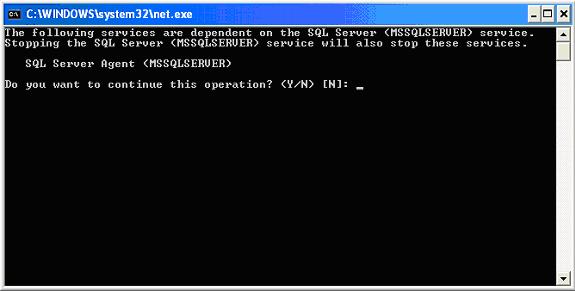
3. In the results pane, right-click SQL Server (MSSQLSERVER), and then click Stop. If SQL Server Agent is running, you will receive a notice that SQL Server Agent will also stop.
4. A red box on the icon next to the server name and on the toolbar indicates that the server stopped successfully.
To connect to another computer with SQL Server Configuration Manager
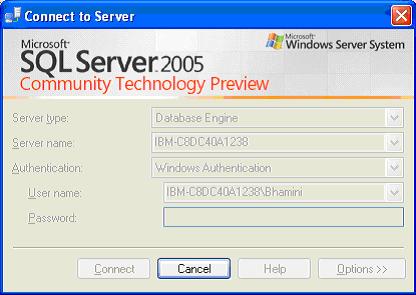
1. In SQL Server Management Studio, on the Object Explorer toolbar, click Connect, and then click Database Engine. The Connect to Server dialog box appears.
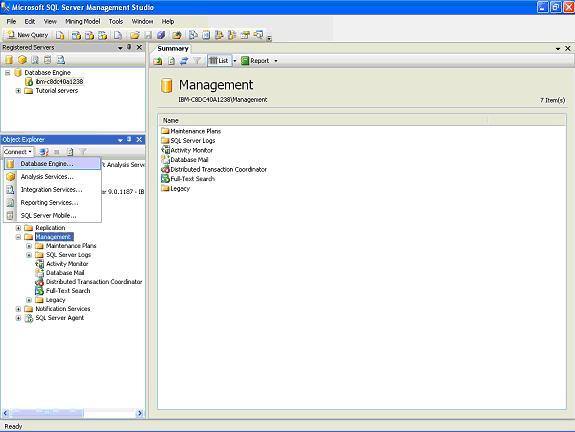
2. In the Connect to Server dialog box, in the Server name box, type the name of the server to connect to. Complete the authentication information, and then click Connect.
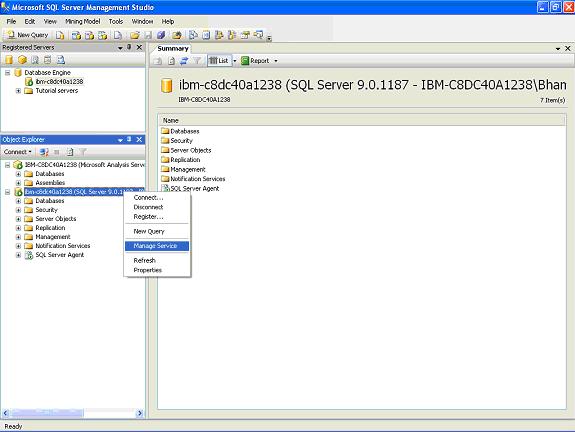
3. In Object Explorer, right-click the server name, and then click Manage Service.
To connect to another computer with Windows Computer Management
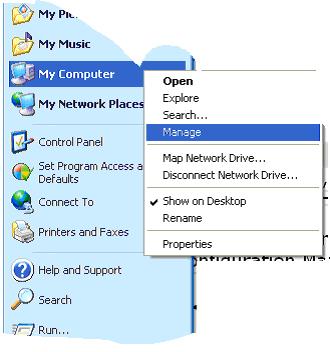
1. On the Start menu, right-click My Computer, and then click Manage.
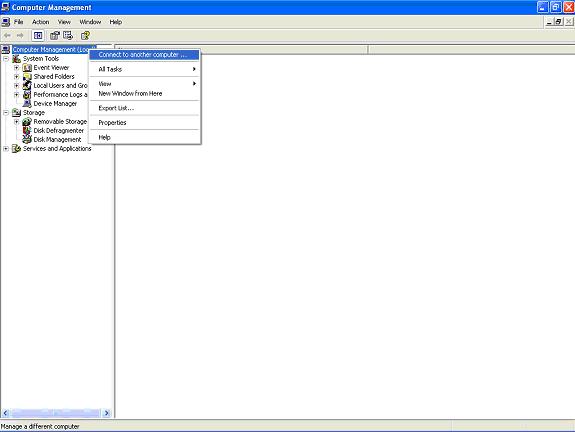
2. In Computer Management, right-click Computer Management (Local), and then click Connect to another computer.
3. In the Select Computer dialog box, in the Another computer text box, type the name of the computer you want to manage, and then click OK.
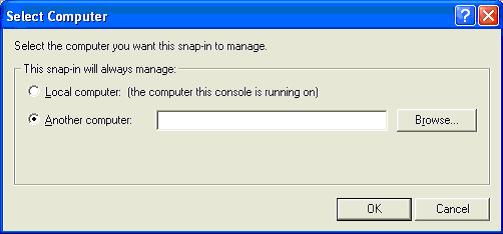
4. Computer Management displays the services running on the remote computer. The top-level node changes to Computer Management < remotecomputer >.
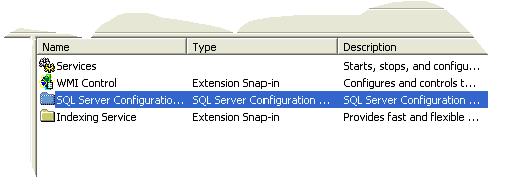
5. In the console tree, expand Services and Applications, and then expand SQL Server Configuration Manager to manage the remote computer’s services.
To stop the default instance of SQL Server using net commands
1. From a command prompt, enter one of the following commands:
2. net stop "SQL Server (MSSQLSERVER)"
-or-
3. net stop MSSQLSERVER
To set an instance of SQL Server to start automatically
1. On the Start menu, point to All Programs, point to Microsoft SQL Server, and then click SQL Server Configuration Manager.
2. In SQL Server Configuration Manager, expand Services, and then click SQL Server.
3. In the details pane, right-click the name of the instance you want to start automatically, and then click Properties.
4. In the SQL Server < instancename > Properties dialog box, set Start Mode to Automatic.
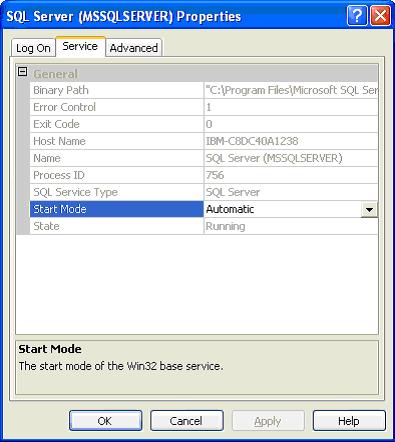
5. Click OK, and then close SQL Server Configuration Manager.
To start or Start the SQL Server Agent service
1. On the Start menu, point to All Programs, point to Microsoft SQL Server, and then click SQL Server Configuration Manager.
2. In SQL Server Configuration Manager, expand Services, and then click SQL Agent.
3. In the results pane, right-click any instance, and then click Start.
4. A green arrow on the icon next to the SQL Server Agent and on the toolbar indicates that SQL Server Agent started successfully.
5. Click OK.
[catlist id=178].