
SQL Server 2005 – Using the Database Tuning Advisor
In this tutorial you will learn about Using the Database Tuning Advisor in SQL Server 2005, Using the DTA, Open the Database Engine Tuning Advisor GUI, Set the tool options, Hide and unhide the Session Monitor, Tune a workload Transact-SQL script file, View tuning recommendations, Starting the dta command prompt utility and viewing Help and Tuning a simple workload with the DTA command prompt utility.
Using the DTA
The first condition to launching the Database Tuning Advisor graphical user interface is that the user must be a member of the sysadmin fixed server role. Once the application is initialized members of the db_owner fixed database role can use the DTA to tune databases owned by them.
Open the Database Engine Tuning Advisor GUI
1. On the Windows Start menu, point to All Programs, point to Microsoft SQL Server 2005, point to Performance Tools, and then click Database Engine Tuning Advisor.
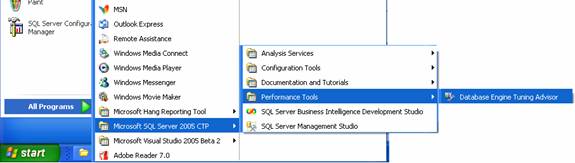
2. In the Connect to Server dialog box, verify the default settings, and then click Connect.
By default, Database Engine Tuning Advisor opens to the configuration in the following illustration:
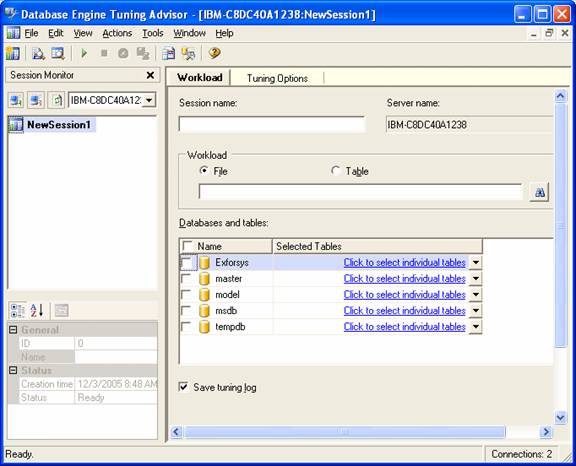
The GUI displays two panes—one with the session monitor which displays the sessions that have been performed on this instance of the SQL Server. The session monitor can be hidden or displayed. If it is new session, it is named “New Session1”by default. This is placed at the top of the list. This session can be deleted/copied by right clicking it and selecting delete/copy. Right clicking the list allows the user sort the sessions by name, status or creation time. The bottom of the pane displays the details of the active session. The details can be displayed categorized or alphabetically.
The right pane displays the Workload and the Tuning options tab. The user has to give a name to the session, specify a workload file or table to use and select the databases and tables that have to be tuned. In the tuning options tab the user has to select the physical database design structures such as indexes or indexed views and the partitioning strategy that the DTA has to consider during analysis. The maximum time for the process can also be specified else the tuning will be completed in an hour.
The user has options for customizing the GUI that will be displayed at startup, the kinds of fonts used and other tool functionalities to support it.
Set the tool options
- Start the Database Engine Tuning Advisor. On the Windows Start menu, point to All Programs, point to Microsoft SQL Server 2005, and click Database Engine Tuning Advisor.
- On the Tools menu, click Options.
- In the Options dialog box, view the following options:
- Expand the On startup list to view what Database Engine Tuning Advisor can display when it is started. By default, Show a new session is selected.
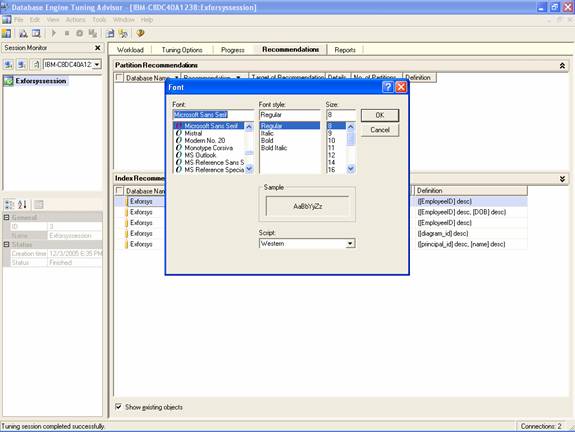
- Click Change Font to see what fonts you can choose for the lists of databases and tables on the Workload tab. The fonts you choose for this option also are used in Database Engine Tuning Advisor recommendation grids and reports after you have performed tuning. By default, Database Engine Tuning Advisor uses system fonts.
- The Number of items in most recently used lists can be set between 1 and 10. This sets the maximum number of items in the lists displayed by clicking Recent Sessions or Recent Files on the File menu. By default, this option is set to 4.
- Load all rollover files in sequence is not available in this release.
- When Use Management Studio for script preview is checked, Microsoft SQL Server Management Studio Query Editor is used to display workload script files. You can open a script file for viewing by clicking Preview Workload File on the View menu.
- Use SQL Server Profiler for trace file preview is automatically selected and cannot be changed in this release.
- When Remember my last tuning options is checked, by default Database Engine Tuning Advisor uses the tuning options you specified for your last tuning session for the next tuning session. Clear this check box to use Database Engine Tuning Advisor tuning option defaults. By default, this option is selected.
- By default, Ask before permanently deleting sessions is checked to avoid accidentally deleting tuning sessions.
Hide and unhide the Session Monitor
- Click the close button in the upper right corner of the Session Monitor pane to hide it.
- On the View menu, click Session Monitor to view the left pane again.
Tune a workload Transact-SQL script file
1. Write a SELECT statement or statements. Save the file as ExforsysScript.sql in a directory where you can easily find it.
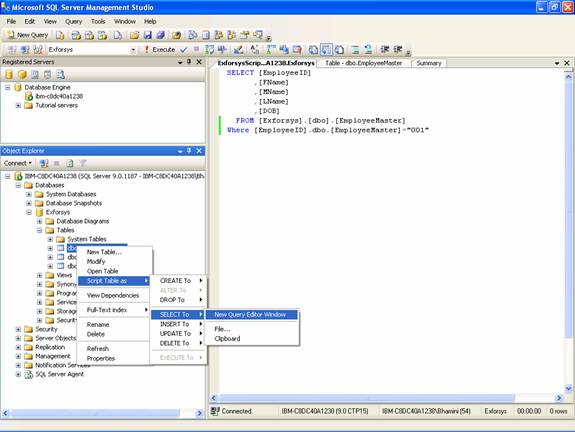
2. Start Database Engine Tuning Advisor.
3. In the right pane of the Database Engine Tuning Advisor GUI, type Exfosys-session in Session name.

4. Select File for your Workload, and click the Browse for a Workload file button to locate the ExforsysScript.sql file that you saved in Step 1.
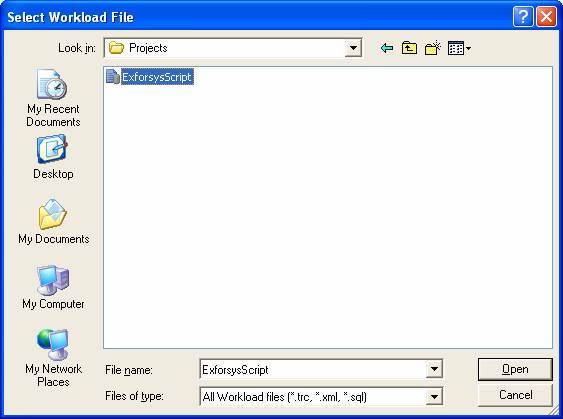
5. Select Exforsys in the Databases and tables grid, and leave Save tuning log selected.
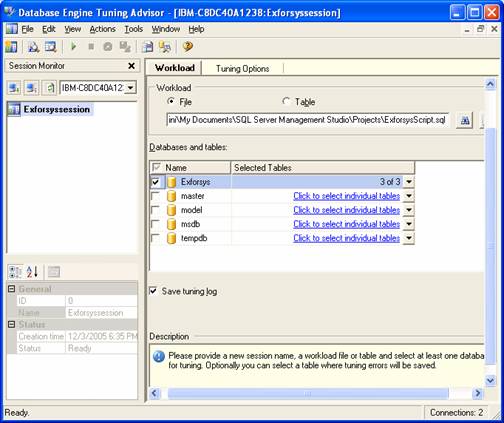
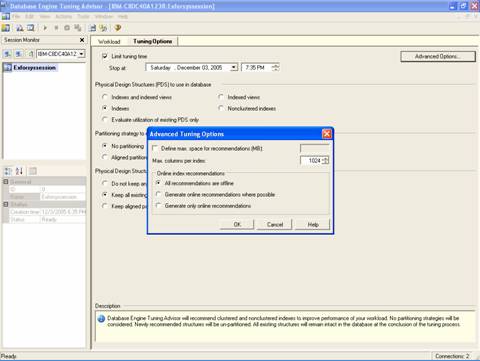
6. Click the Tuning Options tab. We shall not set any options for the current session. Click Advanced Options to view additional tuning options. Click Help in the Advanced Tuning Options dialog box for information about the tuning options that are displayed there. Click Cancel to close the Advanced Tuning Options dialog box, leaving the default options selected.
7. Click the Start Analysis button on the toolbar. While Database Engine Tuning Advisor is analyzing the workload, you can monitor the status on the Progress tab. When tuning is complete, the Recommendations tab is displayed.
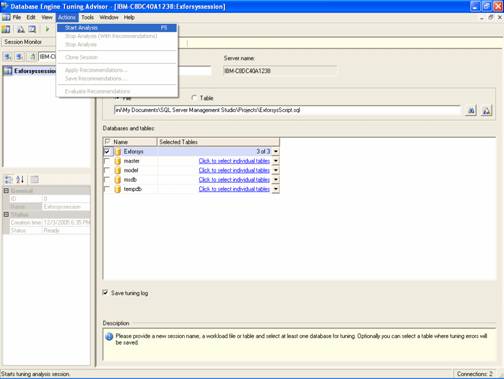
8. Save your recommendation as a Transact-SQL script by clicking Save Recommendations on the Actions menu. In the Save As dialog box, navigate to the directory where you want to save the recommendations script, and type the file name ExforsysRecommendations.

View tuning recommendations
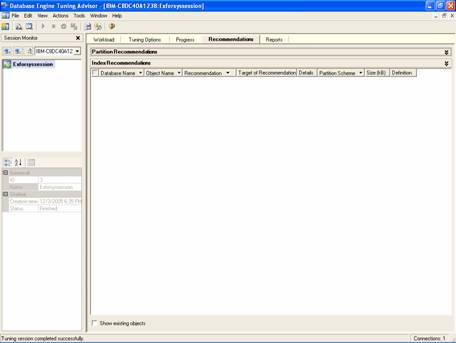
1. Double-click Exforyssession in the Session Monitor pane. Database Engine Tuning Advisor loads the session information from your previous tuning session and displays the Recommendations tab. Note that Database Engine Tuning Advisor made no Partition Recommendations because you accepted all the tuning option defaults and No partitioning was selected on the Tuning Options tab.
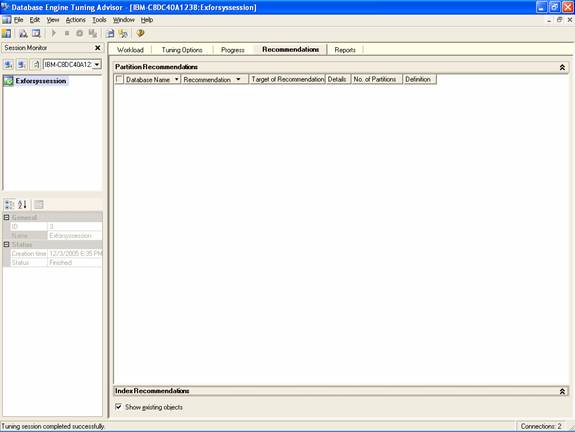
2. On the Recommendations tab, use the scroll bar at the bottom of the tabbed page to view all of the Index Recommendations columns. Each row represents a database object (indexes or indexed views) that Database Engine Tuning Advisor recommends be dropped or created. Scroll to the right-most column and click a Definition. Database Engine Tuning Advisor displays a SQL Script Preview window where you can view the Transact-SQL script that creates or drops the database object on that row. Click Close to close the preview window.
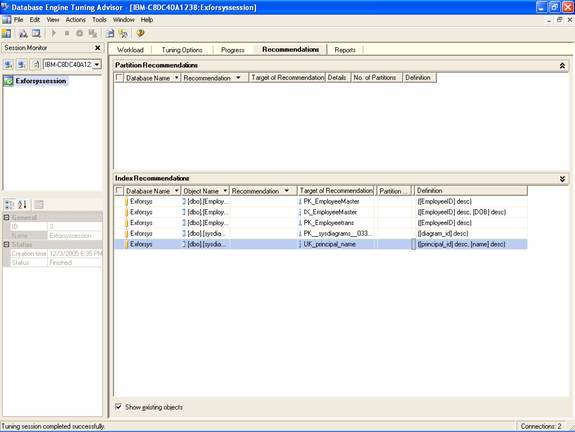
3. Right-click the grid in the Index Recommendations pane. This right-click menu enables you to select and deselect recommendations. It also enables you to change the font for the grid text.
Check Show existing objects at the bottom of the tabbed page to view all the database objects that currently exist in the Exforsys database. When you uncheck this option, Database Engine Tuning Advisor switches to show you only the objects for which it has generated a recommendation. Use the scroll bar at the right side of the tabbed page to view all of the objects.
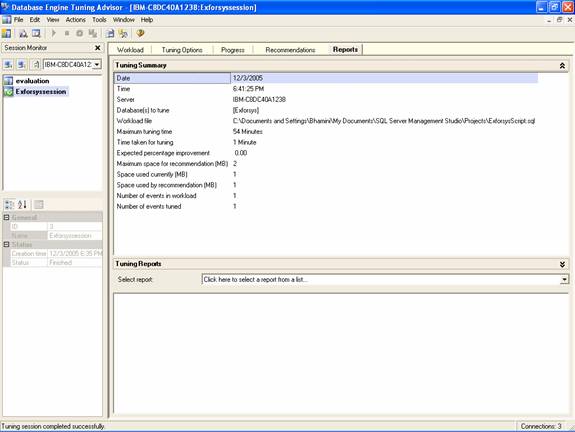
The recommendations can be applied by running the script generated or by clicking Apply Recommendations on the Actions menu of the DTA. Recommendations can be evaluated by clicking the Evaluate Recommendations option in the Actions menu. A new session is created for evaluating subsets selected from an original recommendation. This process is generally attempted when the DBA must change the tuning options after the session is run. The Reports tab provides further tuning options. Tuning reports are usually listed in the Tuning Reports tab. In this instance there are no tuning reports and hence it is blank. However, if tuning reports are listed, the user can select a report and view it in the pane above. The reports can also be exported to file and saved.
Starting the dta command prompt utility and viewing Help
- On the Start menu, point to All Programs, point to Accessories, and then click Command Prompt.
- At the command prompt, type the following, and press ENTER: dta -? | more
- The | more part of this command is optional. However, using it enables you to page through the syntax help for the utility. Press ENTER to advance the help text by the line, or press the SPACEBAR to advance it by the page.

Tuning a simple workload with the DTA command prompt utility
1. At the command prompt, navigate to the directory where you have stored the ExforsysScript.sql file.
2. At the command prompt, type the following, and press ENTER to run the command and start the tuning session (note that the utility is case-sensitive when it parses commands):
dta -S YourServerName\YourSQLServerInstanceName -E -D Exforsys -if ExforsysScript.sql -s MySession2 -of MySession2OutputScript.sql -ox MySession2Output.xml -fa IDX_IV -fp NONE -fk NONE
3. where -S specifies the name of your server and the SQL Server instance where the Exforsys database is installed. The setting -E specifies that you want to use a trusted connection to the instance, which is appropriate if you are connecting with a Windows domain account. The setting -D specifies the database that you want to tune, -if specifies the workload file, -s specifies the session name, -of specifies the file to which you want the tool to write the Transact-SQL recommendations script, and -ox specifies the file to which you want the tool to write the recommendations in XML format. The last three switches specify tuning options as follows: -fa IDX_IV specifies that Database Engine Tuning Advisor should only consider adding indexes (both clustered and nonclustered) and indexed views; -fp NONE specifies that no partition strategy should be considered during analysis; and -fk NONE specifies that no existing physical design structures in the database must be kept when Database Engine Tuning Advisor makes its recommendations.
After Database Engine Tuning Advisor finishes tuning the workload, it displays a message indicating that your tuning session completed successfully. Open Microsoft SQL Server Management Studio to open the files MySession2OutputScript.sql and MySession2Output.xml.
In this lesson we briefly looked at Indexes and the Database Tuning Advisor and the different options available to the Database Administrator.
[catlist id=178].