
Access and Manipulate Data – Using DataSets
In this tutorial you will learn about Using DataSets, Populating a DataSet From a Database, Moving Around in DataSets and Retrieving Data, Using Strongly Typed DataSets, DataSets With Multiple Tables.
Populating a DataSet from a Database
As already discussed DataSets do not contain any data when they are created. The user must fill the data in to the DataSet separately. We have already seen that there are several methods of filling a DataSet with data. DataSets can be created using the Visual Studio Design in which case TableAdapters are also created.
Filling a DataSet using a TableAdapter
- Create a new project in Visual Basic IDE.
- On the Database Explorer click the icon for creating new data connection and
- Choose the SQL Server file.
- Establish the connection and you should be seeing the database objects on the window.
- In the solution Explorer click on the project name and
- Choose add an item option.
- In the dialog box that opens choose DataSet item and
- Name it as ds and click ok.
- You will see the DataSet item added to the solution and also
- A blank screen will be seen.
- From the Database explorer drag and drop the table ProductCategory.
- Choose ‘not’ in the message box that asks your permission to add the datafile as a project data.
- Now right click on the Form1 and
- Choose the option to see the code window.
- Type the following codes to fill the DataSet
Dim ProductCategoryTableAdapter As New dsTableAdapters.ProductCategoryTableAdapter()
Dim ProductCategoryDataSet As New ds ProductCategoryTableAdapter.Fill(ProductCategoryDataSet.ProductCategory)
You can also populate a DataSet using a SqlDataAdapter or an OleDbDataAdapter. The method of doing this is same in both the cases. We shall now see how a DataSet is filled by using a SqlDataAdapter. You have to
- Create a SqlConnection object. SqlDatAdapter object.
- The SqlConnection object needs connection string as an argument and the SqlDataAdapter requires the SQL Statement and Connection Object as an argument.
- The ConnectString gives details about the Database Server, Initial Catalogue, connection type, userid and password.
- A typical connection string could look like this:
data source=sql.domain.no;
initial catalog=xxxxx;User ID=xxxxx;pwd=xxxxx;
Integrated Security=SSPI
Code for filling the DataSet is given below:
Dim SQLStr As String
Dim ConStr As String
SQLStr = "SELECT Name FROM production.ProductCategory"
ConStr = "data source=sql.domain.no; initial catalog=xxxxx; User ID=xxxxx;pwd=xxxxx; Integrated Security=SSPI"
Dim sqlConn As New System.Data.SqlClient.SqlConnection(ConStr)
Dim ds As New DataSet
Dim SQLAdapter As New System.Data.SqlClient.SqlDataAdapter(SQLStr, ConStr)
SQLAdapter.Fill(ds)
New rows can be added manually to the data set as in the case of a data-entry. In this case the user has to first create a DataSet, a DataTabale, and a DataRow. Then he must populate the DataRow manually by supplying the value for each row and then add these rows to the DataSet. It should be remembered that there is no underlying data store that supplies data in this case. The code for the activity is given below:
Dim dsNew As New DataSet
Dim t As New DataTable
Dim tr As DataRow = dsNew.Tables("T").NewRow
tr("Name") = "Aviation Gears"
dsNew.Tables("T").Rows.Add(tr)
You can also populate a DataSet by reading from an WML file. The code listing is given below:
Dim dsXML As New DataSet()
dsXML.ReadXml("XmlFilePath and Name")
The user can also create a new DataSet and merge it with any existing DataSet. This opetaion is illustrated by the code given below:
Dim dsXML As New DataSet()
Dim dsCopy As New DataSet
dsXML.ReadXml("XmlFilePath and Name")
dsCopy.Merge(dsXML, True, MissingSchemaAction.AddWithKey)
Moving Around in DataSet and Retrieving Data
In the above sections we have seen how to create a DataSet, how to populate it etc. In the following sections we shall see how to retrieve data from a DataSet. Remember, we stated that there is no current row in a DataSet? So any row can be accessed directly by just mentioning its position? Let us add to this the fact that a DataSet can contain as many tables as required and the user can also create objects that show the relationships that exist and the constraints that are imposed on them. Thus a DataSet can be a very complex data store. Let us understand the process of navigating the DataSet by the following example.
You can write code to go to the first record of the table, go one record forward or backward and also go to the last record. We shall use the BindingContext to do this. Look at the following code:
Click here to view sample code
Retrieving data from DataSets is easy. The data in the DataSet can be displayed in a grid and a script can be written to enable the user browse through the data. The sample code illustrates this.
Imports system.Data
Public Class Form1
Dim ProductDataSet As ds
Private Sub DataLoad()
Dim ProductTableAdapter As New dsTableAdapters.ProductTableAdapter()
ProductDataSet = New ds ProductTableAdapter.Fill(ProductDataSet.Product)
End Sub
The code that is given below will make navigation within the data set.
Click here to view sample code
{mospagebreak}
Using Strongly Typed DataSets
A strongly typed DataSet can ensure that the CLR and .NET framework know at design time the type of data that is to be stored in the location specified by the DataSet. Unless a strongly typed data classes are set up, the compiler needs to take extra time at runtime to determine where to place the incoming data and how to convert it into the destination data type. The performance overhead is increased substantially relative to the strongly typed DataSets
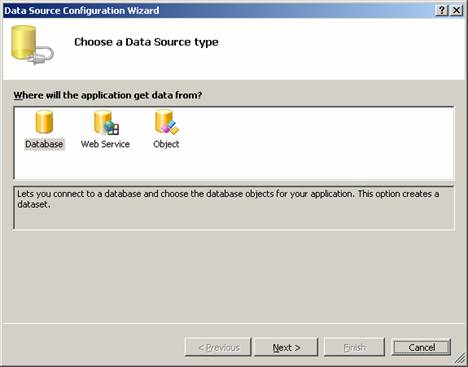
Strongly typed DataSets can be created in two ways. In the menu click the Data MainMenu and choose the submenu Add New Data Source …. And click on this. The Data Source Configuration Wizard opens. In the Wizard choose Database and click next.
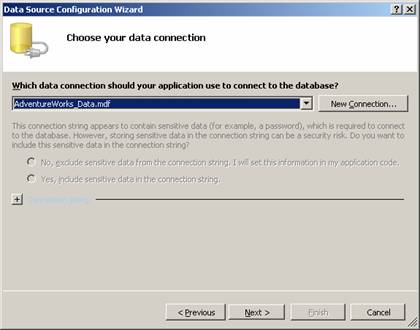
In the second screen choose the data file (*.mdf) by clicking new connection and click next.
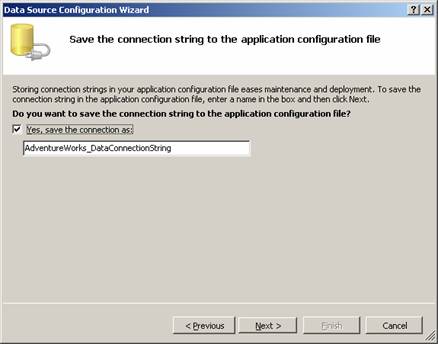
Click next to continue.
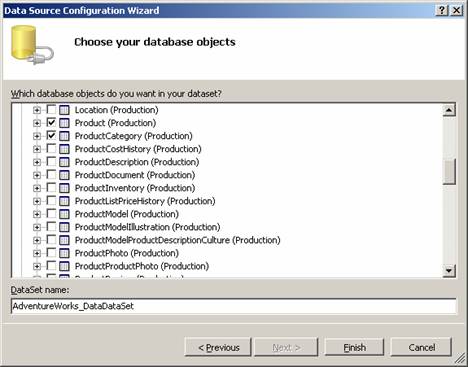
Choose the tables that you want to add and click on Finish. This will create a typed data set.
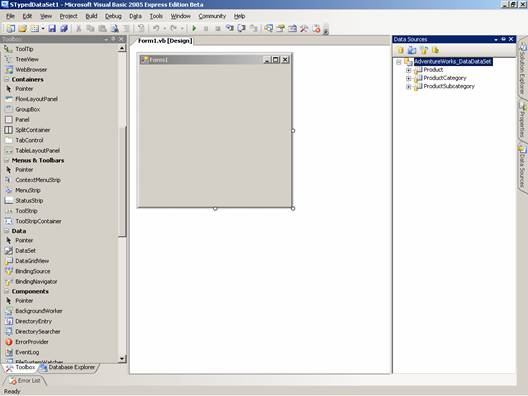
The screenshot shown below shows the new Strongly typed DataSet that was created.
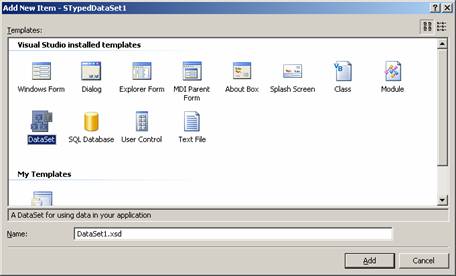
In the next method, click the project in the solution explorer and choose the add new item from the context sensitive menu and in the dialog box choose the data set and click add.
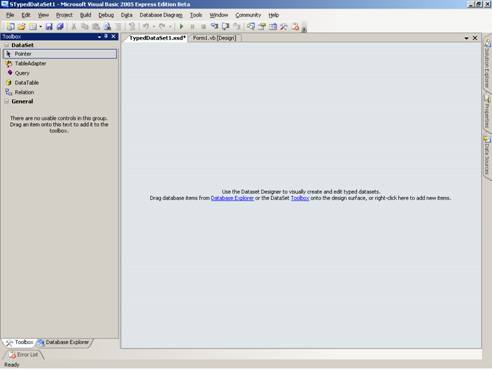
The DataSet is created. The screenshot shows the toolbar with dataset tools. You can drag and drop any of the tools and configure. This also will create a typed dataset.
DataSets With Multiple Tables
In most situations a typical DataSet will be populated with multiple tables. By default these tables will not have any relationship defined. The user will also not have any constraints defined. Tables can be referenced by table name or serial number. For example a Customer table which was added as a third table can be referenced as under:
CustomerDataTable = MultiTableDataSet.Tables(3)
or by the following statement:
CustomerDataTable = MultiTableDataSet.Tables("Customer")
The following screenshot shows the structure of a DataSet with multiple tables:
[catlist id=175].