
In this tutorial you will learn about Access and Manipulate Data, Working with Disk Files, Browsing for Files, Streams and Backing Stores, Using the FileStream Class, Using the StreamReader and StreamWriter Classes, Using the BinaryReader and BinaryWriter Classes.
Access and Manipulate Data – Working with Disk Files
Working with Disk Files
Temporary storage of data as in the illustrations above is not the optimal solution. Persistent data storage is a file having a collection of bytes and is stored as data streams. All read write operations to these data steams can be done with ease in the circumstances. In the following illustration we shall see how read write operations can be performed on persistent data storage.
Browsing For Files
The System.IO.Directory class can be used for typical operations such as copying, moving, renaming, creating and deleting directories. This is a static class and therefore is efficient in the performance of single operations. This class can be used to perform operations relating to browsing for files, The System.IO.FileInfo.Name method of this class used to see the files in the directory. The System.IO.Directory.GetDirectories or System.DirectoryInfo.GetDirectories methods enable users see the sub directories in a the directory. Let us understand the issue by the following example.
-
Create a new windows application in the Visual Basic Express and
-
Give the name of the project as FileBrowse1.
-
To the form Form1 add two Labels, a TextBox , a CheckBox, and two Buttons.
-
Arrange the controls and name them as shown in the screenshot shown below:
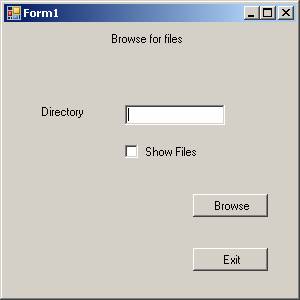
Now add the necessary code to the application. The code for the application is shown below:
Click here to veiw sample code
Now press F5 to execute the application. In the window type the directory name that we want to browse and also use the check box to specify if we want to view the file names or not. Now click the button Browse to view the file names and the directory names. The outputs generated for both with and without the check box selected are shown below:
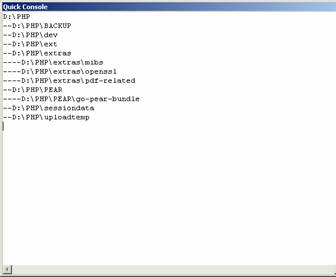
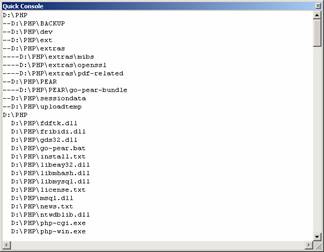
Streams
Stream is the abstract base class of all streams. A stream is an abstraction of a sequence of bytes, such as a file, an input/output device, an inter-process communication pipe, or TCP/IP socket. The stream class and its derived classes provide generic view of these different types of input and output, isolating the programmer from the specific details of the operating system and the underlying devices.
Streams are concerned with three fundamental operations:
1. Reading. Transfer of data from the stream into a data structure, such as an array of bytes.
2. Writing to streams – Transferring data from a data structure into a stream.
3. Support to seeking – Querying and modifying of the current position within a stream.
Depending on the underlying data source or repository, streams might support only some of the several capabilities. An application may query a stream for its capabilities by using the System.IO.Stream.CanRead, System.IO.Stream.CanWrite, and System.IO.Stream.CanSeek properties.
Using FileStream Class
The FileStream class gives the user the capability to read from, write to, open, and close files on a file system. This class also can be used to manipulate other file related handlers like pipes, standard input, and standard output. The user can also specify read and write operations to be either Synchronous or asynchronous.
Some of the functions ofthe FileStream class are given below:
-
Create a text file.
-
Write to a text file.
-
Read from a text file.
-
Append text to a file.
-
Rename or move a file.
-
Delete a file.
-
Copy a file.
-
Get the size of a file.
-
Get the attributes of a file.
-
Set the attributes of a file.
-
Determine if a file exists.
-
Read from a binary file.
-
Write to a binary file.
-
Retrieve a file extension.
-
Retrieve the fully qualified path of a file.
-
Retrieve the file name and extension from a path.
-
Change the extension of a file.
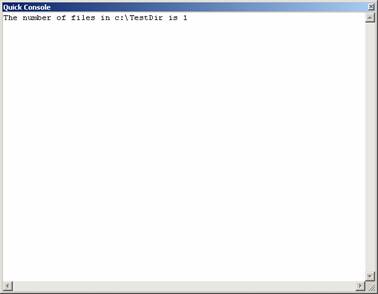
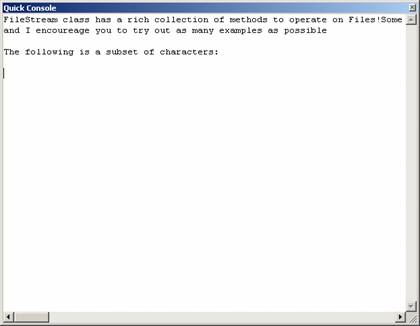
The following example will illustrate some of the file operations. The two programs that are included will perform functions like reading the directory path, creating a file and listing it and also writing to a file and reading from a file.
1. Create a new Windows Application in Visual Basic Express.
2. Add a Label and three buttons and arrange them as shown in the screenshot below:
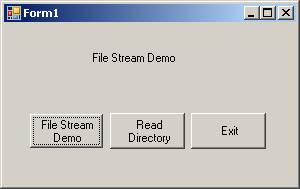
Add to the form the following code and save the project.
Click here to view sample code
.
.
{mospagebreak}
.
.
.
Using StreamReader and StreamWriter Classes
StreamReader is useful for reading lines of information from standard text file and StreamWriter is useful for writing to standard text files. We shall see a an example that illustrates these functions.
-
Create a new Visual Basic Windows project.
-
Add a Label, a RichTextBox and four Buttons.
-
Arrange them on the form as shown in the following screenshot.
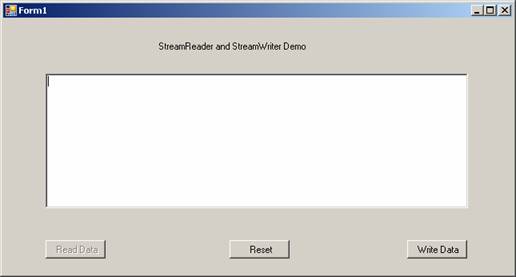
We are using the methods of FileStream, StreamReader and StreaWriter to create a file, write data to it and read from the file. The codes for the program are given below:
Click here to view sample code
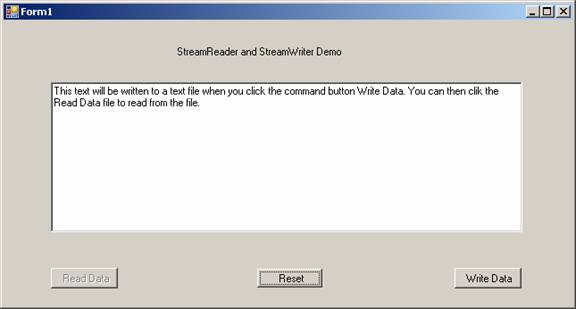
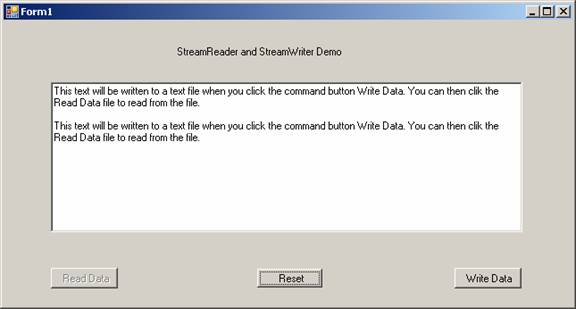
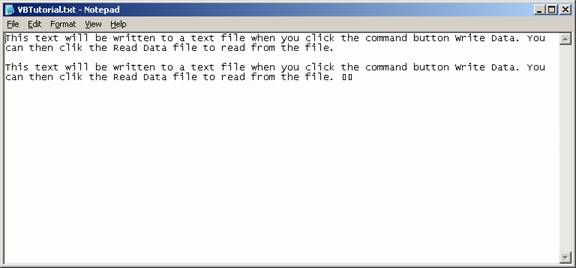
The out put window and the text file the program has generated are shown below:
Opening Screen With text:
The program window after writing and reading Twice:
. 
The text file created is shown below:
Using BinaryReader and BinaryWriter Classes
-
Create a new project as Windows Application.
-
Add two Buttons, a Label and a RichTextBox t the form.
-
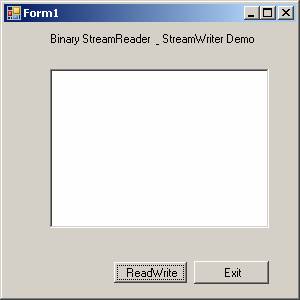
Arrange the controls so that the form looks like the screenshot given below:
Now add the following code to the form.
Click here to view sample code
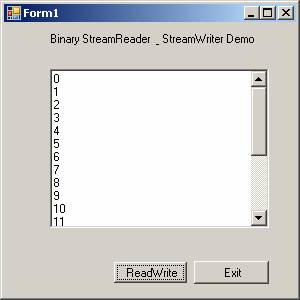
This program will create a binary file and also read the binary file. Now press F5 to execute the program. A form will appear. Click the button ReadWrite. The output of the program is shown below:
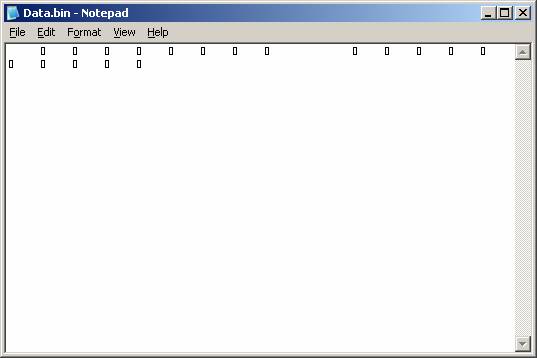
The bin file that was created by this action is opened with text editor and shown below:
[catlist id=175].