
VB.NET Creating and Managing Components Part 1
In this tutorial you will learn about Components, Best practices in using Components, Creating Components by extending the UserControl Class, Testing the Control, Creating and implementing Events, Extending a control through Visual Inheritance and Inheriting from a UserControl.
A component is a reusable piece of code in binary form. This code can be reused by inheritance. No class is being inherited. It follows that a containment relationship is defined between the application using the component and the component that is being used. This is different from the relationship that exists between a derived class and a base class.
Components have to interact with each other. They need information about each other. This is achieved by loading the components within self-contained packages called assembly. An assembly contains information about the files on which the component depends and the location of these files. The CLR can use this information to determine the dependencies of a component. The assemblies that are required during the execution of an application are called dependencies.
A class becomes a component when it follows defined standards of interaction. These standards are provided by the IComponent interface. All components derive from Component class. The Component class in turn implements IComponent interface.
Best practices in using components
-
The name of the component to be short and meaningful.
-
The access level for constructors should be implemented as private or public based on the usage is either by the same assembly or different assembly.
-
The base class of all components is Component class. You can also implement IComponent interface to create a component.
-
The namespace structure in an assembly should be according to the internal organization of the component. It is preferable to keep all the components together in separate Namespace.
-
The component will have two type of initialization namely, type initialization and instance initialization.
-
Type initialization is achieved by using a shared constructor and this is done only once in the lifetime of the application.
-
Instance initialization is achieved by using the constructors which are not shared.
-
A component like any other class must implement as many interfaces as needed. They are capable of being called in multiple ways.(polymorphism).
Creating components by extending the UserControl Class
Objects help users control the flow of applications. Objects like buttons and ComboBoxes are controls. Controls can be defined as visual components that are used across applications. Controls that are customized by users are called UserControls. User Controls can have multiple child controls and provide the user with a single interface.
Let us now create a user control.
Open the Visual Studio IDE and select the menu File, Choose New – Project to open a new project Dialog Box
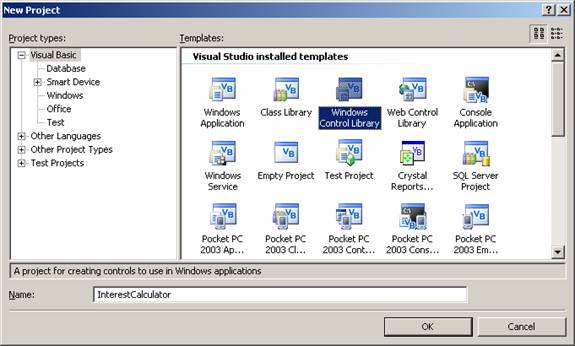
Choose Windows Control Library from the items displayed. Type the name of the project as InterestCalculator. Click on OK.
In the solution Explorer window, right-click UserControl1 and select View Code
You can also change the default name UserControl1 to any name of your choice
The class inherits from the UserControl class by default. If you need to inherit from another existing control, edit the statement Inherits System.Windows.Forms.UserControl to refer to your class.
Save the project.
Enter the following code in to the windows.
Testing the Control
The control is always used in a container. Therefore you need a windows form to test the control. The Steps for doing this are as follows.
Build the control by clicking Build menu.
Create a new windows application project
In the solution explorer window of the new project, right –click the Reference node. Select Add reference to open the Add reference dialog box.
Add the project with your custom control to the selected Components section in the AddReference DialogBox. To close the Add Reference dialog box.
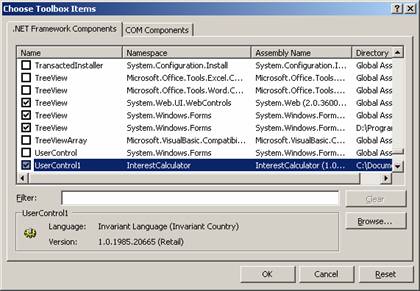
Add the control to you toolbar
In the dialog box that you have opened select .NET Framework Component tab from the Add Reference Dialog Box.
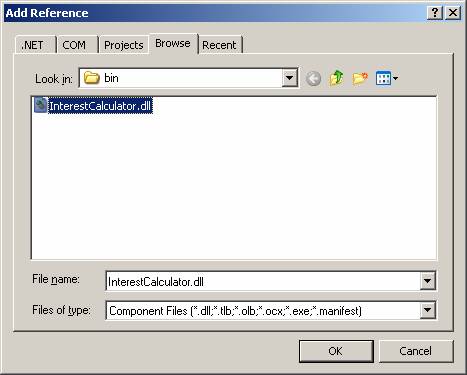
Choose the ToolBox Item
{mospagebreak}
.
.
.
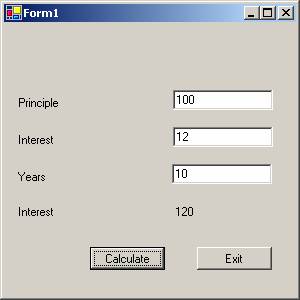
After adding the control to the ToolBox, you can also add three text boxes, two buttons and five labels and arrange them as you would see in the final output form shown below.
In the code editor add the following code to the Form1:
Now you can press F5 to execute the program. The output of the program is shown below:
Creating and implementing Events
In the example above validations for data entry have not been touched upon. In this section we shall see how validations can be added to the component. We shall assume a business rule that this calculator is used to calculate interest for Principal exceeding 100 for interest rate > 4 where the number of years is 2 or more.
For this purpose we shall create events. We shall also add programs to check the values and raise the events. The events that are raised will be handled in the windows application with the procedures that use the Handles keyword.
Events are declared using the keyword Event:
Event event name (Argument)
The event can be raised using the RaiseEvent keyword as shown below:
RaiseEvent event name
The modified code for the user control is given below:
The modified code for the windows application using this control is also shown below:
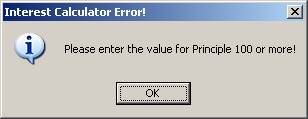
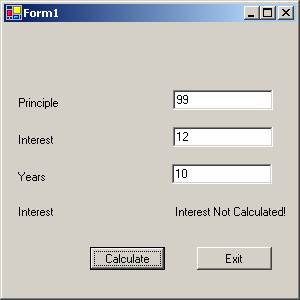
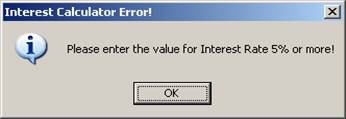
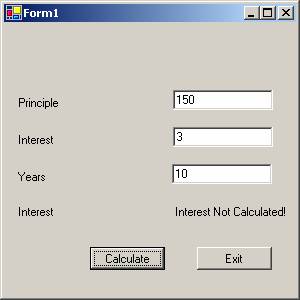
Now press F5 to execute the program. The following screenshots show us the way the three events are handled along with the normal termination of the program.
The error message
Extending a control through Visual Inheritance
The concept of Visual inheritance was introduced to facilitate the use and reuse of forms in VB.NET applications. It is Microsoft’s way of describing visual implementation of interfaces as objects. A base form is created and located in the class library project for use of multiple applications. When a form inherits from a base form, the controls on the base form appear in the derived form and cannot be modified if the modifier property of the base form has been set to Private or Friend. Therefore, if the derived form is to have the option of modifying the controls, the base form should have the control modifier properties set to Public or Protected.
The base form project will have to be compiled every time changes are made to the form. A change in one location will impact on all forms derived from the base form if the modifier property of the form is set to Private or Friend.
To derive a form object, the user has to simply add a new inherited form to his project. The inheritance picker will be launched and the user will be prompted to identify the base form. The application developer can choose the form available in the same assembly or can add another assembly and inherit a form from that assembly. In this case the developer will have all the display components of the parent form available to the newly added form.
Visual inheritance enables the programmers create user interfaces with ease. The capacity to inherit controls along with the form makes for rapid application development and generation of customized controls becomes easier.
{mospagebreak}
.
.
.
Inheriting from a UserControl
1. In Visual Studio create a new Control Class project.
2. Add to the class labels and textboxes as shown in the screenshot below.
3. You can also change the background color and any other display component property.
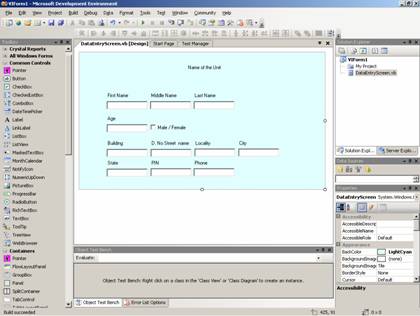
Let us assume that this control has been created to extend support for data entry across an organization. The control is then distributed to regions having their own servers and data structure. This control is created to provide support for data-entry to an organization. It is then distributed with each region having its own server and data structure. To provide a consistent look and feel over the organization this UserControl is devised. The SQL statement, connect string and organization name are some of the properties that can be set by external code. The following lines of code are added to the class.
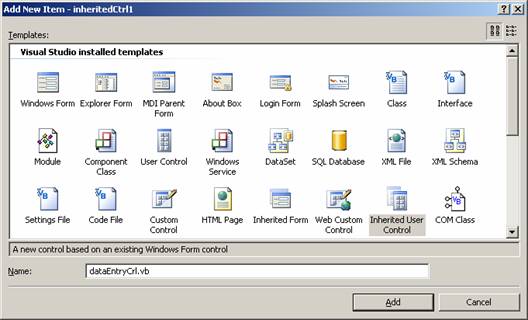
In a new windows control project add new inherited control by right-clicking the project in the solution explorer. This will open up the “Add New Item” dialog box as shown below. In this dialog box choose the option inherited user control:
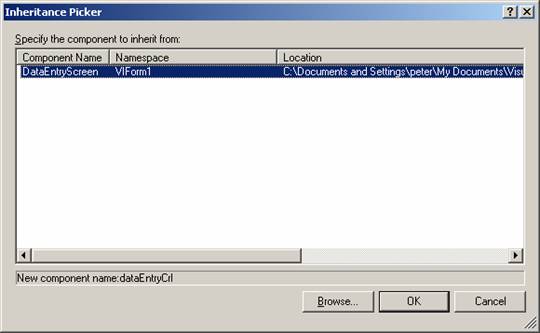
This will open the inheritance picker. Click on the browse button and navigate to the bin directory of the original UserControl that you had created earlier.. Choose the dll file and click OK. The screen shot is given below:
A new class is created and the code view of this class shows Visual Studio generated code. You can add your own code to these existing codes. The sample lines of code are given below:
You click on the Build menu and build the solution. This control can be added to the ToolBox and you can use this in any windows forms application.
The screen shot of the data – entry screen with incorrect value for Principle after the error message is dismissed
Error Message
The screen shot of the data – entry screen with incorrect value for Interest Rate after the error message is dismissed
[catlist id=175].