
VIB.NET 2005 Tutorials : Customizing a Setup Project
Deployment projects in Visual Studio.NET allow the specification of where and how the application will be deployed on the user system. Each of the setup editors contain a file system configuration editor. The setup can sometimes include Registry configuration options and options to check special conditions. This ability to customize the installer’s user interface is a handy tool. The number of editors which can be accessed through the view menu are:
File System Editor—Adds files and shortcuts, such as Start menu items, to the installation package
Registry Editor—Manipulate Registry entries on the target computer
File Types Editor—Associates file extensions with applications; useful in cases when your application uses custom file extensions and you want to associate a specific application with that file extension
User Interface Editor—Configures the dialogs that are shown during the installation
Custom Actions Editor—Starts external programs during installs and uninstalls
Launch Conditions Editor—Specifies the requirements for your application to be installed on the target computer
File System Editor
This editor is automatically displayed for your VS.NET’s document Window when the Setup Project is created. Though, this editor and the other editors available via the View-Editor menu option in the VS.NET IDE, the File System Editor is used to manage all the file system aspects of the installation including:
-
Creating folders on the user’s machine
-
Adding files to the folders defined
-
Creating shortcuts
Basically, this is the editor is used to define what files need to installed and where they are installed on the use’s machine.
The File System split into two panes in the Document Window. The left hand pane shows a list of folders that have been created automatically for the project. When a folder is selected in the left pane, two things happen: firstly, the right-hand of the editor displays a list of the files that are to installed into the selected folder, and secondly, the properties windows will change to show the properties of the currently selected folder.
Adding Items to a folder
To add item that needs to be installed to a folder, right-click the folder in the left-hand pane and choose Add from the popup menu. Four options are available:
- Project output
- File
- Assembly
- Folder
The fourth option (Folder) allows the addition of a subfolder to the currently selected folder. This subfolder becomes a standard folder that can be used to add files. If any .NET component or executable is added, the dependencies of these components will also be added to the installation automatically.
Adding Special Folders
When we create a new deployment project, a set of standard folders will be created for us (listed in the desktop application section). if the folders created do not match our requirements, we can also use the File System to add special folders.
To add a special folder, right-click any where in the left-hand pane (other than on a folder) and you will be presented with a popup menu that has one item: AddSpecialFolder. Alternatively, it’s also available through the Action -> Add Special Folder menu option. This menu item expands to show you a list of folders that you can add to the installation (folder already added to the project will be grayed out).
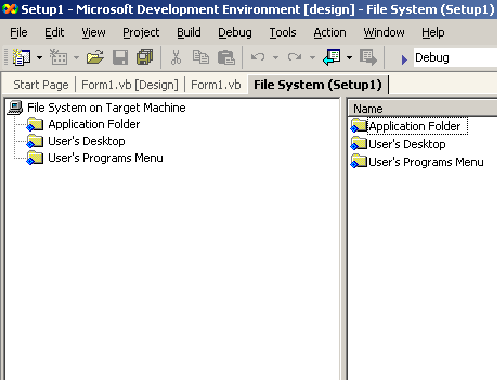
(Sample screenshot from older version)
{mospagebreak}
.
.
.
As can be seen from the screenshot, there are number of system folders that we can choose from. They are summarized in the following table.
Special folders are folders in the File System Editor that represent predefined Windows folders. The physical location of Windows folders can vary from one computer to another — for example, the System folder may be located in C:Windows on one computer, D:Windows on another, and C:Winnt on a third. Regardless of the physical location, Windows recognizes the folder as the System folder by reading special attributes.
Using special folders in a deployment project allows the developer choose a destination folder on a target computer without knowing the actual path to that folder.
Custom folders are special folders that represent folders on a target computer. Unlike special folders, custom folders do not necessarily depend on existing folders on the target, but rather allow the creation of new folders at install time. The user can also create custom folders that target predefined Windows folders other than those defined as special folders.
The types of special and custom folders available to a deployment project differ according to the project type. The following special folders might be available.
|
Special Folder |
Represents |
|
Application Folder |
An application folder under the Program Files folder. Typically C:Program FilesCompany NameApp Name |
|
Common Files Folder |
A folder for components that are shared across applications. Typically C:Program FilesCommon |
|
Custom Folder |
A folder that you create on a target computer, or a predefined Windows folder that is not a special folder. Defaults to same location as the Application folder. |
|
Fonts Folder |
A virtual folder containing fonts. Typically C:WinntFonts |
|
Module Retargetable Folder |
A custom folder that allows you to specify an alternative location for a merge module. |
|
Program Files Folder |
The root node for program files. Typically C:Program Files |
|
System Folder |
The Windows System folder for shared system files. Typically C:WinntSystem32 |
|
User’s Application Data Folder |
A folder that serves as a repository for application-specific data on a per-user basis. Typically C:Documents and SettingsusernameApplication Data |
|
User’s Desktop |
A folder that contains files and folders that appear on the desktop on a per-user basis. Typically C:Documents and SettingsusernameDesktop |
|
User’s Favorites Folder |
A folder that serves as a repository for the user’s favorite items. Typically C:Documents and SettingsusernameFavorites |
|
User’s Personal Data Folder |
A folder that serves as a per-user repository for documents. Typically C:Documents and SettingsusernameMy Documents |
|
User’s Programs Menu |
A folder that contains a user’s program groups. Typically C:Documents and SettingsusernameStart MenuPrograms |
|
User’s Send To Menu |
A folder that contains a user’s Send To menu items. Typically C:Documents and SettingsusernameSendTo |
|
User’s Start Menu |
A folder that contains a user’s Start menu items. Typically C:Documents and SettingsusernameStart Menu |
|
User’s Template Folder |
A folder that contains document templates on a per-user basis. Typically C:Documents and SettingsusernameTemplates |
|
Windows Folder |
Windows or system root directory. Typically C:Winnt |
|
Web Custom Folder |
A custom folder on a Web server, identified by an HTTP address. |
The typical paths shown represent a standard installation of Windows 2000 Professional. Locations may differ on other operating systems or non-standard installations.
To add a file from the File System Editor
1. Select a target folder in the File System Editor.
2. On the Action menu, point to Add, and then click File.
3. Note: The File command is also available from the Project menu. Choosing this command from the Project menu rather than the Action menu will cause the file to be placed in the Application Folder rather than in the target folder you have selected.
4. In the resulting Add Files dialog box, browse to the file you want to add and select it.
5. Note Adding a file that is contained in an assembly causes the assembly to be added to your project. In a merge module project, you are prompted prior to adding the assembly.
To add a file from Solution Explorer
1. Select a deployment project in Solution Explorer.
2. On the Project menu, point to Add, and then click File.
3. In the resulting Add Files dialog box, browse to the file you want to add and select it.
4. Note Files added from Solution Explorer will always be placed in the Application Folder in the File System Editor. If you want to place files in a different folder, you must to add them from the File System Editor as described above.
5. To remove a file
6. Select the file in the File System Editor, and choose Delete from the Edit menu.
7. Creating Shortcuts
The final aspect of the File System editor is the process of creating shortcuts.
1. The first step in creating a shortcut is to locate the file that is to be the target of the shortcut.
2. Select the target file and right-click it.
3. The popup menu that appears will include an option to create a shortcut to the selected file, which will be created in the same folder.
4. Select this option.
5. To add the shortcut to the user’s desktop, we need to move this shortcut to the folder that represent the user’s program menu.
6. Cut and paste the new shortcut to the User’s Desktop folder in the left-hand pane of the editor.
7. The shortcut will now be added to the user’s desktop when the installation is run.
[catlist id=175].