
Dialog Boxes in Visual Basic .NET
Most Windows applications request for user input. Dialog boxes are one means of requesting users for specific kinds of inputs. Therefore, VB.NET allows its designers to create a number of different types of dialog boxes. Standard Dialog boxes are included in classes that fall within the purview of the CommonDialog.
- FileDialog
- ColorDialog
- FontDialog
- PageSetupDialot
- PrintDialog
Let us now briefly study the features of the CommonDialog boxes
OpenFileDialogClass
This class provides users with the file selection capability. The properties and methods of this dialog boxes are given below:
|
Property or Method |
Description |
|
ShowDialog |
Displays the dialog |
|
MultiSelect |
Sets/unsets the selection of multiple files |
|
ShowReadOnly |
Sets/unsets the read-only check box checked |
|
Filter |
Sets the type of files that will appear in the dialog box |
|
FilterIndex |
Sets the index of the filter selected in the dialog box |
SaveFileDialog Class
The SaveFileDialog class offers you the standard window that we see while saving the file. The methods and properties of this dialog box are given below:
|
Property or Method |
Description |
|
ShowDialog |
Displays the message |
|
CheckFileExists |
Checks for the existence of file specified |
|
FileName |
Determines the file name selected by the user |
|
Filter |
Condition for files to be shown in the dialog box |
|
FilterIndex |
Determine the index of the filter selected in the dialog box |
The ColorDialog Class
This dialog box shows the color palette for allowing user to select a color and add that color to the palette. The properties of the Class are given below:
|
Property or Method |
Description |
|
ShowDialog |
Displays the dialog box |
|
Color |
Determines the color selected by the user |
|
AllowFullOpen |
Specifies if the user can add custom colors to the box |
|
SolidColorOnly |
Determines if the user can use dithered colors |
The following screenshot shows the usage of the color palette:
Create a new Visual Basic Windows Applications project in the Visual Studio IDE . To the form Form1 add a ColorDialogBox. Add two Buttons and name them as given below:
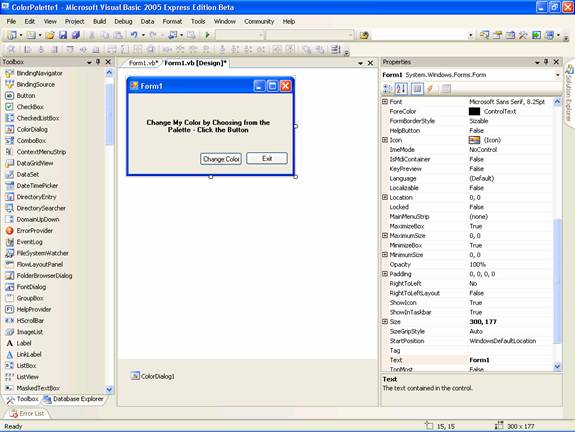
Now in the code behind form add the following codes:
Public Class Form1
Private Sub Button1_Click(ByVal sender As System.Object, ByVal e As System.EventArgs) Handles Button1.Click
Me.ColorDialog1.ShowDialog()
Label1.ForeColor = Me.ColorDialog1.Color
End Sub
Private Sub Button2_Click(ByVal sender As System.Object, ByVal e As System.EventArgs) Handles Button2.Click
Me.Close()
End Sub
End Class
Press F5 to execute the program
The three screenshots below illustrate how different common dialog boxes are displayed..
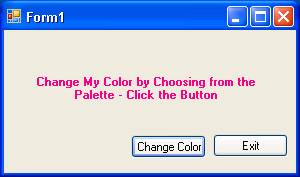
“Change Color” button opens the ColorDialog box. You can choose any color from the palette and click Ok. (The codes for event handling of Ok and Cancel button in the ColorDialogBox are not given in this program. You may however write it as shown earlier, if you want to see the impact of your program.) The next screenshot will show the changed fore color of the label1:
Creating a Custom Dialog Box
- In a new project which already has a form Form1, add another form and name it as FixeDialog.
- Set the Text property of this form as “Add Text”.
- Add a label control, a text box control and two command buttons.
- Change the text property of the label to “Enter Your Text!” and name the first button OK and the other as Cancel.
- In the property sheet of the form set the FormBorderStyle property to FixedDialog
- Set the ControlBox property as false. This is done to remove minimize, maximize and close buttons.
- Enter the following codes for the Dialog Form:
Click here for the Sample Code
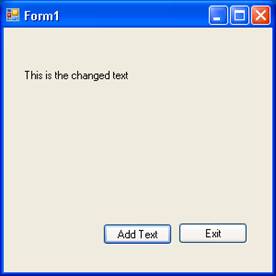
Now press F5 to execute the program. The Following sequence of three screenshot will illustrate the working of the form:
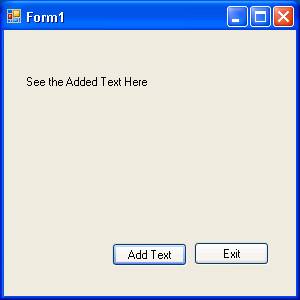
The first screenshot shows the initial screen of the program:
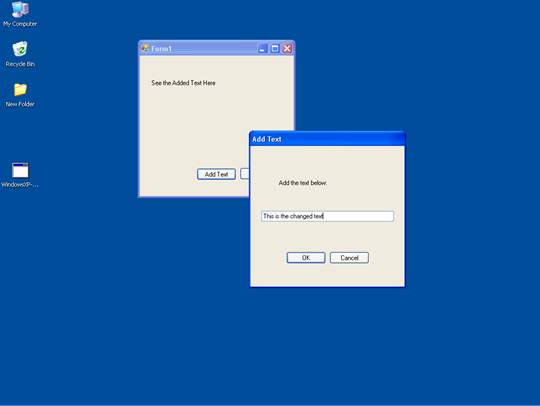
The following screenshot shows the custom dialog box opened with the new text typed in the text box:
The final screenshot shows the changed label text as shown below:
[catlist id=175].