
DomainUpDown and NumericUpDown Controls
DomaiUpDown
The windows Forms System.Windows.DomainUpDown control looks like a combination of a text box and a pair of buttons for moving up or down through a list. This control displays and sets a text string from a list of choices.
You can select the string by clicking up and down buttons to navigate through a list. Alternatively you can press the UP and DOWN Arrow keys or just type a string that matches an item in the list. You can use this control to select items from an alphabetically sorted list of names. This controls functions like ListBox but it takes up less space comparatively.
We shall look at an example that instantiates an object of DomainUpDown Control programmatically and add values to it.
1. In Visual Basic express start a new Windows Project and give a name as DomainUpDownDemo.
2. Add a text box, a CheckBox and two Buttons.
3. Now add the following code to the form.
Public Class Form1
Protected WithEvents domainUpDown1 As DomainUpDown
Private myCounter As Integer = 1
Private Sub MySub()
domainUpDown1 = New System.Windows.Forms.DomainUpDown()
Controls.Add(domainUpDown1)
End Sub
Private Sub button1_Click(ByVal sender As System.Object, ByVal e As System.EventArgs) Handles Button1.Click
domainUpDown1.Items.Add((TextBox1.Text.Trim() & " – " & myCounter))
myCounter = myCounter + 1
TextBox1.Text = ""
End Sub
Private Sub checkBox1_Click(ByVal sender As System.Object, ByVal e As System.EventArgs) Handles CheckBox1.CheckedChanged
If domainUpDown1.Sorted Then
domainUpDown1.Sorted = False
Else
domainUpDown1.Sorted = True
End If
End Sub
Private Sub domainUpDown1_SelectedItemChanged _
(ByVal sender As System.Object, ByVal e As System.EventArgs) Handles domainUpDown1.SelectedItemChanged
MessageBox.Show(("SelectedIndex: " & domainUpDown1.SelectedIndex.ToString() & _
ControlChars.Cr & "SelectedItem: " & domainUpDown1.SelectedItem.ToString()))
End Sub
Private Sub Form1_Load(ByVal sender As System.Object, ByVal e As System.EventArgs) Handles MyBase.Load
MySub()
End Sub
Private Sub Button2_Click(ByVal sender As System.Object, ByVal e As System.EventArgs) Handles Button2.Click
Me.Close()
End Sub
End Class
In the above code you have declared the domainUpDown1 as a variable of DomainUpDown class. In MySub procedure we are instantiating the control with the key word new. The statement “Control.Add(domainUpDown1)” adds the control to the form.
The Button1 Click event reads the value from TextBox, appends a number to it and adds the string to the domainUpDown1 object. Press F5 to execute the program. This following window will be shown. Type values into the TextBox and click the button “Add Strings” to add the values to the domainUpDown1 object.
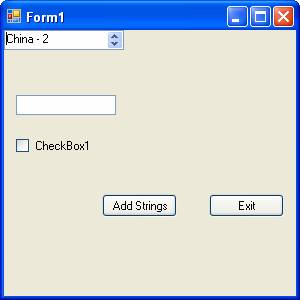
The event handler for the donainUpDown1 object gives the message box that is shown below:
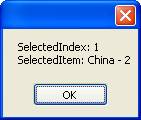
This control can be used in the place of the ListBox control where less space is needed.
NumericUpDown
This Windows Forms System.Windows.Forms.NumericUpDown control looks like a combination of a text box and a pair of arrows that the user can click to adjust a value. The control displays and sets a single numeric value from a list of choices.
The user can increment and decrement the number by clicking up and down buttons, by pressing the UP and DOWN ARROW keys, or by typing a number. Clicking the UP ARROW key moves the value toward the maximum; clicking the DOWN ARROW key moves the value toward the minimum. An example where this kind of control might be useful is for a volume control on a music player. Numeric up-down controls are used in many Windows control panel applications.
The following Demo illustrates the use of this control.
1. In the Visual Studio IDE create a new windows project and give the name NumericUpDownDemo.
2. To the Form1 add a NumericUpdownControl, a list box and a button.
3. Right click the form and choose View Codes from the context sensitive menu.
4. Now add the following codes to the Form1.
Public Class Form1
Private Sub Button1_Click(ByVal sender As System.Object, ByVal e As System.EventArgs) Handles Button1.Click
Me.Close()
End Sub
Private Sub NumericUpDown1_ValueChanged(ByVal sender As System.Object, ByVal e As System.EventArgs) Handles NumericUpDown1.ValueChanged
Label1.Text = "The current Value of the counter is : " & NumericUpDown1.Value
End Sub
End Class
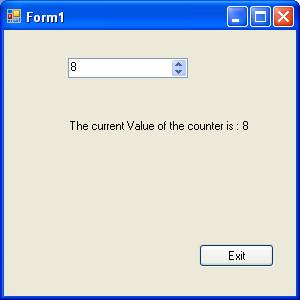
Press F5 to execute the program. When you click the UP and Down Arrow in the NumricUpDown1 object, the text on the Label will show the value of the counter. This is shown in the screen shot below:
You can also set the number of decimal places that will appear after the decimal point. The default is zero. You can also set the thousands separator. This control can also be set up to display hexadecimal value by setting the value of System.Windows.Forms.NumericUpDown.Hexadecimal property true.
[catlist id=175].