
Setting and Adding Properties to a Windows Form
In this tutorial we wil leran about Setting and Adding Properties to a Windows Form, Using the Visual Designer to set Windows Form Properties, Setting Windows Forms Properties programatically and Using Visual Inheritance along with the sample project and screen shots.
Using the Visual Designer to set Windows Form Properties
The properties of the Widows properties can be edited in the properties window visually. Both the inherited properties and also those added in the current class can be edited using the property window. If this window is not visible, you can click on the menu view and choose property window. Alternatively you can click F4 to invoke this window.
This window can be docked to a side and can be hidden or pinned to the desk. If it is hidden then if the mouse hovers over the title bar of the property window it then becomes visible. We and see how the properties of a text box and a grid control can be edited in the illustration:
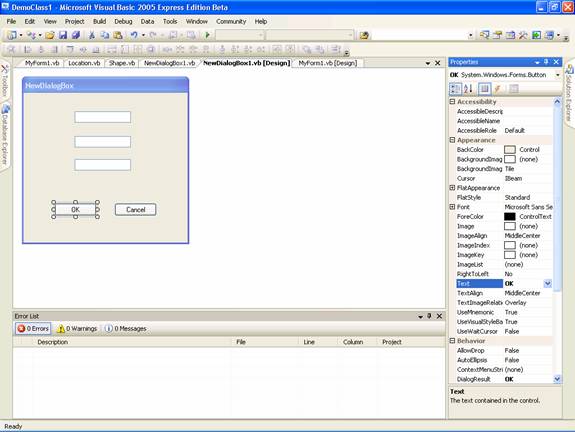
In the above screen shot, see the button titled OK and all the properties of the button are available so that it can changed.
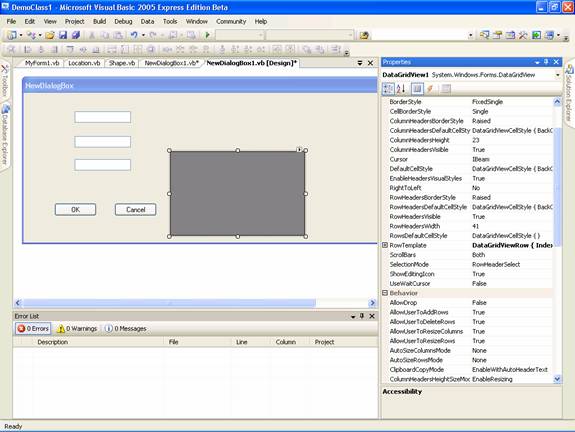
We can also see another illustration involving grid box control: The screen shot below displays properties that can be changed.
Setting Windows Forms Properties programmatically
You may have a clear idea of value of the properties and the controls at design time and they can be edited using the method explained above. However most of the time the value of the property of several items cannot be identified at design time and they have to be set at run time based on several considerations. Visual Basic provides facility to edit and initialize or substitute the value of the properties programmatically. Le us see an illustration.
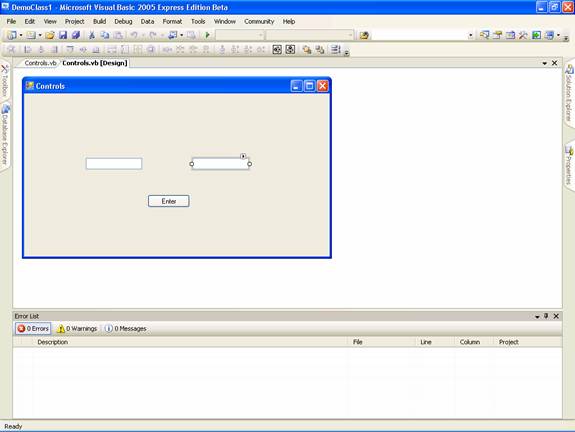
Start a new project and add a form to the project. This form will be the starting form by default. Add two text boxes and a command button to the form and place them as shown below:
Now you can proceed to add the codes for the program by double clicking the form. You will see the controls.vb file opened. Add the following codes to the form as given below:
Click here to view the Source Code
{mospagebreak}
.
.
.
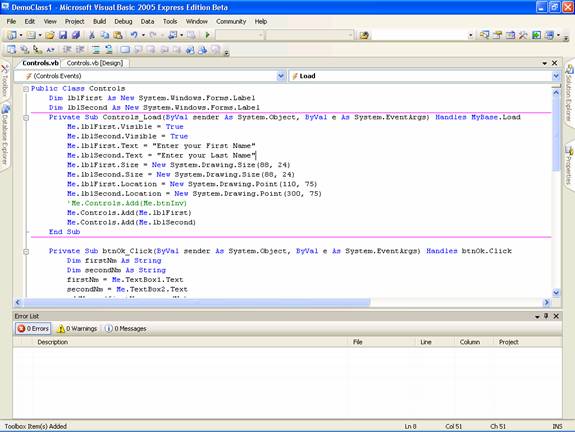
We have added two labels to the form class. These classes are merely declared in the class. The Contols_Load Sub contains the codes to edit the properties and to add them. The visible property of the form is set to true so these controls will be visible on the form. Now let us look at the value for the labels lblFirstNm and lblSeconNm which are initially assigned a value "Enter your First Name" and "Enter your Last Name".
Now take a look at the sub addNames. This sub takes two arguments, viz firstNm and SecondNm. The sub assigns the value of firstNm to lblFirstNm and the value of SeconNm to lblSecondNm. We also make some cosmetic change by making the font bold.
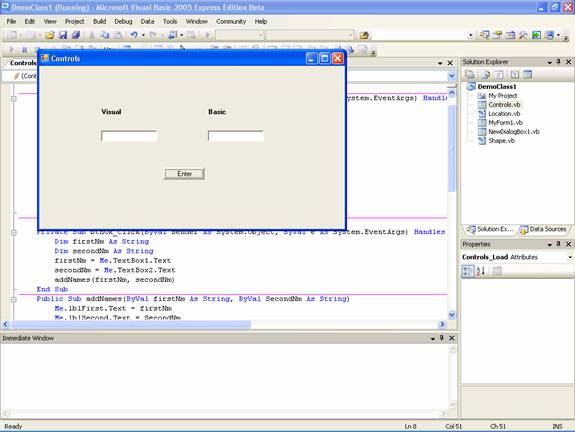
The action comes from the sub btnOk_click. Here we declare two string variables firstNm and secondNm. The value of the text from the two text box are captured and assigned to these variables in the respective order. Then the sub addNames is called here with the two names as arguments and the result can be seen in the two graphics that are given below:
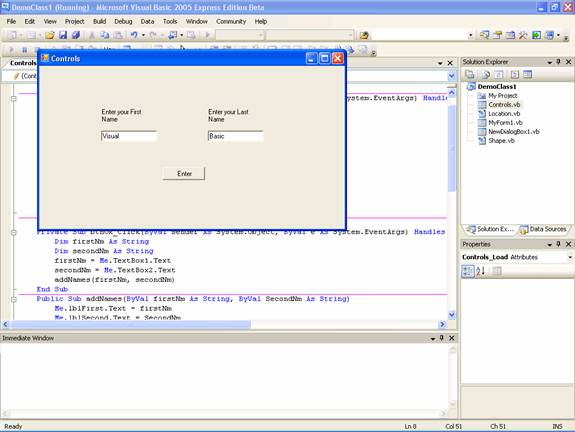
See the screenshot below after the “Enter” button is clicked: You will also see that the value in the text boxe have been reset to null values.
Using Visual Inheritance
Inheritance allows you to derive one class from another class. Visual Basic provides a facility by which, while deriving a class from another class, you can also inherit the visual aspects of the class.
To derive a form from a Form1 which will inherit all aspects of Form1, including the controls on the form. Let us create a new project VisualInheritance and add a form Form1 to it. Now add a button botton1 to the form. Now click on the Build menu and click on Build VisualInheritance. This will enable the form to be available for being inherited.
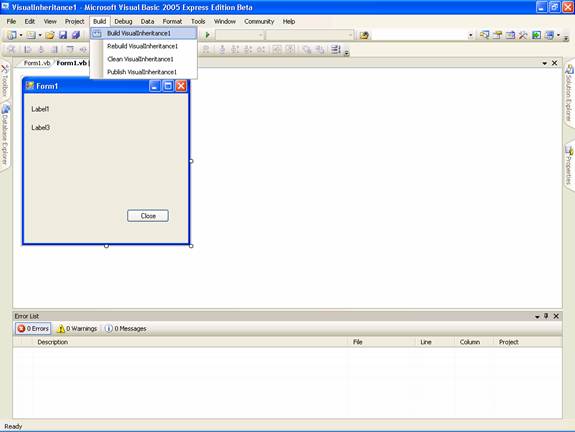
Now right click on the project and you choose Add Inherited Form. You will see a window named inheritance picker. Choose the form Form1 in the window. The new inherited form will have the controls that were placed on the base form Form1.
[catlist id=175].