MS Project Training
Microsoft Project Management Software is used for creating project plans, assign resources, track progress and manage the project budget. Also known as MSP, MS Project is helpful for creating budgets based on assignment work and resource rate. It is useful to store and share custom objects, analyse workloads, prepare Gantt chart.
Training Index
MS Project - Schedule and Control
Schedule and Control your Projects with MS Project 2010 1. What you will get from this tutorial Controlling your projects can become very tedious if there are many tasks that have to be handled by many persons. They can become more complicated if you are expected to know the completion status as well as know the value of completed tasks. MS ProjectMS Project - Summary Task
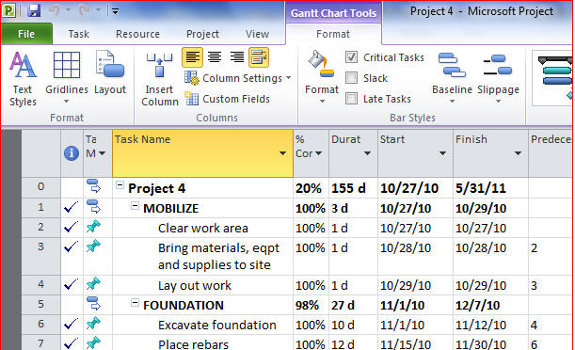
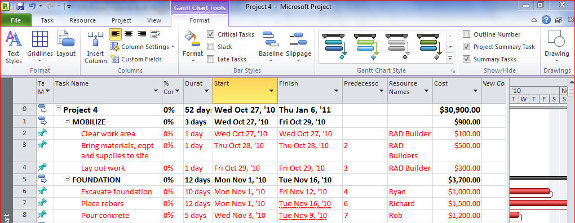
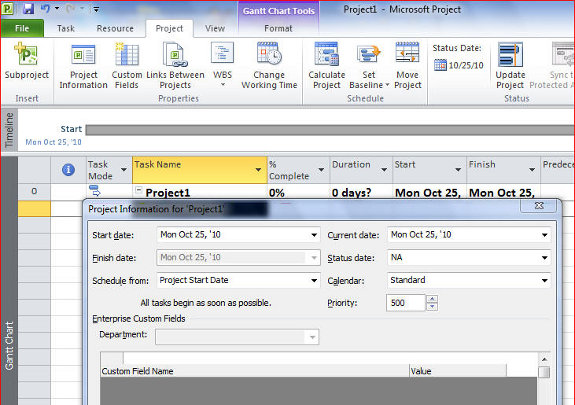
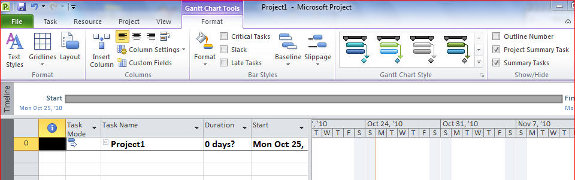
3. Make your schedule look the way you want it formatting MS Project Create a summary task In this tutorial you will learn how to create a summary task in MS Project. You will also lean to format the schedule. Click on Format menu Click on Project Summary Task Project1” the name of your file now appears on Row 0 You canMS Project - Create a Calendar
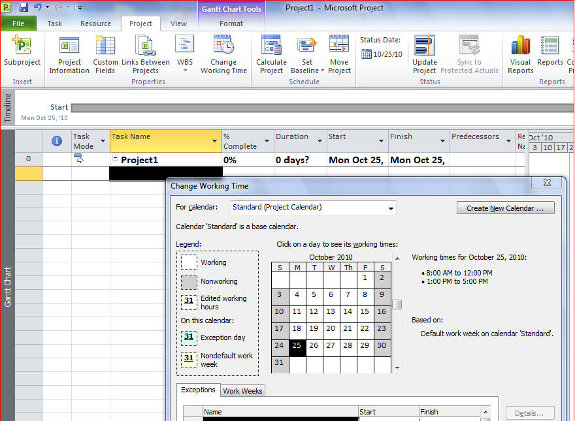
Create a calendar In this tutorial you will learn how to create a Calendar in MS Project. Click on Project Change Working Time Click on each date and classify it as either Working or Nonworking Start making the changes on the month of project start and end way beyond expected completion date You can make this calendar as a template for otherMS Project - Timeline
Use a timeline appropriate to your schedule In this tutorial you will learn how to use timeline that is appropriate to your project schedule in MS Project. Projects with a more than a year long duration usually have months as their time unit. This can be reduced to weeks if duration is for 12 months. If a project has a duration of one week thenMS Project - Gantt Bar
Modify shape of Gantt bar In this tutorial you will learn how to modify shape of Gantt bar in MS Project. Click on Format -> Gantt Chart Click on Format Bar -> Bar shape To Add text to Gantt bar Click on Format Format -> Bar TextMS Project - Gridlines
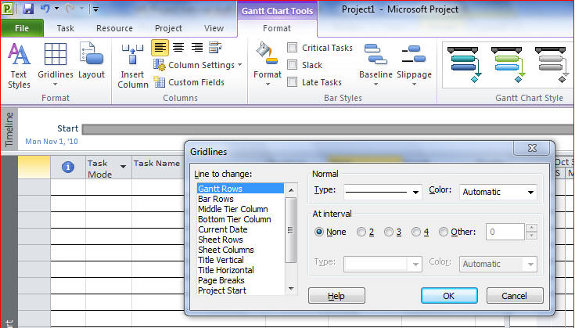
Gridlines In this tutorial you will learn how to work with gridlines in MS Project. You can show gridlines to make it easier to visualize your schedule. Click on the topleft section Format -> Gridlines Change the characteristic of lines You now have a working project file with a format to suit your requirements. Now you are ready to makeMS Project - Task Management
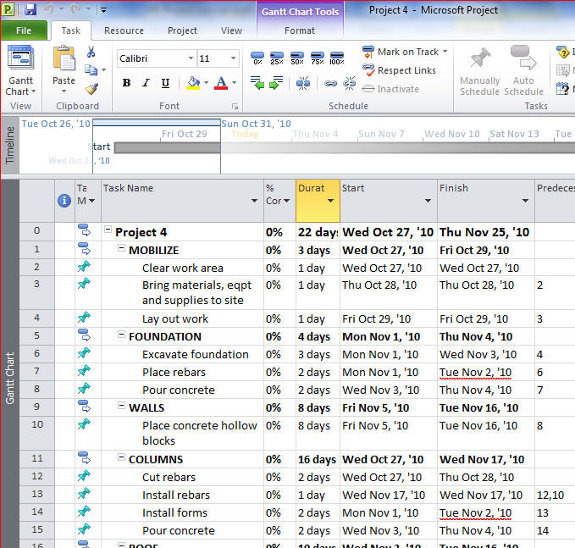
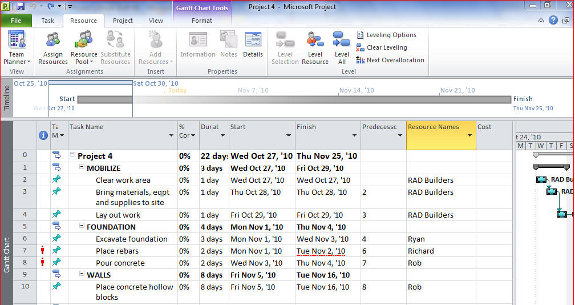
4. Enter tasks In this tutorial you will learn how to manage task in MS Project There are two ways - Top down - Bottom up. Under the top down way you enter the major phases of your work first then list all tasks needed for each phase. Under the bottom up you list all tasks first then classify groups of tasks according to the phase theyMS Project - Task Sequence
6. Sequence your tasks In this tutorial you will learn how to sequence your tasks in MS Project create milestones and respect links. You can sequence tasks several ways. 1. Highlight tasks that are linked and use the link icon. 2. Enter the task number of tasks that precede a task Do not link phase titles. There are two ways used to linkMS Project - Assign Task Responsibilities
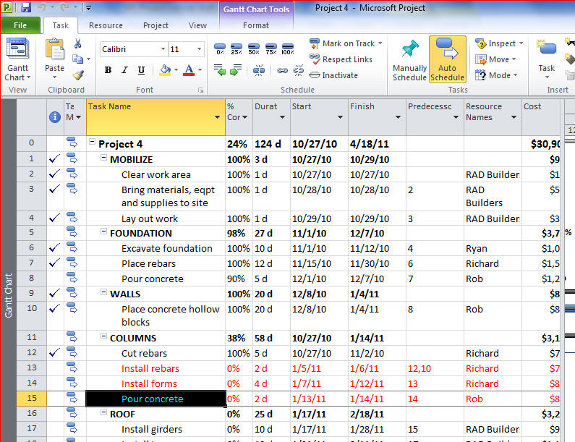
7. Assign responsibilities Assign responsibilities by either typing in the names of those responsible or selecting the names from the drop down menu. Under the column Resource Names and opposite the lowest-ranking task type the name of the responsible person or entity. This name will be included in the list of resources assigned to the project. TypeMS Project - Schedule Review
9. Review your schedule Now that you have formatted the way your project will look like inputted duration for each lowest-level task assigned the predecessor of each task assigned resources and costs you are now ready to review your schedule. - Ensure that the project start date is correct. In our example you will notice that the start dateMS Project - Baseline Schedules
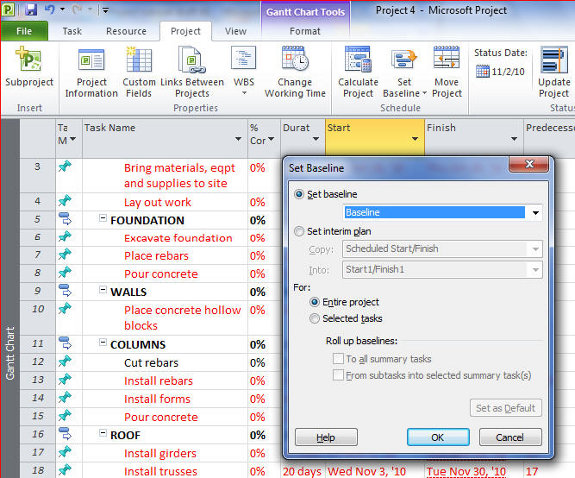
10. Baseline schedules Now that you are satisfied that your schedule is workable then you are ready to use it for managing and controlling your project. But as you progress in your work you need to know the status of your project. A common question to answer is whether you are behind schedule on schedule or ahead of schedule. You can answer theseMS Project - Reschedule Men and Money
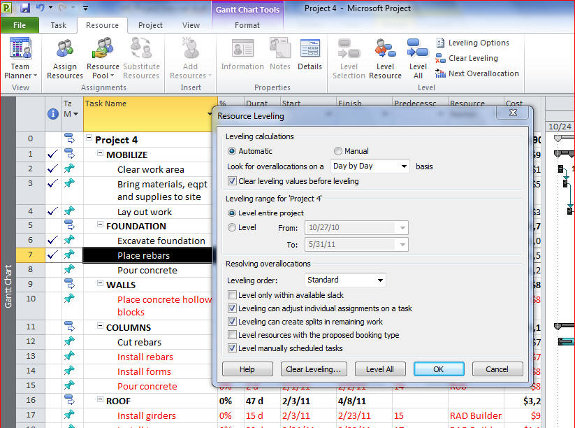
11. Reschedule your men and money This is also called resource leveling. While the completion of tasks preceding a task determines the criticality of a project availability of people responsible for certain tasks and of equipment or money has a direct impact on your project. You should therefore look at your resources and level” themMS Project - Reduce Overall Project Duration
12. Reduce overall project duration This is also called crashing” a project. To reduce overall project duration reduce the duration of only those tasks that are considered critical. When you reduce duration of critical tasks it is possible that non-critical tasks can become critical. When crashing a project you should not only lookMS Project - Printing Reports
13. Print your reports MS Project has a number of report templates to choose from. Print your report Before you make a final print let us first preview the schedule. File Print Set the print Take note of the manner in which your report will look like Take note that you need to add titles and make the Legend appear only at the last page NowMS Project - Report Types
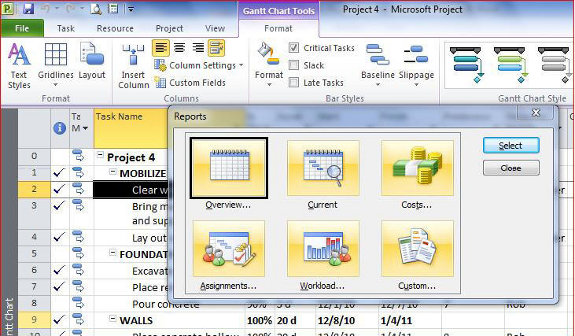
14. The different types of available reports MS Project offers different kinds of reports. These reports are as follows Overview reports Current reports Costs reports Assignment reports Workloads reports Custom reports Overview reports Project summary Top-level tasks Critical tasks MilestonesMS Project - Data Exchange
15. Data exchange Data exchange really means exporting or importing your project data. In this tutorial you will learn how to perform Data exchange in MS Project Export your project data to a different format. Click File then Save As. select the file format that you want to export data to In the File name type a name for the exported file. ClickMS Project - Menu Ribbon
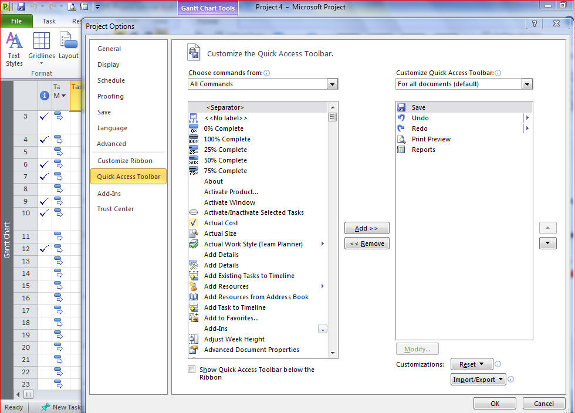
16. The MS Project 2010 menu The File menu File dropdown menu Resource menu Task menu Project menu View menu Format menu The Ribbon If you cannot locate a frequently-used command you can add them to the Ribbon This is the Ribbon. You can modify it so that frequently used tasks can be made available quickly. To add commands