
Within the Dimension editor a new standard dimension can be created in two ways:-Using the Dimension Wizard or multiple dimension tables
Open the Dimension editor and select <new> from the dimension drop down list box on the tool bar. The Editor displays the ‘Choose a Dimension Table’ which allows the user to select only one user.
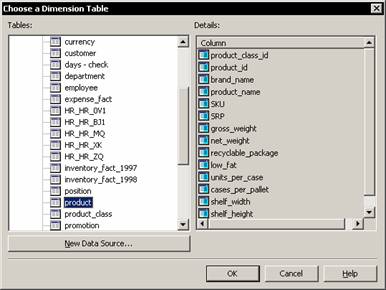 |
Select the Store table and click OK. When selecting a table for a snowflake dimension, it is better to select either the lowest level or the highest level. This kind of selection, enables the Dimension Editor create the joins correctly.
To add additional tables the user needs to click “Tables” on the Insert menu. Double click the Employee and salary tables and click Close. The Dimension Editor automatically joins the tables if a column with the same name is available in both the tables.
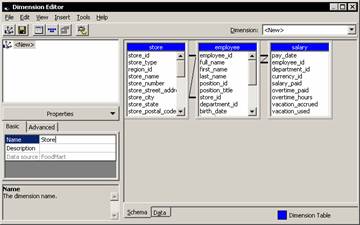 |
Click on the Name option in the basic tab of the Properties dialog box on the left pane of the editor and type in “Store” as the name of the Dimension.
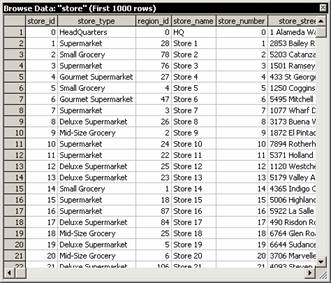
To browse the contents of the tables, right-click on the caption bar of the dimension table and click browse data to see the contents of the table.
 |
Member Count, Member Names Unique Property and Member Keys Unique Property
Double clicking a column name is equivalent to dragging the column name onto the dimension tree. It adds the column as a new bottom level.
Drag the column to the dimension tree and select Advanced tab of the properties pane. The member count is 13 because there are 13 unique members in the Store table. The Member Keys Unique property is set to TRUE and is also disabled because it is the top level of a dimension and must have unique key values.
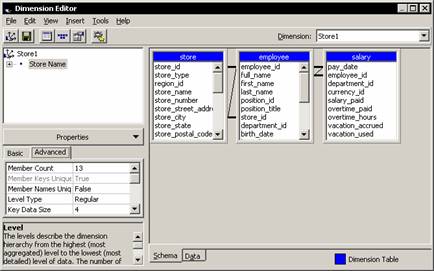 |
The member names property is FALSE because the member names unique property is the same as the Member Key Column and hence does not have unique names. This can be changed in Specify a default Member which we will take up a little later in this tutorial.
Select the Employee dimension and look at the member count in the advanced tab. It shows 1155 member count and the Member Keys unique and the Member Names unique properties should be false. If either is set to true, it should be set to false.
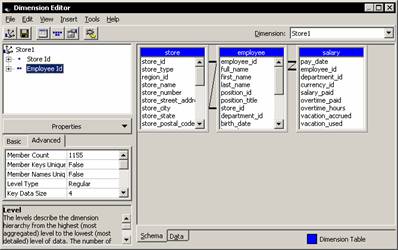 |
Do a similar exercise for the Salary table and set the Member Keys Unique and Member Names Unique properties to false. Now click the Data tab to preview the dimension.
{mospagebreak}
Creating Expressions for Member Names
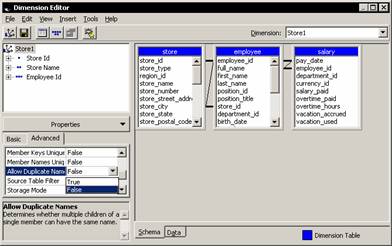
Analysis server can be prevented from grouping members together by setting the Member Key Column property to the store_id column which is unique for each store. However, first the user must set a dimension property that allows the dimension to have duplicate names. Select the store dimension and set the Allow Duplicate Names Property to True. In the dimension tree select the Store name level.
 |
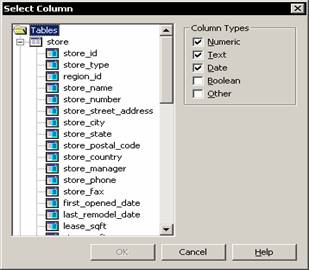
On the basic tab of the properties pane select the Member Key Column property and click the ellipsis button and select the Store_id column in the Store table and click Ok.
 |
The dimension preview changes to show each of the individual items as separate, identically named members.
Now select the Advanced tab in the properties pane. The Member Count property value has changed to 25, reflecting the total number of stores in the dimension table. The individual stores are shown as separate identically named members. This is technically correct but can be confusing. This is why the Dimensions “Allow Duplicate Names property” has False as the default value.
The values for Member Key Column and Member name column properties can be made unique by changing the values using SQL expressions. For instance the Store name can be made unique by changing the Member Key Column value to “Store”.“Store_number” + ‘ ‘+ “Store”.” “Store_Name”. The Data tab now shows the unique store names in the data tab.
It must be noted that each level of a dimension has a member key and a member name. The member key internally distinguishes one member from another. The member name appears on report captions and the default member key is the same as the member name. If the member name is to be distinguished from the member key then, the user needs to make sure that the member names appear as distinct on reports.
Every Dimension has a default member which is used when the dimension is not included in a query (especially while using Office 2000 Analysis components). The standard default member is the All level member. However, a constant default member can be specified. The Member Keys Unique and Member Names Unique property settings impact on the way the default member is specified.
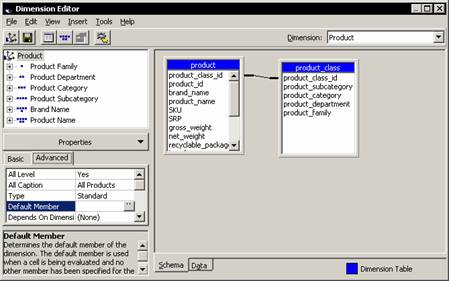
In the Dimensions editor select the dimension for which you want to set the default property and switch to the Advanced tab of the Properties pane. Select Default Member Property and click the ellipsis button. Expand the members All Product and click OK. The description appears as the value of the Default Member Property and is an elaborate way of specifying a Unique name for the member. If the Member Keys Unique is set to True, Analysis manager can create a simpler default name.
{mospagebreak}
Steps for creating a Default Member
- In the Dimension tree select the Dimension level and on the Advanced tab of the properties pane, change the Member Keys unique property to True.
- In the Dimensions Tree select the Dimension, select Default Member Property, and click the ellipsis button. Select the property required and click Ok.
- Select the Dimension level again(step 1) and change the Member Names Unique property to True. Then select the Dimension, select the Default Member Property, click the ellipsis button select the name and click Ok.
- Select the Dimension, change the Member Keys Unique property to True and press enter. Click Yes when informed that this will change the property for all levels
- Select the Default member property, click the ellipsis button, select the default value and click Ok.
Create a detail level member property
- In the Dimension Editor, Click the schema tab to convert the right pane into the schema pane.
- In the dimension tree, expand the Dimension level to see the member properties folder beneath it.
- Drag a member property from the table onto the member properties folder. The folder expands to show you the member properties.
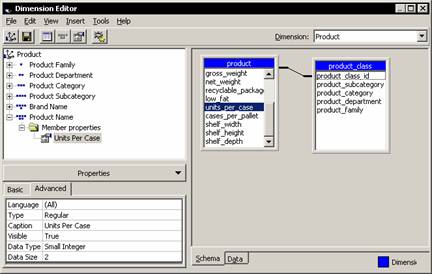
4. Click the data tab and expand the Default “All members” leaf and select the specified default member to see the member property (“Units Per case”) of the default member.
Ragged hierarchy:
The member names and keys of a dimension are derived from the dimension table. Each level in a standard dimension corresponds to a column in the dimension table. Under normal circumstances, each member of the dimension hierarchy has the same number of members above it as any other member at the same level. Such levels are called ‘balanced’. However, sometimes levels are not balanced. Some members will have unusual relationship with the other members. Such levels are called ragged levels. In a ragged standard dimension, a parent is hidden and the extra space is removed. Though the ragged dimension is internally balanced, the user has the impression that there are fewer members above the level.
[catlist id=181].