
Data Pump Import in Oracle
In this tutorial you will learn how to use Oracle Data Pump Import, Invoking Data Pump import from command prompt and Oracle Enterprise Manager (OEM). I am going leave the rest of the import options as home work for you. Make sure you try out other options and parameters and then come back and share your comments and discoveries over here, which will help several other exforsys community members who come here is search of knowledge and information. So then, let me begin to show you about the Oracle Data Pump Import!
Note: If you have not read “Data Pump Export” tutorial, please do read, as there are extra notes which you need to understand before learning Data Pump Import.
What is Data Pump Import
Data Pump Import is a new feature in Oracle 10g and provides enhanced functionality for the Import Utility (imp) available in previous version.
The Data Pump Import utility is invoked via 2 methods:
- By using the impdp command from the command prompt
- By using “Import from Files” under data movement section of the OEM.
How to use Data Pump Import
Now, let’s take a look at few methods through which you can invoke Data Pump Import.
- Oracle EM
- Command Prompt
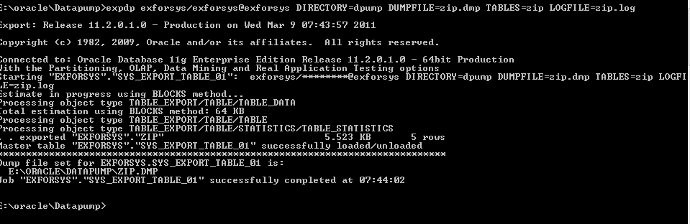
First, Let me start with creating table dump using the export for the table zip. Once we run the export and drop the table, so we can test the import process using command prompt and Oracle EM.
Open command prompt and run
The command for the table dump is
expdp username/password@servicename DIRECTORY=dpump DUMPFILE=zip.dmp
TABLES=zip LOGFILE=zip.log
Here is the DDL and sample data for the zip table.
CREATE TABLE "EXFORSYS"."ZIP"
( "STATE" CHAR(10 BYTE),
"ZIPCODE" NUMBER(*,0) NOT NULL ENABLE
);REM INSERTING INTO ZIPINSERT INTO ZIP (STATE,ZIPCODE) VALUES ('NY',10567);
INSERT INTO ZIP (STATE,ZIPCODE) VALUES ('NY',10562);
INSERT INTO ZIP (STATE,ZIPCODE) VALUES ('NY',10020);
INSERT INTO ZIP (STATE,ZIPCODE) VALUES ('NY',501);
INSERT INTO ZIP (STATE,ZIPCODE) VALUES ('NY',544);
Now, drop the zip table, so we can take a look how to use import utility using OEM and Command Prompt.
Using Data Pump Import from Oracle EM
Take a look at how to use import utility using Oracle OEM.
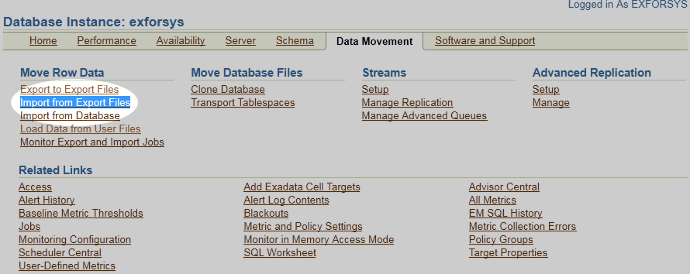
Step 1: Login to OEM, navigate to Maintenance -> Data Movement -> Move Row Data, select “Import from Export Files”
The screenshot below shows the OEM screen to initiate the export. Click on Import to Files to initiate the export process.
Step 2: You will be prompted to specify the directory and file name of the import files on the database server machine.

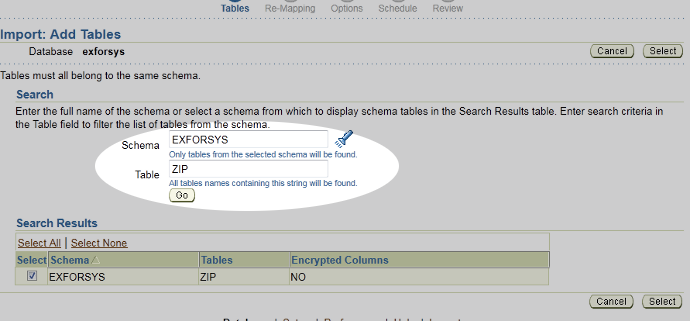
Step 3: In the next screen you will be prompted specify the schema and add tables
Step 4: Table Schema Selection
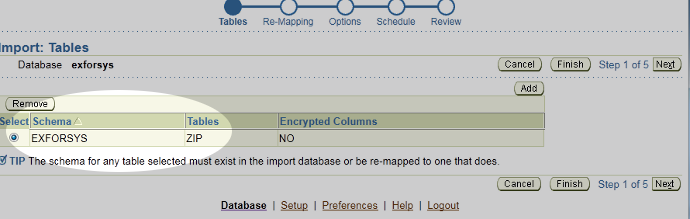
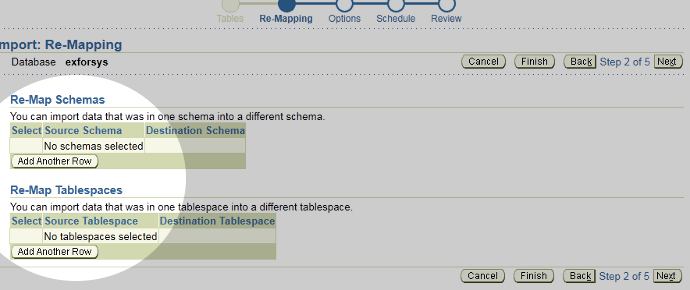
Step 5: After selecting the table you will be prompted to re-map schema and tablespace
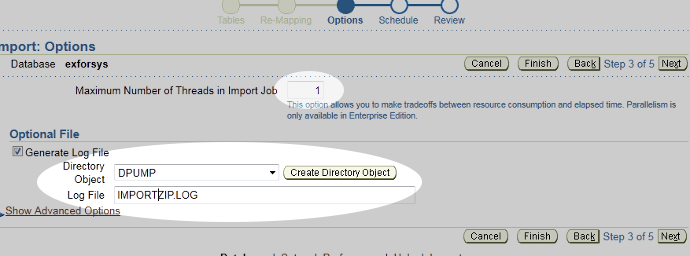
Step 6: The next screen will provide options for importing where you can specify maximum number of threads in import job, generate log file and control advance options.
Step 7: Import Job Description and Schedule

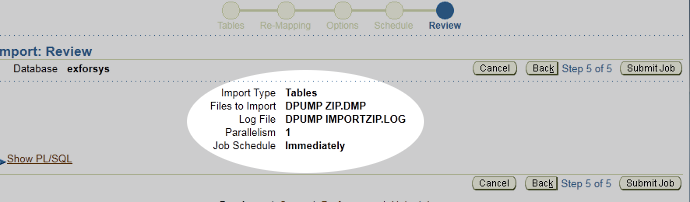
Step 8: You are presented with a review screen.
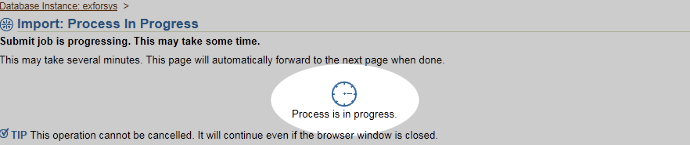
Step 9: Finally the import process begins and the progress is displayed after which you will presented with job activity.
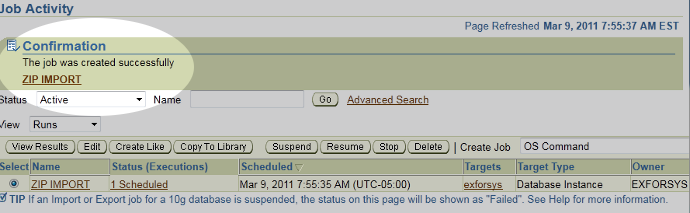
Step 10: The last screen depicts the summary of the zip import

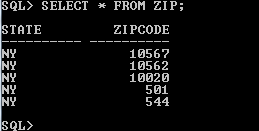
Using Data Pump Import from Command Prompt
Let’s use the same zip table dump for importing to zip table. You can now go ahead and drop the table.
impdp username/password@servicename DIRECTORY=dpump DUMPFILE=zip.dmp
TABLES=zip LOGFILE=zipimport.log
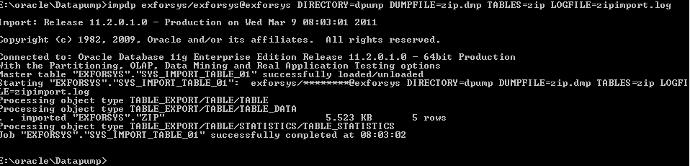
Once the import is complete, verify the table and zipimport.log file for any error messages or warnings.
Here is the log file from the above run.
Master TABLE "EXFORSYS"."SYS_IMPORT_TABLE_01" successfully loaded/unloaded
Starting "EXFORSYS"."SYS_IMPORT_TABLE_01": exforsys/********@exforsys DIRECTORY=dpump
DUMPFILE=zip.dmp TABLES=zip LOGFILE=zipimport.logProcessing object type TABLE_EXPORT/TABLE/TABLEProcessing object type TABLE_EXPORT/TABLE/TABLE_DATA. . imported "EXFORSYS"."ZIP" 5.523 KB 5 rowsProcessing object type TABLE_EXPORT/TABLE/STATISTICS/TABLE_STATISTICSJob "EXFORSYS"."SYS_IMPORT_TABLE_01" successfully completed at 08:03:02
Once you practice the basics of Data pump import, I would recommend you read Oracle manual for additional parameters and options. If you are stuck or have questions, feel free to comment.
[catlist id=177].