
VB.NET 2005 Turorials : Testing a Web Application
In this tutorial you will learn about Testing a Web Application, Configuring ASP.NET Unit Tests Using Run Configuration, Creating and Removing Run Configurations, Subsequent run configurations, removing run configuration and editing run configuration.
An application is software is created to function efficiently given the necessary parameters. Developers are conscious that, even in the most efficiently created software, errors of a certain nature can occur and must be provided for at design time. Yet other errors could occur at runtime and therefore applications need to be tested and debugged at runtime too. Therefore testing and debugging applications are an important part of application development. Visual Studio.NET provides the developer with several tools that he can use for testing and debugging the applications within the Integrated development environment (IDE).
The number of ways in which the application can be tested and debugged in Visual studio.NET demands that the user create a test plan beforehand. The developer can add a test project. He can test for performance, international settings or an existing test can be opened. To this end he must chalk out:
1. What kind of tests are to be created?
2. What is the type of load test that will be required?
3. Will the developer be required to execute a manual test?
4. How will the tests be managed?
5. What will be measured in the test–functionality, validation, performance or others?
Once the test plan has been created unit tests can be executed.
Let us presume that we have a project that has both public methods and private methods. The project has to be opened and we have to create unit tests for public and private methods. The next task is to run the tests on the projects code; find and correct the errors.
ASP .NET test projects can be created in any of the two ways mentioned below:
(1) By generating the ASP.NET unit test.
(2) By configuring an existing unit test as an ASP.NET unit test.
Generating an ASP.NET Unit Test
1. Create an ASP.NET Web site within the Visual Studio solution.
2. Add a class to the Web site project, and
3. Finally, generate a unit test from that class.
4. We will use the existing Website to provide support for this.
5. Add a class to this project. To do this, in Solution Explorer, right-click the Web site and then click Add New Item.
6. In the Add New Item dialog box, click Class, and then click Add.
7. In the resulting Microsoft Visual Studio dialog box, click Yes.
Now we will generate an ASP.NET unit test.
(1) To do this, first open the new class file by double-clicking it in Solution Explorer.
(2) Right-click within the class in the class file. In the context menu and click on “Create Tests.”
(3) In the Unit Test Generation dialog box, click Generate.
The new ASP.NET unit test is added to a file in your test project.
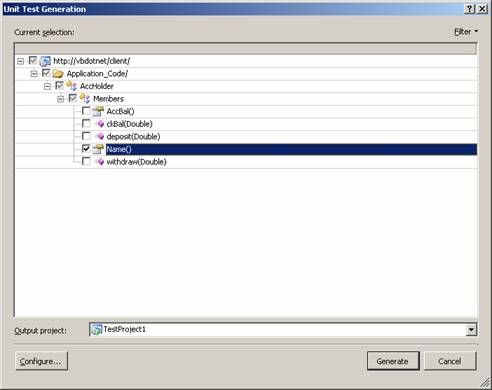
To see the unit test, open the test file and scroll to the end. The attributes that are necessary to run a unit test as an ASP.NET unit test have been automatically set. The content of the test file is given below:
Click here to view sample code
Configuring ASP.NET Unit Tests Using Run Configuration
Settings in a run configuration can be defined so that they correspond to the attributes used by ASP.NET unit tests. After these attributes are set in a run configuration, the settings will apply when unit test is run. Run configuration settings take precedence over the equivalent custom attributes, if present.
Creating and Removing Run Configurations
First we shall add an initial run configuration to the solution
1. Add a test project to your solution.
2. A run configuration is added automatically to the solution under the Solution Items folder.
3. Each run configuration created is listed as a choice for the Select Active Test Run Configuration and Edit Test Run Configurations options on the Test menu.
{mospagebreak}
.
.
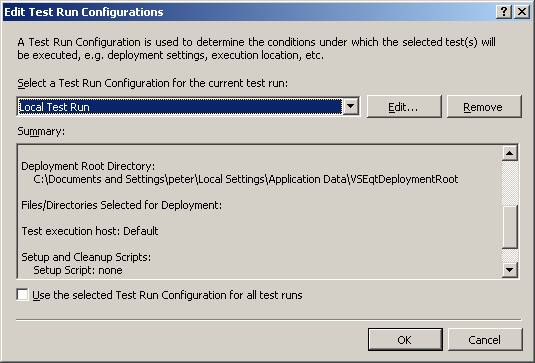
Subsequent run configurations can be added to the solution as under:
1. In Solution Explorer, right-click Solution Items and then point to Add, and then click New Item.
2. The Add New Item dialog box appears.
3. In the Categories pane, click Test Run Configuration.
4. The new run configuration file appears in Solution Explorer, under the Solution Items folder.
5. The
6. The configuration values can now be set and run.
7. Each run configuration that is created is listed as a choice for the Select Active Test Run Configuration and Edit Test Run Configurations options on the Test menu.
To remove a run configuration from the solution
1. Under the Solution Items folder in Solution Explorer, right-click the run configuration that is to be removed, and then click Remove.
2. The run configuration file is removed from the solution. This change is reflected in the list of choices for the Select Active Test Run Configuration and Edit Test Run Configurations options on the Test menu.
3. Setting Run Configuration Values
To edit a run configuration if you have a solution open
1. Under the Solution Items folder in Solution Explorer, double-click the run configuration file that is to be opened.
2. or –
3. Point to Edit Test Run Configurations on the Test menu and then click a run configuration on the submenu.
4. The run configuration opens for editing.
5. Make changes on the individual pages for each aspect of the run configuration. For more information, see the descriptions of each page earlier in this topic.
6. Click Save, and then click OK.
To edit a run configuration if you do not have a solution open
1. On the Test menu, point to Edit Test Run Configurations and then click a run configuration on the submenu.
2. The run configuration opens for editing.
3. Make changes on the individual pages for each aspect of the run configuration
[catlist id=175].