
Working with Legacy Code – ActiveX Control
In this tutorial you will learn how to use ActiveX Control, the windows forms ActiveX Control Importer, Importing Controls with Toolbox, Using ActiveX Controls on Windows Forms and you will also learn how to use Platform Invoke.
As enterprises grow in strength and reach, IT challenges loom large. All enterprises are confronted with a multitude of legacy applications that are not scaleable or in line with the applications being created for the new environment. However, these applications cannot be thrown out for various reasons. They have to be migrated and made compatible with the current set of applications being created to exploit the use of the Internet, e-commerce, the extranet and other new technologies. The .NET framework provides the foundation for creating a Legacy Application Interface solution using Microsoft technologies. The effort is to make the potential of distributed computing a reality. Developers can focus upon the business logic while the .NET framework tools take care of the details of formatting, transporting data and so on.
In this lesson we shall focus on how legacy code is to be handled in Visual Basic.NET 2.0 BETA within the .NET Framework.
Using ActiveX Controls
The windows forms ActiveX Control Importer
Windows Forms ActiveX Control Importer (Aximp.exe) is used to convert the type definitions in a COM type library for an ActiveX control into a Windows Forms control. Windows Forms are designed to host Windows Forms controls, namely the classes that are derived form System.Windows.Forms.Control. To facilitate the use of the ActiveX controls to be used in Windows Forms, Aximp.exe generates a wrapper class for an ActiveX control that can be hosted on a Windows Forms Controls. This will generate a wrapper control that derives from System.Windows.Forms.AxHost. This wrapper control has an instance of the underlying ActiveX control. It has knowledge of the ways to communicate with the ActiveX control methods and events as those of the generated control. The usage of the tool is given below:
Aximp [options] [.dll file | .ocx file]
Some of the options that can be used with this tools and the description are given below:
CLR proxy form COM types:
Windows Forms proxy for ActiveX controls : Ax
In designing applications with Visual Studio, the ToolBox is a very useful facility. The Visual Basic.NET developer deals with a number of classes during the course of developing an application. Controls are created and components created are reused repeatedly. The .dll files are referenced for creating an instance of an object. These controls can also be imported into the ToolBar for drag and drop facility.
The ToolBar is seen in the screenshot shown below at the left hand side of the viewer.
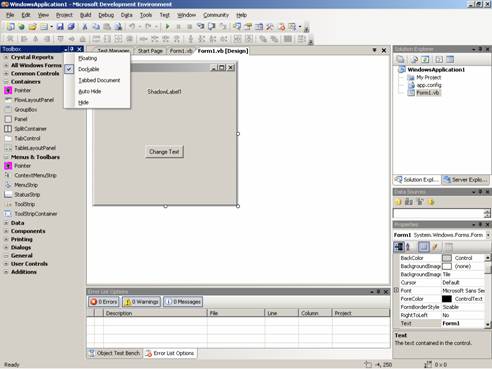
The ToolBox can be kept floating or docked. It can be a tabbed document, visible or hidden. The tool bar also contains many groupings. Groupings can be added as and when needed by right-clicking the tool box and choosing the options add tab. Tabs can be added, deleted or renamed. They can be grouped according to categories.
Controls can be created ab initio or by extending from another control, form or User defined control. These controls will appear on the ToolBox when added to it.
The process is illustrated in the screen shot below. Right click on the Toolbox, Choose the option to be added by clicking on the ‘Choose items’ from the context sensitive menu.
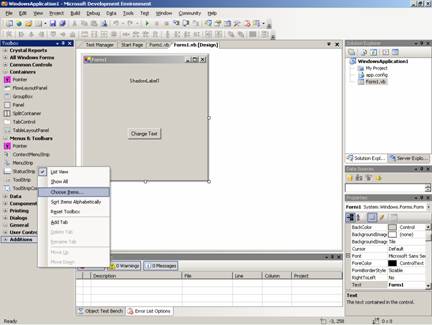
The Choose Items DialogBox appears. All the controls available are displayed to the user for selection. The Browse button gives further access to the user to navigate to the location of controls (.dll) which are not displayed in the list. After importing to the application the control is automatically, such controls or components are made available on the ToolBox which can be consumed by dragging and dropping.
{mospagebreak}
Using ActiveX Controls on Windows Forms
An ActiveX control is a COM component that supports standard interfaces relating to persistence, connection points, and hosting. Hosting in a control container, exchange of messages and handling of events are achieved by a protocol defined by the standard interfaces mentioned above. ActiveX Controls have properties, Methods, Events and Type Library details of which are given below: ..
| Term | Description |
| Properties | Controls have member variables to represent internal state and are implemented as Get and Set accessor functions. A Get function is generated for each accessor method with a propget tag in the .idl file. A Set function is generated for each accessor method with either a propput or propputref IDL tag. Use wrapper classes or the OLE/COM Object Viewer to determine how accessor functions are defined. |
| Methods | A control’s behavior is defined by its public methods. Wrapper classes give you access to a control’s methods |
| Events | A control can generate an event to notify the host that something happened. |
| Type Library | A type library tells a control container what properties, methods, and events are supported by a control. |
Windows Forms Designer is tailored to host Windows Forms Controls. However, ActiveX controls can be added on Windows Forms. But there will be some limitations imposed on the performance such ActiveX controls that are added. The procedure to add the controls to the Form is to be preceded by adding the ActiveX components to the ToolBox. This is done as follows:
- Right click on the ToolBox and click on the Choose ToolBox Item on the context menu
- Click on the tab COM components which will show the COM components registered.
- Click on the CheckBox that appears next to the item that you want to add and click OK. This will add the ActiveX component to the ToolBox.
- Now you need to add the components to the Form. This is achieved by double clicking on the control in the ToolBox. Visual studio adds all references to the control in your project.
There are certain considerations when hosting an ActiveX Control on a Windows Form. We shall briefly see the issues involved.
Security: The CLR has been provided with code access security. Because of this, windows Forms can run in a fully trusted environment and also in the semi-trusted environment with most of the functionality intact. Windows forms controls can also be hosted in a browser with no complications. However this is not the case with ActiveX controls, which require unmanaged code permission.
Resource cost: ActiveX controls added to a Windows Form are deployed with that Windows Form in their entirety. This adds significantly to the size of the files created. Added to this, the use of ActiveX controls also need use of registry entry.
Using Platform Invoke
Platform invoke is a service that enables managed code to call unmanaged functions implemented in DLLs. Platform invoke depends on metadata to locate exported functions and marshal their arguments at run time.
The following sequence of actions are performed when platform invoke calls an unmanaged code.
- Locate the DLL containing the function
- Loads the DLL into memory
- Locates the address of the function in memory and pushes its arguments onto the stack, marshaling data as required.
- Transfers control to the unmanaged function
Platform invoke throws exceptions generated by the unmanaged function to the managed caller. Now let us proceed to learn how we can consume unmanaged DLL functions:
In order to consume the unmanaged DLL functions, the user may have to carry out several tasks. The following list is useful in making your exposure to DLL functions.
- Identify the functions in DLLs
- Specify the name of the function and the name of the DLL that contains it.
- Create a class to hold DLL functions:
- Use an existing class,
- Create an individual class for each unmanaged function,
- Or create one class that contains a set of related unmanaged functions.
In this lesson we have examined in detail the process of handling legacy code and the various factors that have to be taken into consideration in the process. In the next lesson we shall look at the process of testing and debugging a Windows application.
| Option | Description |
| /delaysign | Specifies to Aximp.exe to sign the resulting control using delayed signing. |
| /help | Displays command syntax and options for the tool |
| /keycontainer:containerName | Signs the resulting control with a strong name using the public/private key pair found in the key container specified by ContainerName |
| /keyfile:filename | Signs the resulting control with a strong name using the publisher’s official public/private key pair found in filename. |
| /nologo | Suppresses the Microsoft startup banner display. |
| /out:filename | Specifies the name of the assembly to create. |
| /publickey:filename | Signs the resulting control with a strong name using the public key found in the file specified by filename. |
| /silent | Suppresses the display of success messages. |
| /source | Generates C# source code for the Windows Forms wrapper. |
| /verbose | Specifies verbose mode; displays additional progress information. |
| /? | Displays command syntax and options for the tool. |
Aximp.exe converts the whole ActiveX control type library and produces a set of assemblies that contain the common language runtime metadata and control implementation for the types defined in the original type library. The out put files are named as under:
[catlist id=175].