
This tutorial explains about Export Utility, Import Utility and SQL* Loader. They are supplied as part of the Oracle Software and need not have to be purchased or downloaded separately.
Oracle Utilities
The 3 utilities supplied along with Oracle Server are
- Export
- Import
- SQL* Loader
They are supplied as part of the Oracle Software and need not have to be purchased or downloaded separately. They are available as executable files in the BIN directory. And can be executed by typing their name before command prompt. In the following sections I will be discussing syntax and the usage of these utilities.
Export Utility
This utility can be used to transfer data objects between oracle databases. The objects and the data in Oracle database can be moved to other Oracle database running even on a different hardware and software configurations.
The export utility copies database definitions and actual data into an operating system file (export file). The export file is an Oracle binary-format dump file (with .dmp extension), which is normally created on disk or tape. Before exporting we must ensure that there is enough space available on the disk or tape used.
Exported dump files can be read only by using the Import utility of Oracle. We cannot use earlier versions of import utility for importing the data exported using current version (Versions of Oracle utilities also change along with the Oracle Versions)
EXP command can be used to invoke export utility interactively without any parameters. (Requests the user to enter the value). Otherwise parameters can be specified in a file called parameter file. We can use more than one parameter file at a time with exp command.
Syntax:
exp PARFILE = filename
Parameter file is a simple text file creating using any text editor.
The exports are 3 types; Full, Owner, and Table. Full export exports all the objects, structures and data within the database for all schemas. Owner export exports only the objects owned by specific user account. Table export exports only tables owned by a specific user account.
To export a table we can run EXP utility either interactively or by putting all the parameters for the export on the command line. In interactive mode just type EXP before the command prompt and answer the questions when prompted, otherwise the parameters can be typed on the command line as shown below.
EXP scott/tiger file=emp.dmp tables=(EMP) log= error.log
In the above example SCOTT/TIGER is the username and password respectively.
emp.dat is the file into which exporting is done. This file is created in the current folder, to create it in a different folder we need to mention the complete path. Ex. C:sampledept.dmp.
Tables parameter takes table names as it value, o export more than one table their names need to be separated by a comma. Example tables = (EMP, DEPT, SALGRADE) to export tables EMP, DEPT and SALGRADE.
Log parameter is optional; we give a file name as its value. This file is used to write errors if any occur while exporting a table.
Fig 1 explains how to use EXP utility in interactive mode.
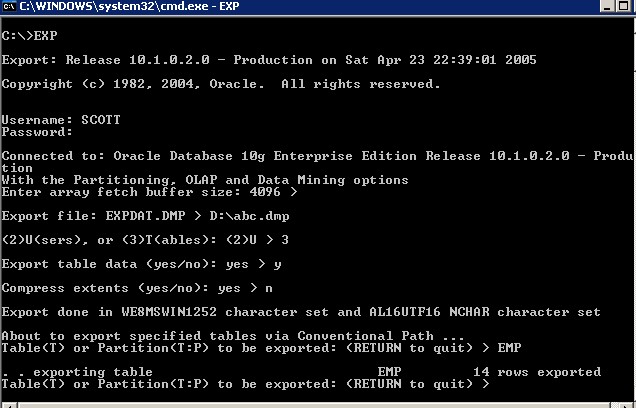
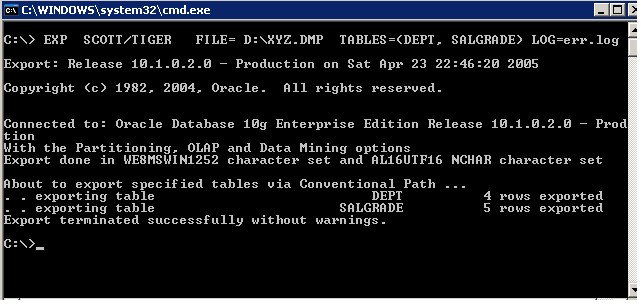
Fig 2 illustrates exporting data from multiple tables non-interactively (by giving the giving the parameters in the command).
Exporting data from a table conditionally:
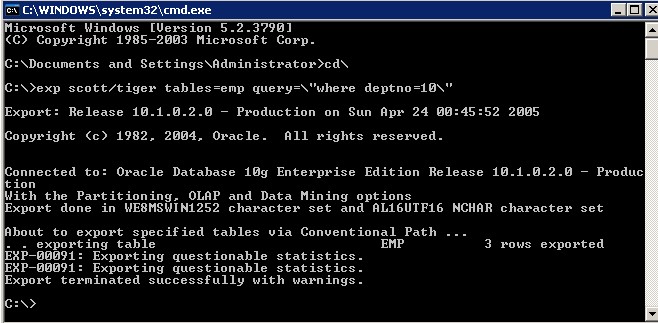
Fig 3 gives the screen shot to export employees of deptno = 10 .
Suppose if you want to export data of employees with salary less than 2000 then the following query can be used.
EXP SCOTT/TIGER FILE= abc.dmp TABLES=emp QUERY=” WHERE SAL < 2000 ”
Note: QUERY parameter is available from Oracle 8i
Import Utility
This utility is used to extract objects (tables etc) from the export file (.dmp file) created using EXP utility.
IMP command can be used to invoke import utility interactively without any parameters. (Which Requests the user to enter the value). Otherwise parameters can be specified in a file called parameter file. We can use more than one parameter file at a time with exp command.
Syntax:
imp username/password PARFILE = filename
(Or)
imp PARFILE = filename
Parameter file is a simple text file creating using any text editor.
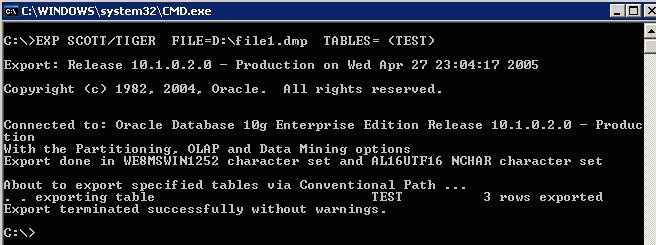
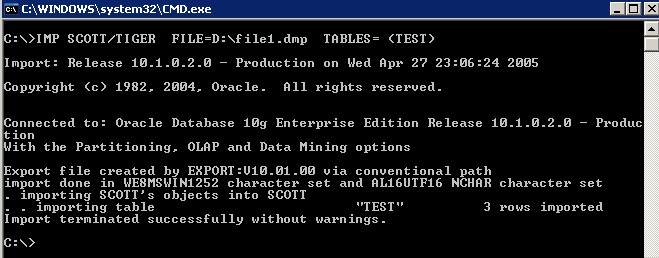
Fig. 4 explains the usage of IMP utility with parameters (non-interactively) in the command-line.
Points to Ponder
It is possible to import dump created using an earlier (version 8.1.7 utility) version can be imported using the later version utility (Version 9.0.1 utility). We should not use later version utilities to export data from earlier database versions. But an earlier utility can be used to export later versions of database. For example you can export data from Oracle9i using 8.1.7 utility and can import that exported file into oracle 8i database using import utility 8.1.7 .
SQL * Loader
It is an Oracle utility used for moving bulk data from external files into the Oracle database. Data from any text file can be loaded into database. SQL*Loader reads data from an external file and loads data into an existing table while the Oracle database is open.
SQL*Loader Datatypes: SQL*Loader uses the following datatypes.
1. CHAR
2. DECIMAL
3. INTEGER
SQL*Loader require two input files a control file and another data file. The control file is a text file details the task to be carried out by the SQL*Loader. It tells the SQL*Loader where data is available how to parse and interpret it also where to insert it. The data file contains the data to be loaded.
A control file may be vaguely divided into 3 sections
1.First section contain INFILE clause in this we specify where input data is located.
2. The second section have INTO TABLE block that details the table and column names into which data is stored.
3. Third section is optional, If present it contain input data.
SQL* Loader assumes that data in data file is organized as records. Based on the record type data files could be categorized into
Fixed record files: All the records are of same(fixed) length
Variable record files: Records are of varying length and Streamed record files.
Note: If the data is specified in the control file, then we write INFILE * and the data is treated as streamed record format and the records separated by default record terminator.
Examples
The following example explains how to load data from file with fixed record format.
Creating Control File
Using DOS editor or notepad editor you can create data file as shown below.
LOAD DATA
INFILE ‘mydata1.dat ‘ “fix 18”
fields terminated by ‘,’
(sno ,sname , course )
Save this file under the name myctrl1.ctl into the current directory.
Creating Data File
In the DOS editor or Notepad you can create data file as shown below.
1001,RAJAN, ASP,
1002,KISHAN, J2EE,
1003,PRABHU, JSP,
1004,PRANAY, ORACLE,
1005,JOHN, APPS,
1006,MARTIN, ORACLE
Save the above content as file with the name “mydata1.dat”
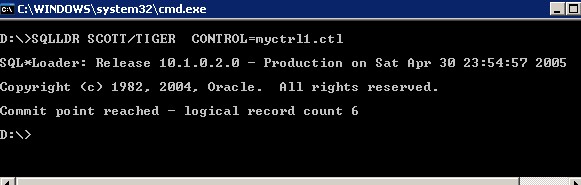
The following figure explains how data can be loaded into a table. The data loaded here is of fixed-length records
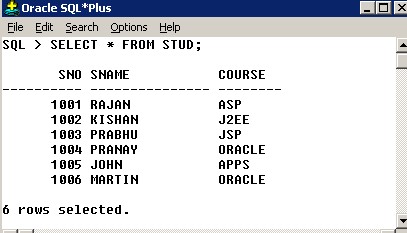
To cross check whether loading was proper we execute simple SELECT statement as given below.
For More examples follow the links below.
http://www.pafumi.net/sql_loader.htm
http://www.oracleutilities.com/OSUtil/sqlldr.html

